

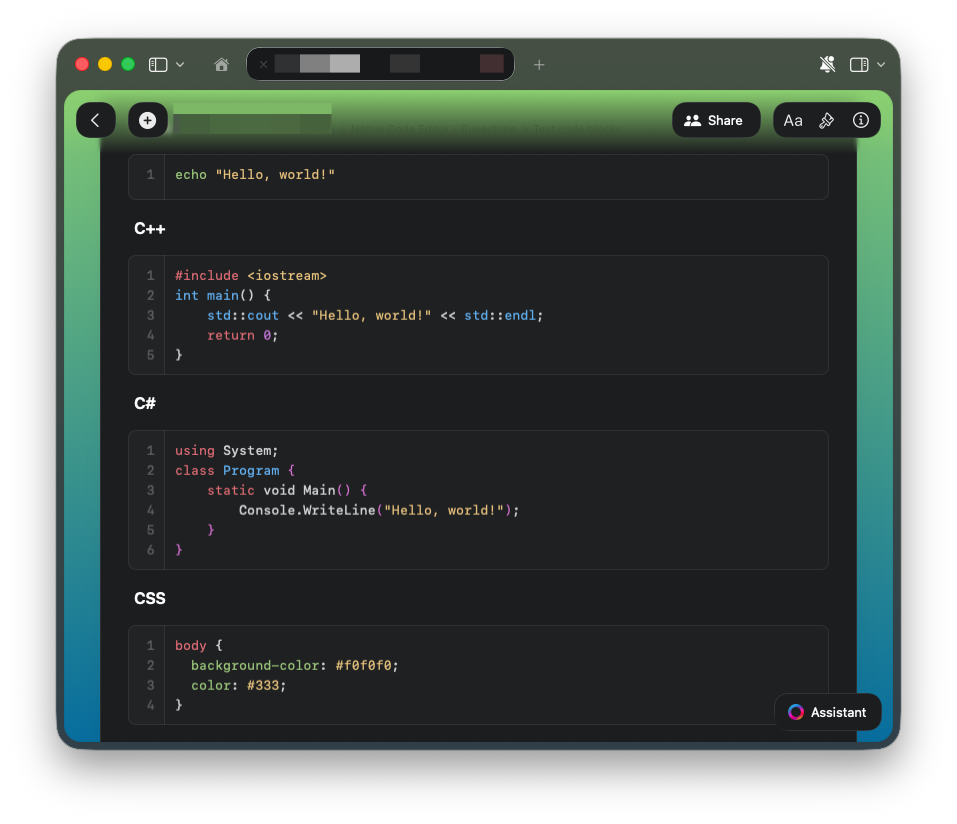
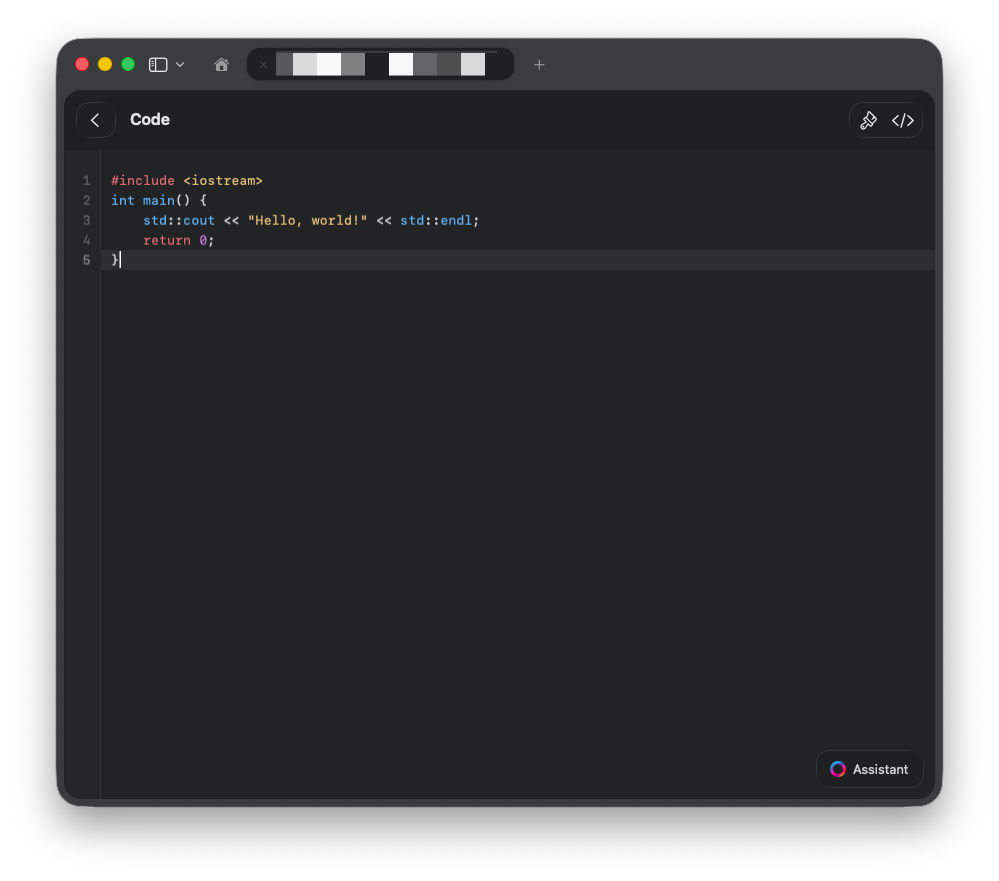
Inserting a Code Block
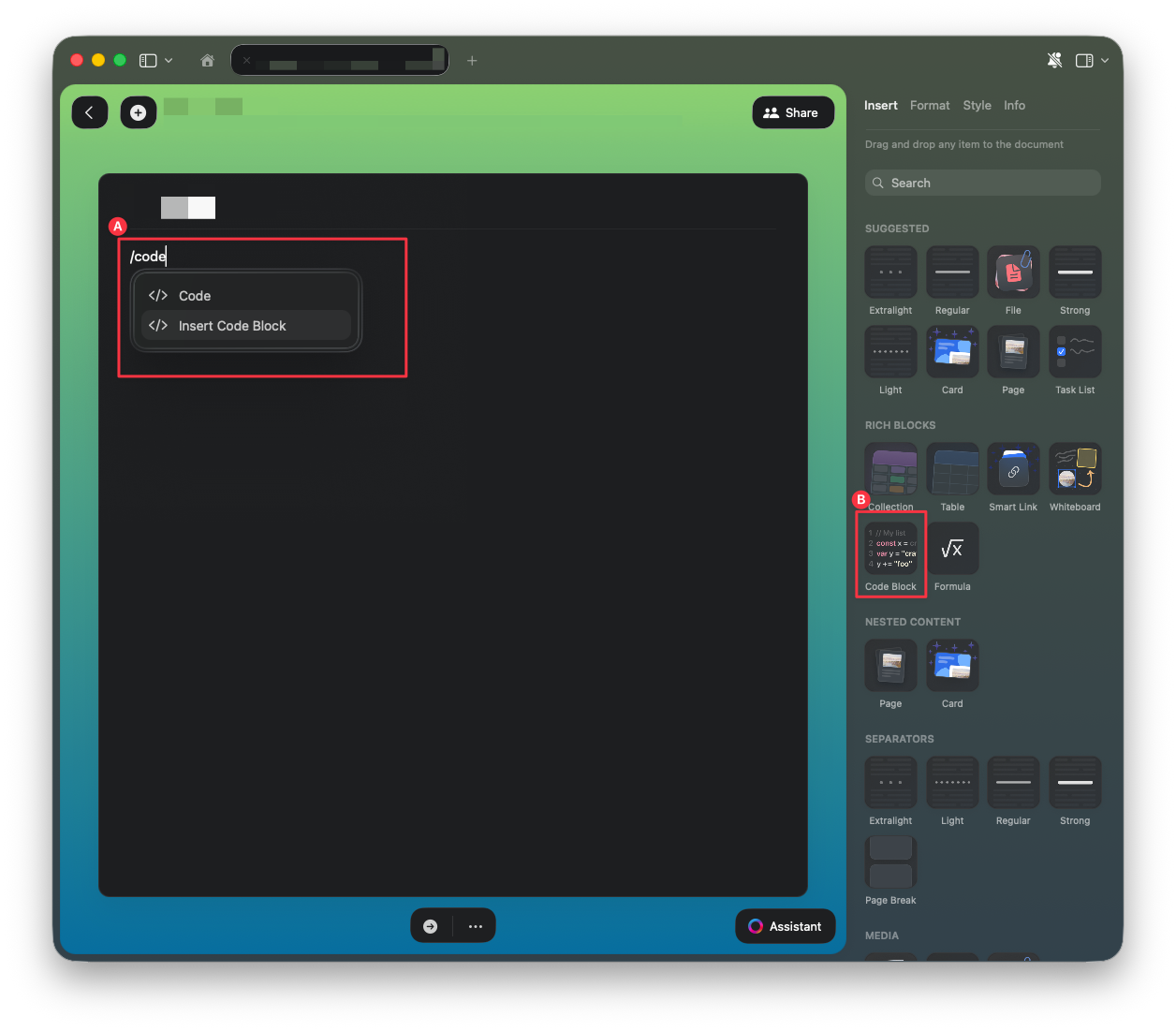
Add a code block anywhere in your document using one of these methods:- Type
/codeand select Insert Code Block - Choose Code Block from the Insert menu in the right sidebar
- Type three backticks
```to insert a code block
Changing the Language
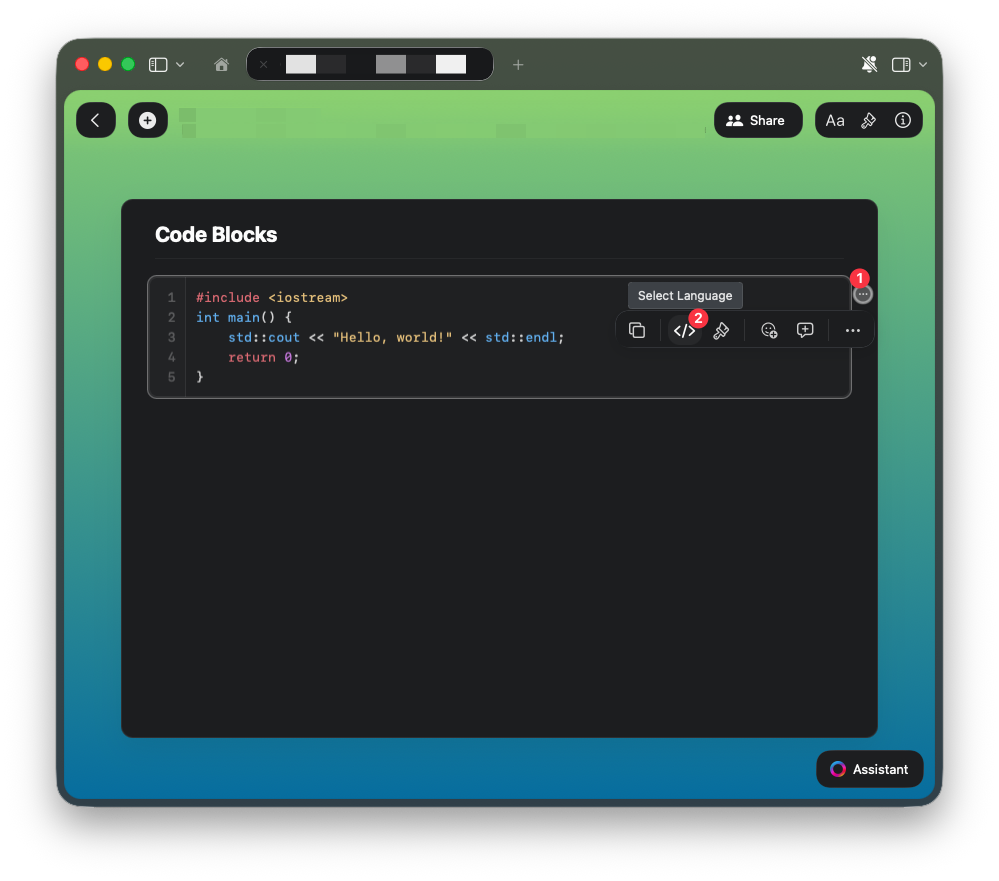
Set the programming language for proper syntax highlighting:1
Click on the three-dot menu (⋯) at the top right corner of the block.
2
Click on Select Language (the coding icon).
3
Choose a different language from the list.
4
Highlighting updates immediately for supported languages.
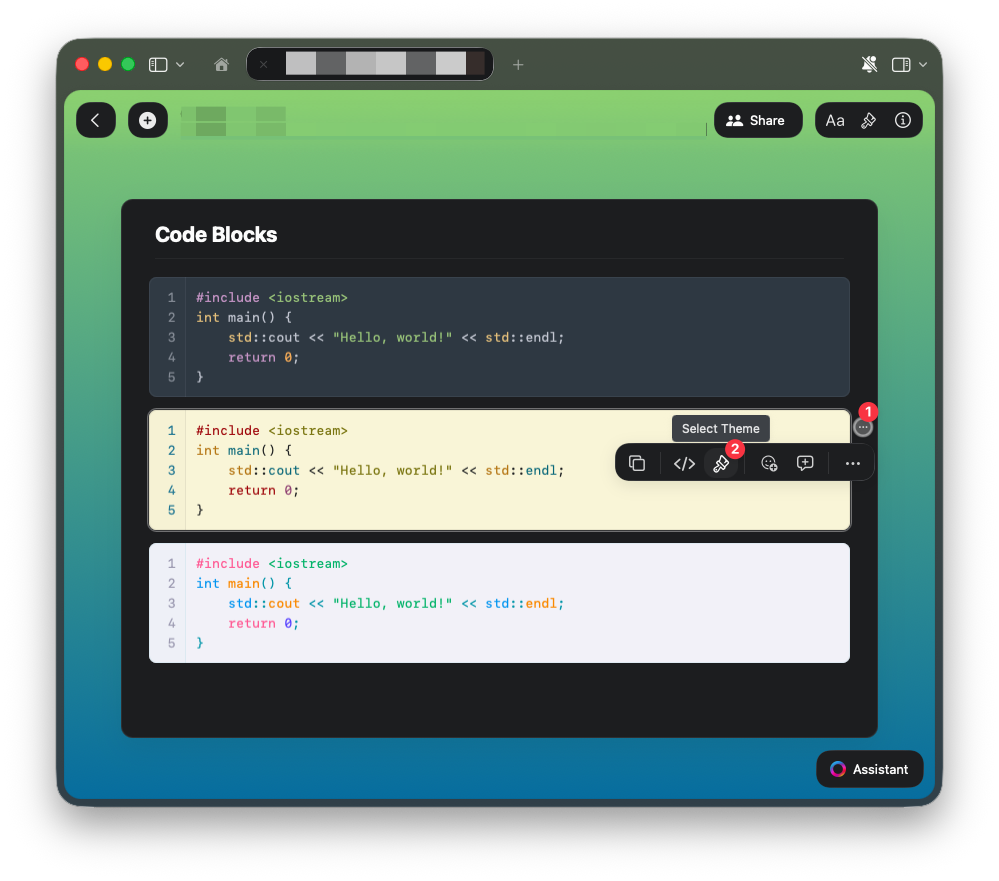
Customizing the Theme
Change the visual appearance of your code blocks:1
Click on the three-dot menu (⋯) at the top right corner of the block.
2
Click on Select Theme (the brush icon).
3
Choose your preferred theme from the list.
Key Features
Craft’s updated Code Editor includes several improvements:- Craft AI Assistant integration - Work on your code directly with AI
- Full screen mode - Focus on code without distractions
- No character limit - Long code samples are fully supported
- Line wrapping - Better readability for long lines
- Improved stability - Past issues with disappearing code blocks resolved
- Clean, redesigned full-screen mode - Enhanced experience on Mac
Limitations
The Code Editor is still evolving. Keep these behaviors in mind:- Math formulas: You cannot convert a code block into a math formula using the language selector. Math formulas must be inserted explicitly using
/formulaor the Insert sidebar. See Math Formulas for details. - Fixed height: Code blocks in the document view have a fixed height and do not scroll. This prevents conflicts between page scrolling and block scrolling.
- No syntax highlighting for these languages: Ada, Dart, Haskell, Julia, Matlab, Objective-C, Perl, Prolog, Scala, VB.NET
- No auto-complete: Code auto-complete features (like automatically adding closing tags) are not supported, as they’re not part of Runestone, the basis for our Code Editor.
- Performance on older devices: Performance may be affected on less powerful devices if many code blocks are added to the same page, although overall performance has been significantly improved.
- Spellcheck: Spellcheck behavior is controlled by Safari or system settings, not by Craft.
The Craft AI Assistant can work directly with your code blocks, helping you debug, explain, or refactor code without leaving your document.