

Accessing daily notes
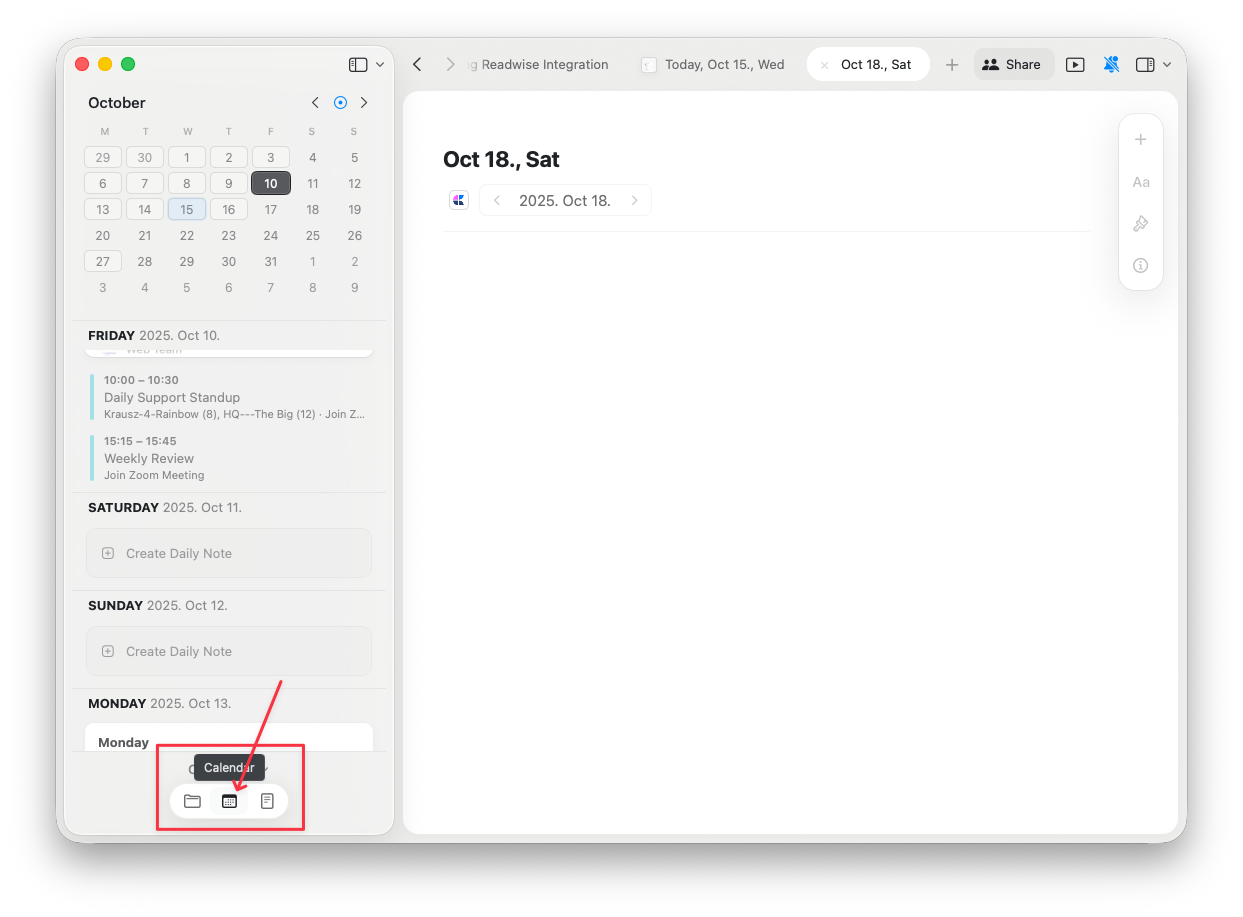
Daily notes can be accessed through the Calendar view in the sidebar. Select a date to view or create the daily note for that day.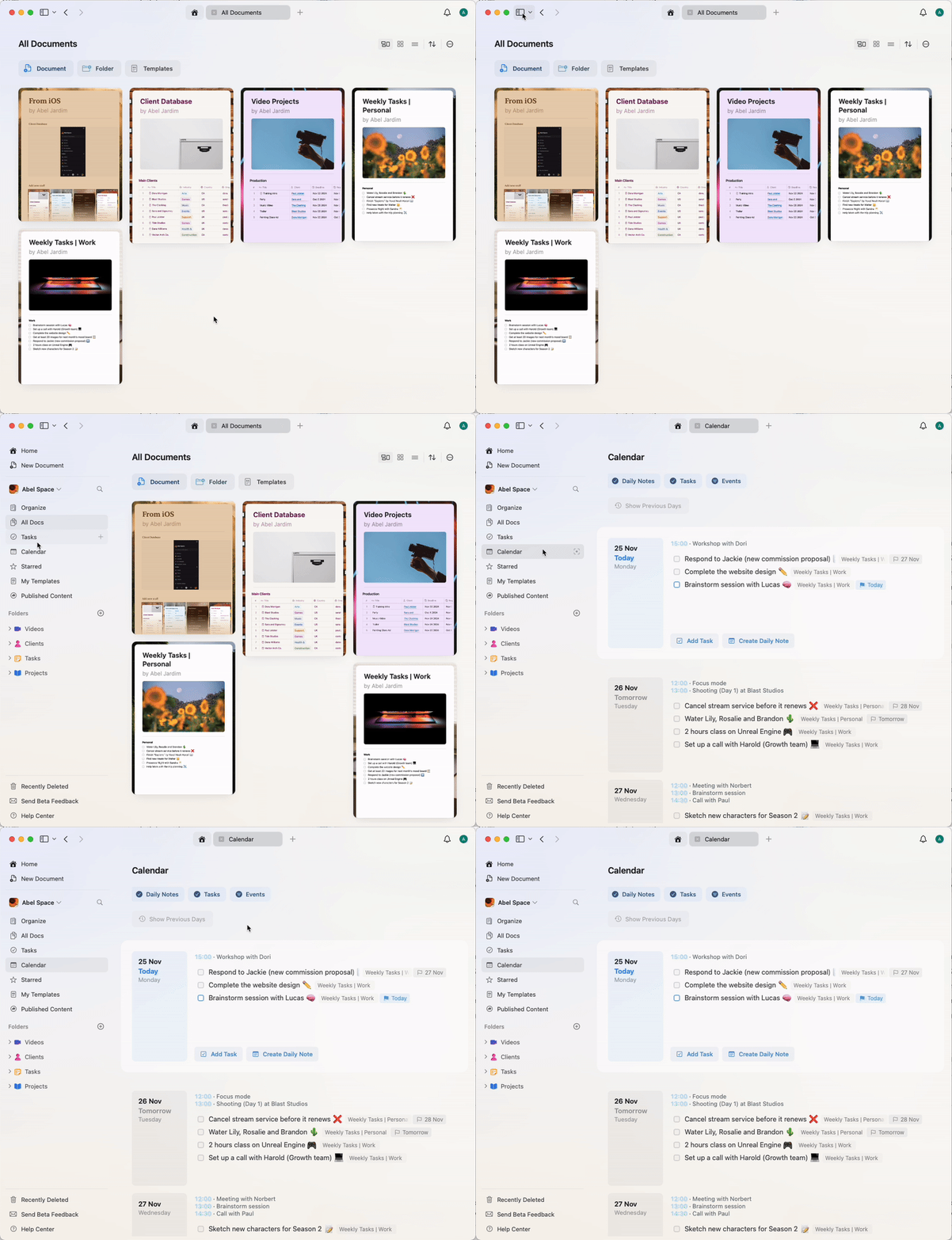
Using templates with daily notes
You can use templates to give your daily notes a consistent structure, such as a daily routine, recurring sections, or a planning format. There are two ways to do this: set a default template that is applied to every new daily note, or insert a template into a single daily note manually.Set a default daily note template
On macOS, iPadOS, and iOS, you can pick one template that is applied to every new daily note.1
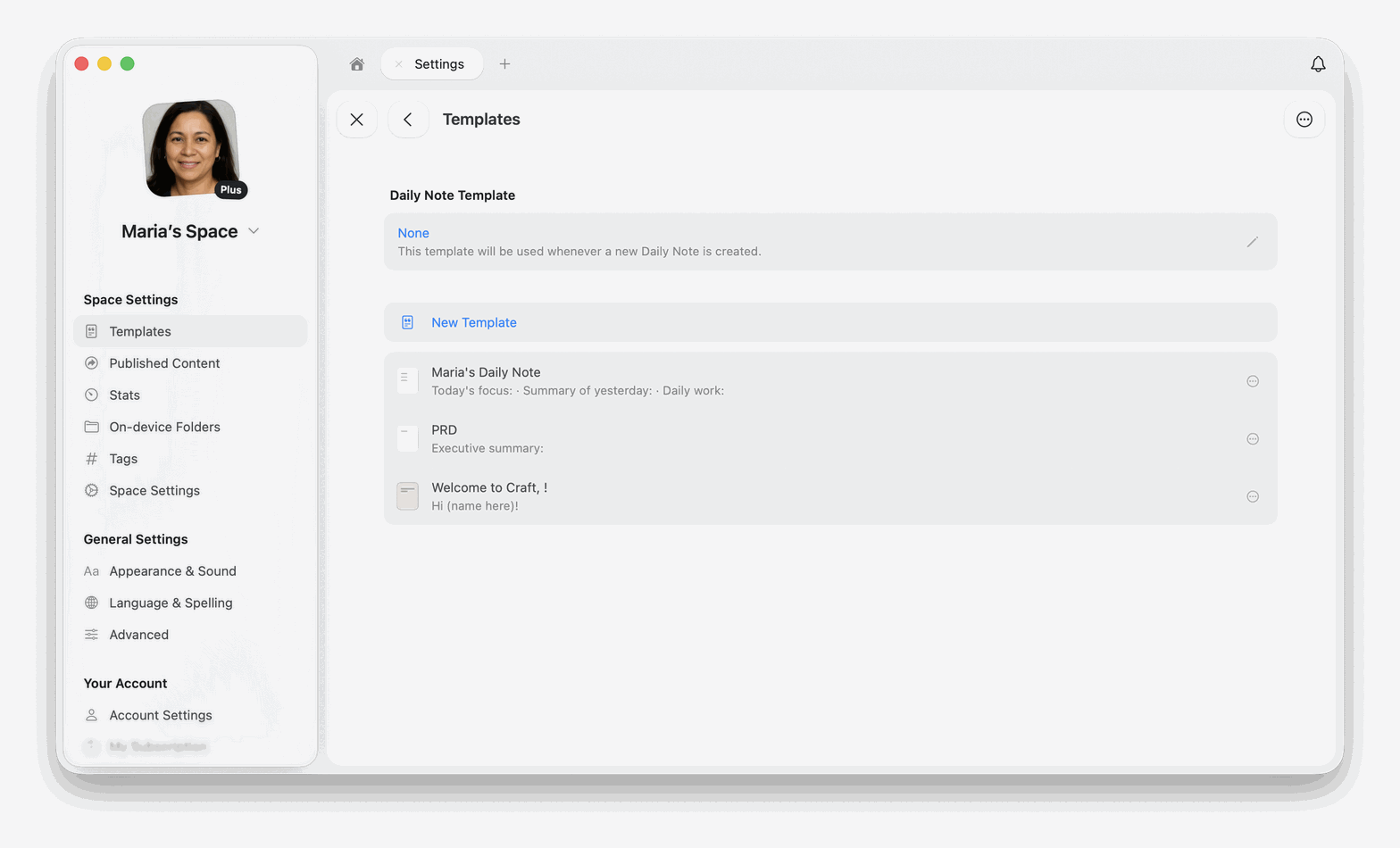
Open Settings, then select Templates under Space Settings
2
Select the row under the Daily Note Template heading at the top of the page. It shows None until you pick a template
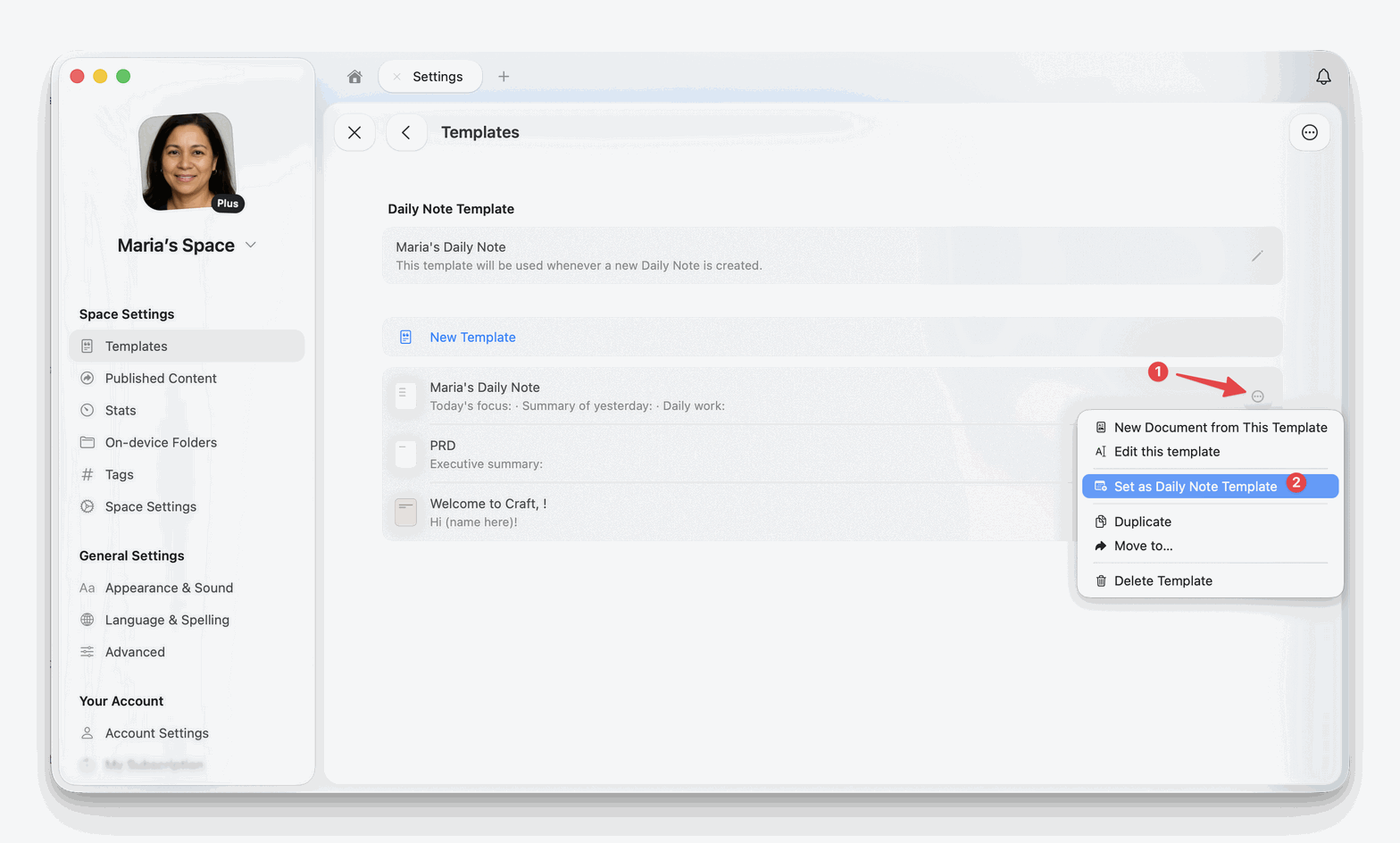
3
Pick a template from the list
Clear the default daily note template
Right-click the row under Daily Note Template (long-press on iPhone and iPad), then select Clear Daily Note Template. This option appears only when a template is set.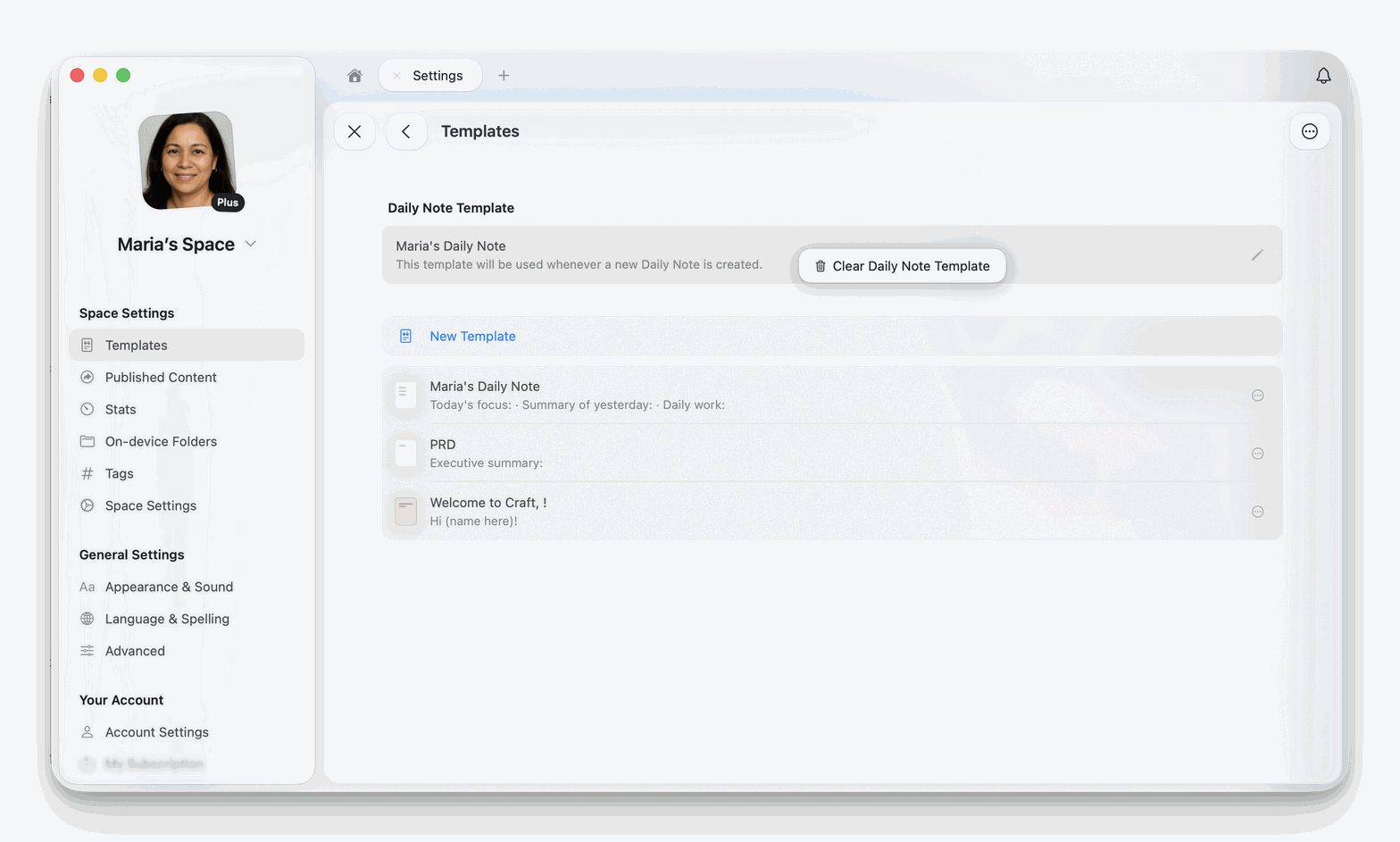
Insert a template manually
A daily note is a document, so you can insert a template into one the same way you would in any other document. Use this when a single day needs a structure, such as a trip plan or a workshop agenda, and you do not want every daily note to look that way.1
Open the daily note for the date you want
2
Type
/template, then select the template to insert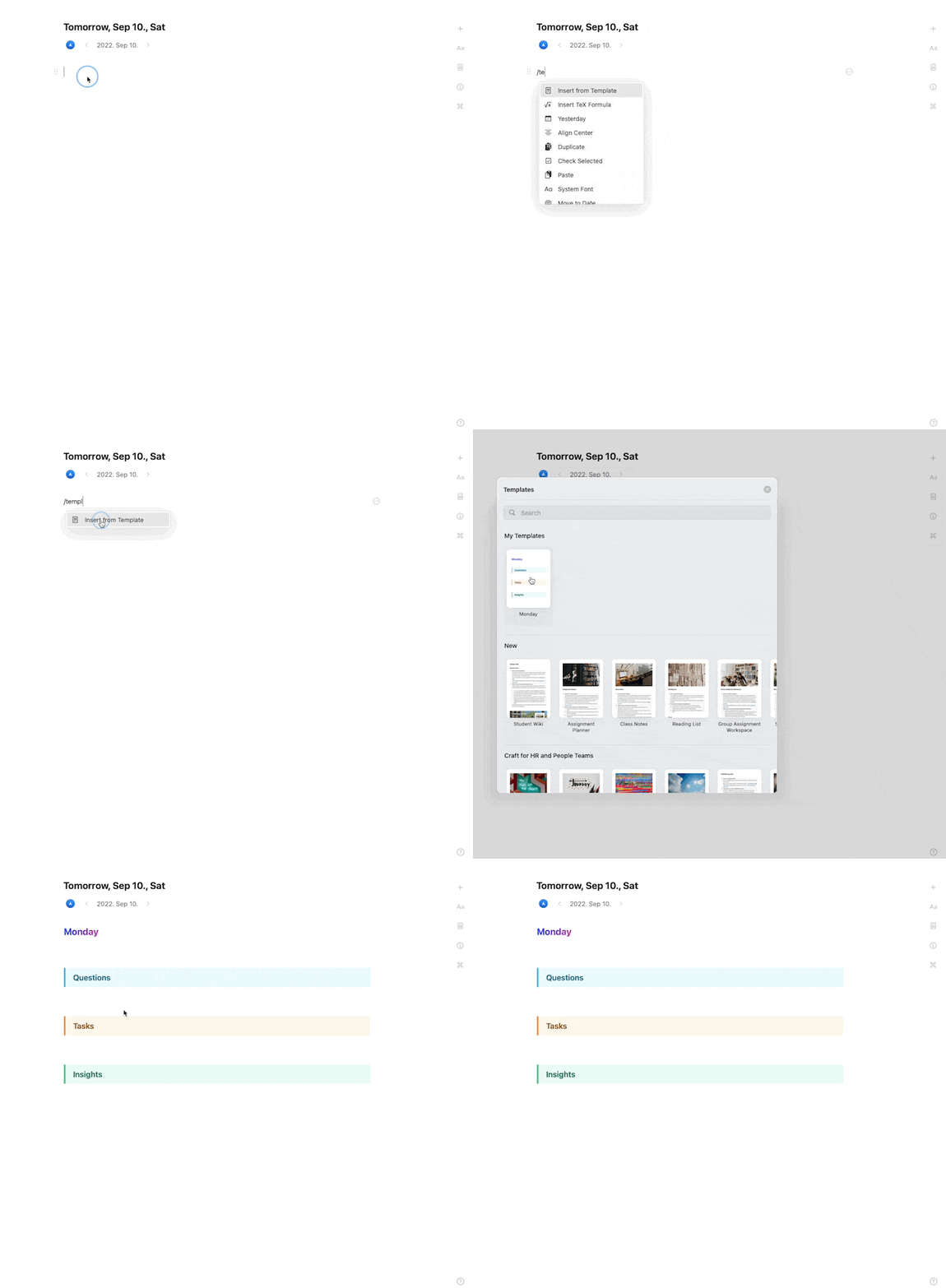
Common sections are Today’s Goals, Notes, and Reflections.
Organizing daily notes
Daily notes are automatically organized in chronological order. You can:- Navigate between days: Use the calendar view to jump to any date
- Add subpages: Create event notes or meeting notes as subpages of your daily note
- Link between days: Reference previous or future daily notes using the
@mention to link to other dates
Event notes as subpages
When you create event notes from your calendar integration, they are automatically added as subpages under the corresponding daily note.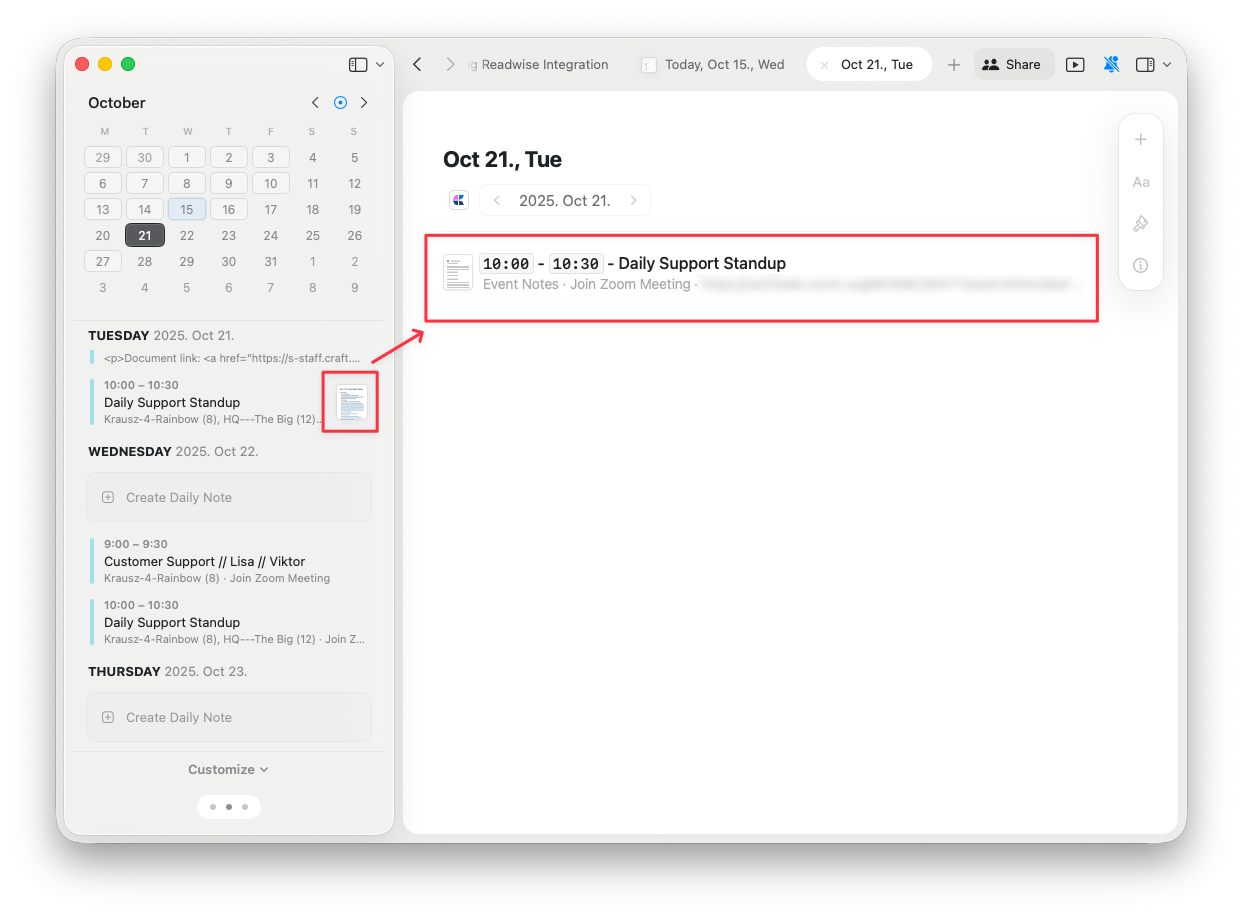
Daily notes in the Calendar view
In the Calendar view, daily notes appear alongside your tasks and events:- Tasks: See all scheduled tasks for the day
- Events: View synced calendar events
- Daily Note: Access your daily note to capture thoughts and plans
Best practices for daily notes
Morning planning
Start your day by opening your daily note and:- Review your scheduled tasks
- Check calendar events
- Write down key priorities
- Add any quick capture items from the night before
Throughout the day
Use your daily note to:- Capture meeting notes as subpages
- Add quick thoughts and ideas
- Update task status
- Document decisions and learnings
Evening reflection
End your day by:- Reviewing what you accomplished
- Moving incomplete tasks to future days
- Writing reflections or learnings
- Planning for tomorrow
Related articles
Calendar
View your daily notes, tasks, and events all in one place
Tasks
Manage tasks across your documents with a centralized hub
Templates
Create reusable structures for your documents
Calendar Integration
Connect Apple Calendar to view events in your daily notes
Blocks and Pages
Learn how subpages work with daily notes and event notes