

Adding a Sketch Block
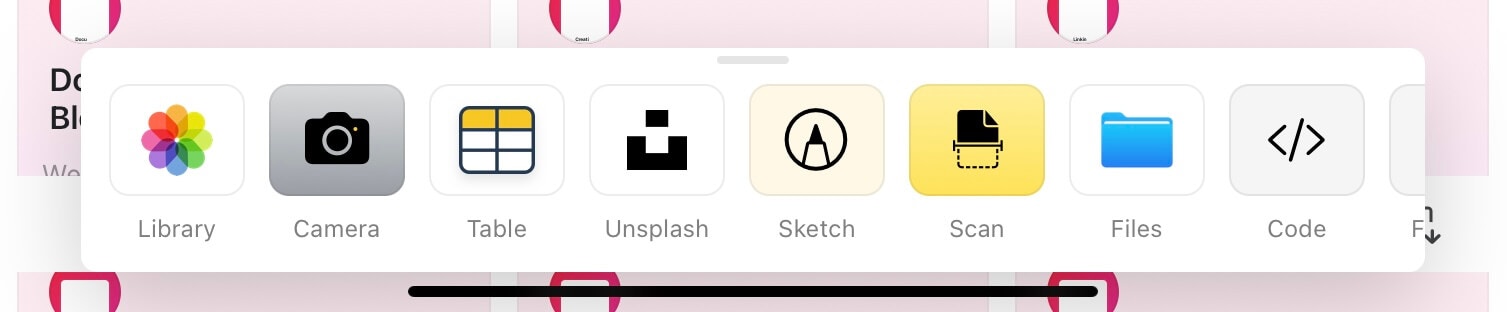
Access the Sketch block through the plus menu on iOS and iPadOS.1
Tap the + icon on the bottom of the screen.
2
Browse the list of available block types.
3
Select Sketch to add a drawing block.

Drawing Tools
The Sketch block provides several tools for creating drawings:- Pencil – Create precise lines and drawings
- Highlighter – Add emphasis with semi-transparent strokes
- Eraser – Remove parts of your sketch
- Color options – Choose from multiple colors for your drawings
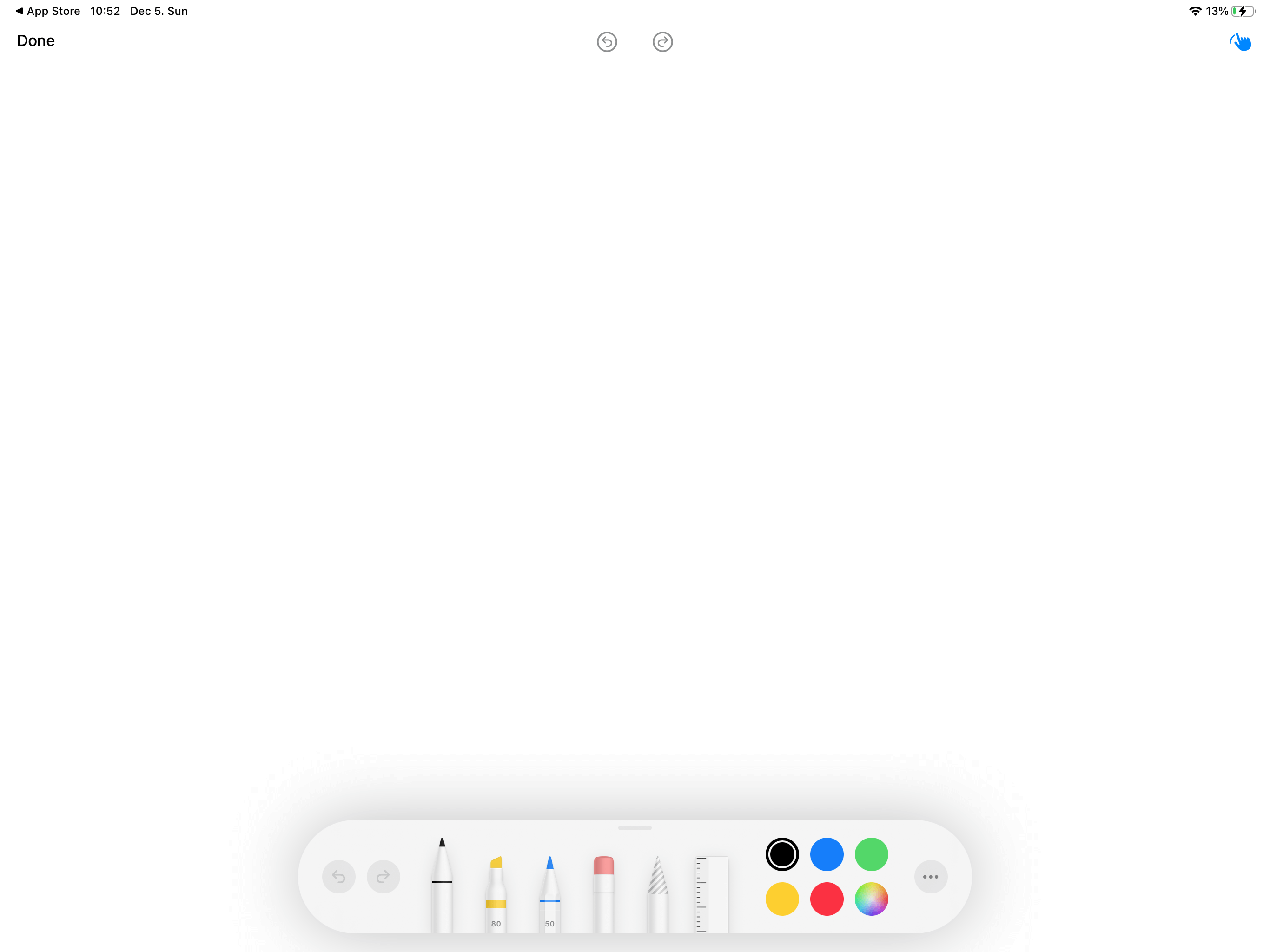
The Sketch block fully supports Apple Pencil on iPad, providing pressure sensitivity and precision for more detailed drawings.
Saving Your Sketch
After creating your drawing, make sure to save your changes.1
Tap the Done button when you finish drawing.
2
Select Save Changes to preserve your sketch.
Use Cases
Sketch blocks are perfect for:- Quick annotations – Mark up images or highlight important points
- Diagrams and flowcharts – Create simple visual representations
- Handwritten notes – Add personal touches to your documents
- Brainstorming – Quickly capture visual ideas
- Signatures – Sign documents directly in Craft
Scribble: Handwriting to Text
On iPad running iPadOS 14 or later, you can use Scribble to convert your handwritten notes into typed text. Scribble uses handwriting recognition to automatically transcribe what you write with your Apple Pencil.If Scribble is enabled in your iPad settings, simply start writing with your Apple Pencil anywhere in your document. Your handwriting will automatically convert to typed text.
Enabling Scribble
To use Scribble in Craft, make sure it’s enabled on your iPad:1
Open Settings on your iPad
2
Go to Apple Pencil
3
Toggle on Scribble
The Sketch feature is currently available on iPhone and iPad. Scribble requires iPadOS 14 or later and an Apple Pencil. For more advanced diagramming on Mac, consider using the Whiteboard feature.