

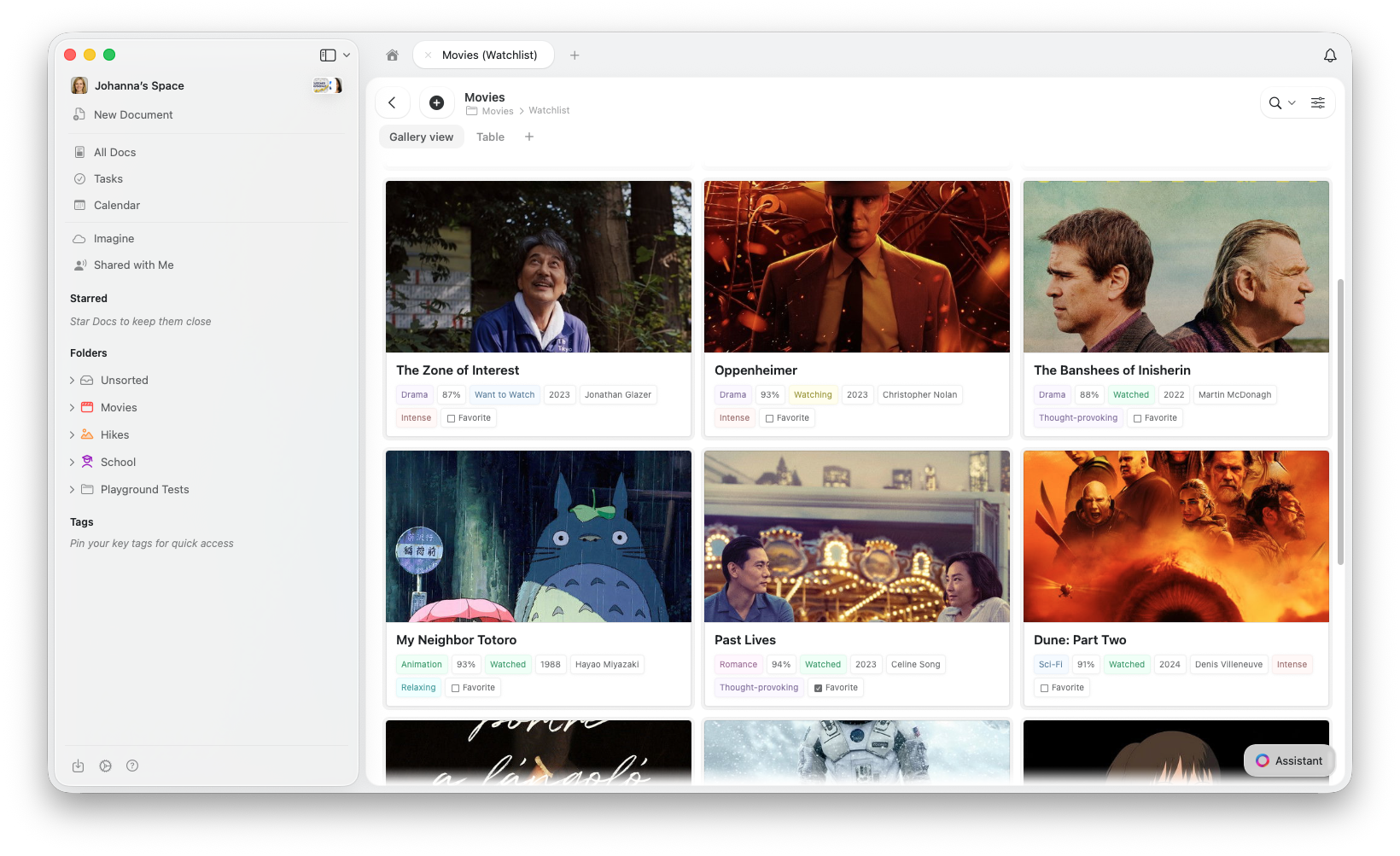
Gallery View vs. Outras Visualizações
Todas as visualizações compartilham os mesmos dados, e alternar entre elas nunca exclui nem modifica suas entradas.Criar uma Gallery View
1
Clique no botão + ao lado das abas de visualização no topo da sua Collection
2
Selecione Add Gallery View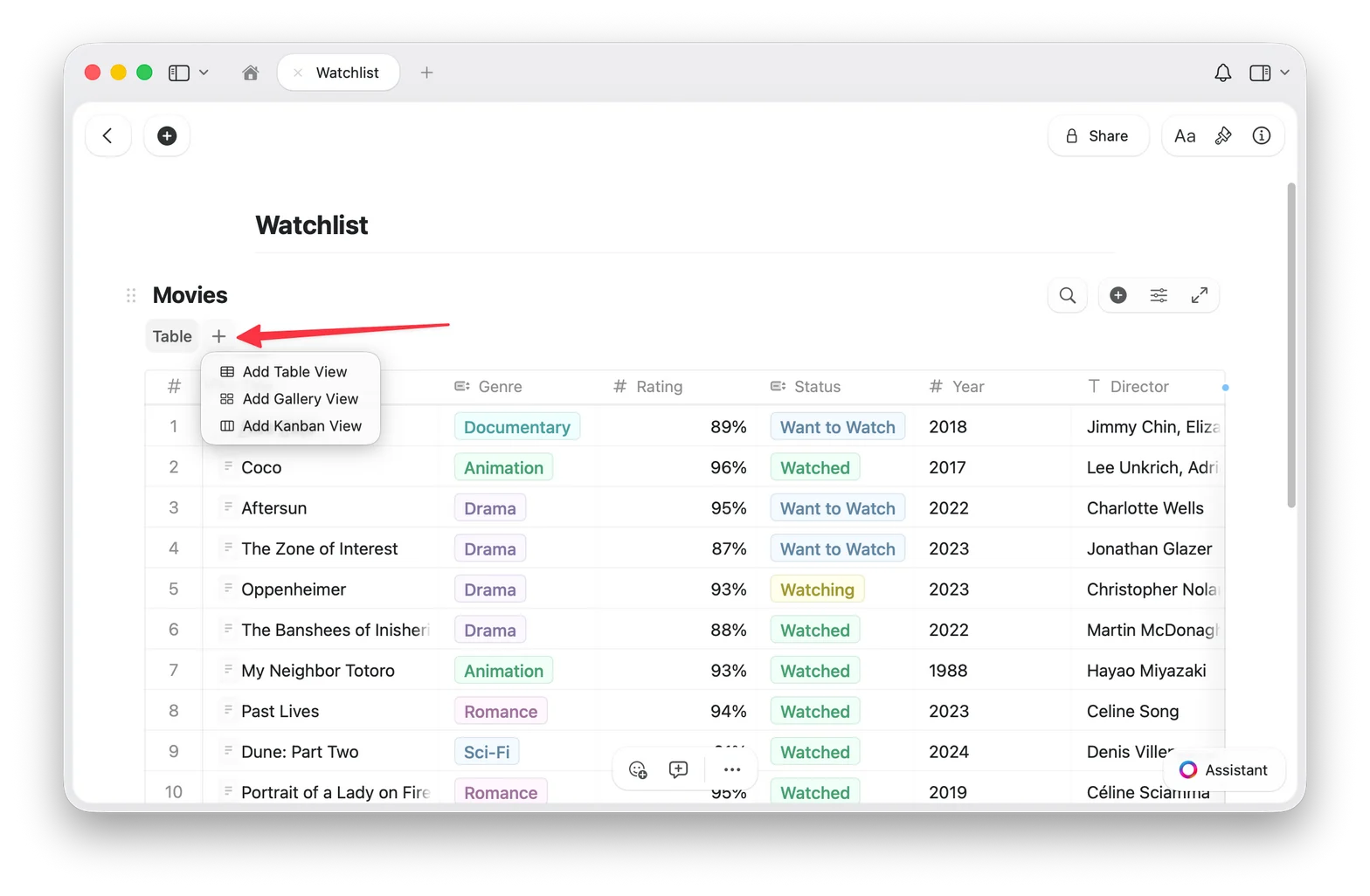
3
Sua nova Gallery View aparece como uma aba no topo da Collection
Voltar para Table View
Se você tem várias visualizações, clique na aba Table no topo da sua Collection. Se você tem apenas uma Gallery View, use o menu de configuração (⋯) para adicionar uma Table View. Seus dados estão sempre seguros, e trocar de visualização nunca altera suas entradas.Tipos de pré-visualização
A Gallery View obtém as imagens de pré-visualização do conteúdo dentro da página de cada entrada. Para adicionar uma imagem à pré-visualização de um cartão, abra a entrada e adicione um bloco de imagem ao seu conteúdo. Você pode controlar como a área de pré-visualização de cada cartão é exibida:- Document (padrão): mostra uma pré-visualização do conteúdo da página da entrada
- Fill: preenche a área de pré-visualização do cartão com a imagem da entrada
- Immersive: usa a imagem como plano de fundo completo do cartão
- Sem pré-visualização: oculta completamente a área de pré-visualização, mostrando apenas propriedades
Tamanhos de cartão
A Gallery View oferece dois tamanhos de cartão:- Small: grade compacta, mais cartões visíveis de uma vez
- Large: pré-visualizações maiores, menos cartões por linha
Gallery Options
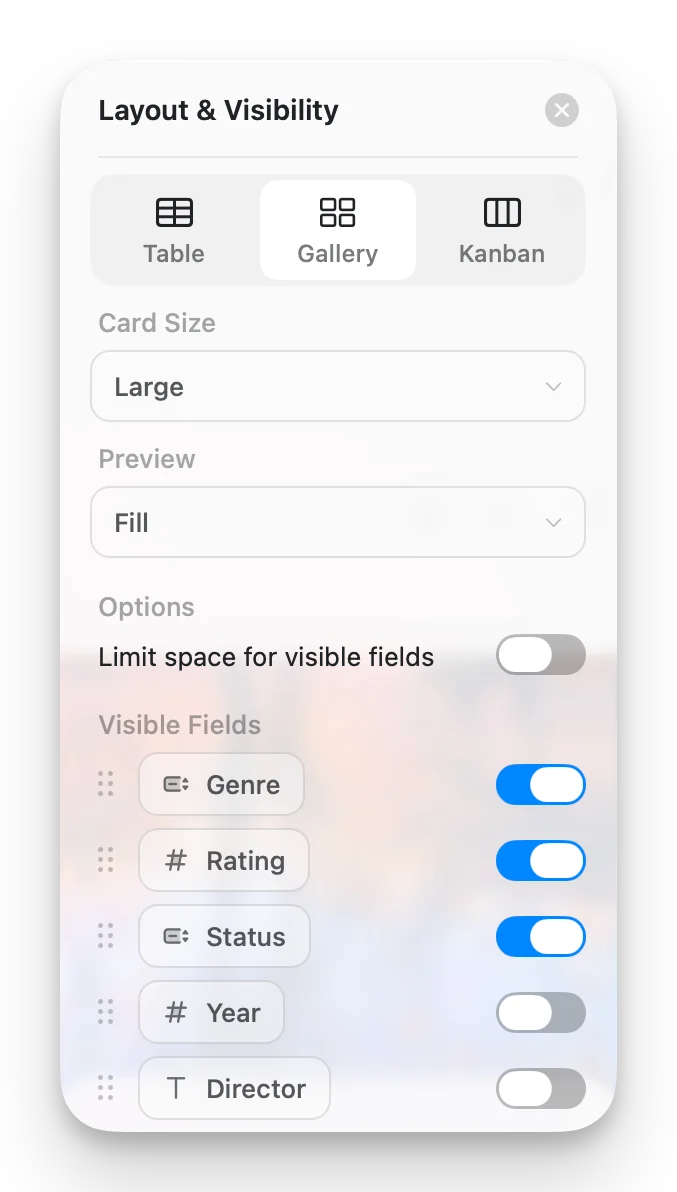
Acesse as Gallery Options pelo menu de configuração (⋯) para personalizar sua visualização:- Card Size: Small ou Large
- Preview: Document, Fill, Immersive ou Sem pré-visualização
- Limit visible fields: quando ativado (padrão), os cartões mostram um número limitado de propriedades com um indicador “+n” para as demais. Desative para exibir todos os campos habilitados em cada cartão.
- Fields: escolha quais campos aparecem em cada cartão e alterne sua visibilidade
Trabalhando com cartões da Gallery
- Abrir uma entrada: clique em um cartão para abrir sua página completa
- Menu de contexto: clique com o botão direito (Mac) ou toque longo (iOS) para mais opções
- Selecionar cartões: clique para selecionar, Shift+clique para seleção múltipla
Ordenação, filtragem e agrupamento
A Gallery View suporta ordenação, filtragem e agrupamento, as mesmas opções disponíveis na Table View. Galerias agrupadas exibem cabeçalhos de seção entre os grupos de cartões.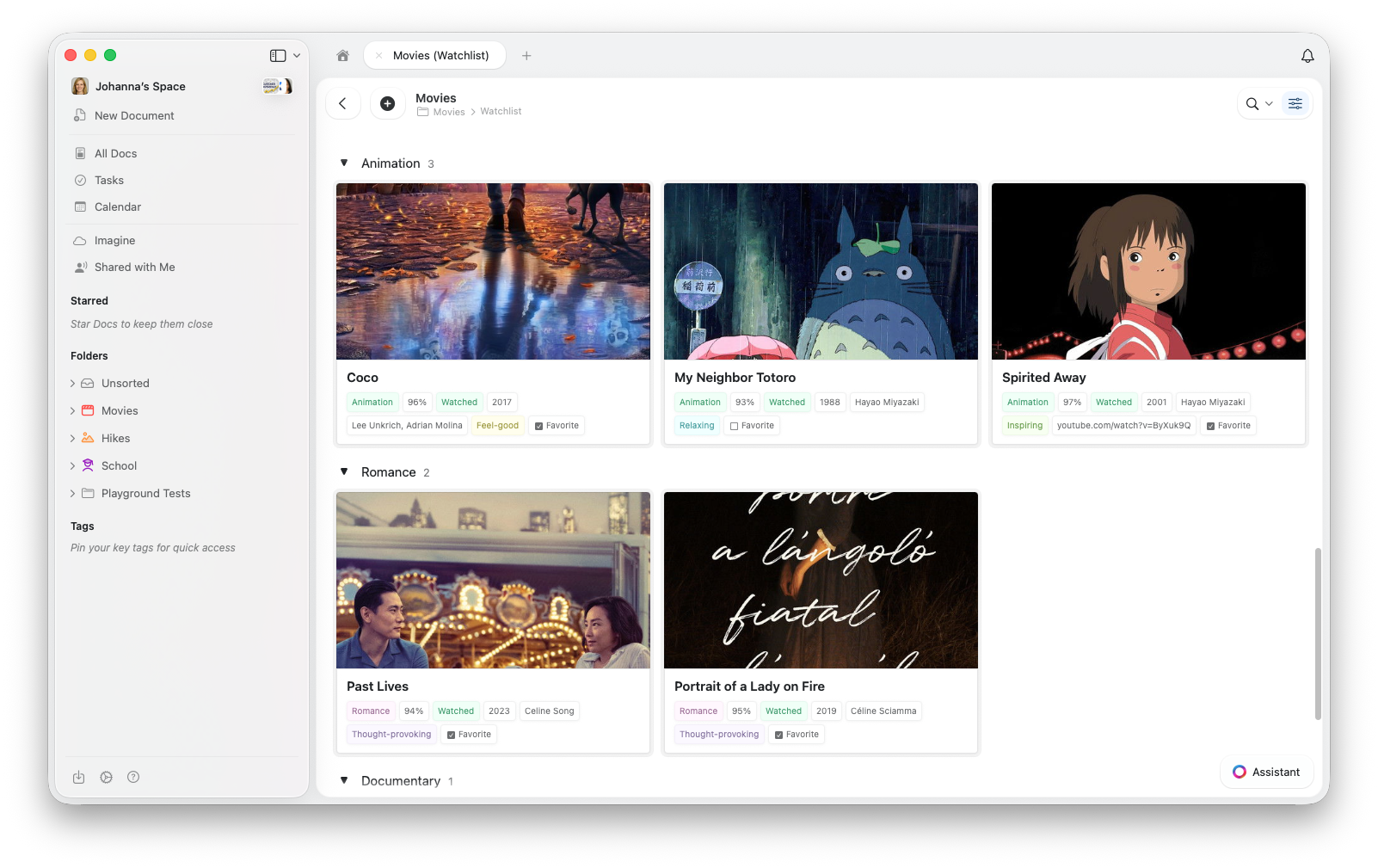
Solução de problemas
Meus cartões não mostram imagens
Meus cartões não mostram imagens
A Gallery View obtém as imagens de pré-visualização do conteúdo dentro da página de cada entrada. Para adicionar uma imagem, clique em um cartão para abrir a entrada e adicione um bloco de imagem ao conteúdo da página.Verifique também a configuração de Preview nas Gallery Options e defina como Document ou Fill.
Não consigo encontrar a opção Gallery View
Não consigo encontrar a opção Gallery View
Certifique-se de que seu aplicativo está atualizado. Verifique atualizações na sua loja de aplicativos ou atualize seu navegador.
A Gallery está lenta com muitas entradas
A Gallery está lenta com muitas entradas
A Gallery View carrega as pré-visualizações de imagens conforme você rola a página. Se o desempenho parecer lento, tente reduzir o número de propriedades visíveis em cada cartão.
Artigos relacionados
Collections
Saiba mais sobre as Collections do Craft e tipos de campo
Collection Views
Crie visualizações com ordenação, filtragem e agrupamento
Visualização Kanban
Organize itens em colunas com arrastar e soltar por status ou qualquer campo de seleção
Reordenar campos e colunas
Personalize a ordem dos campos e colunas nas suas Collections
Usando Collections no iOS
Collections otimizadas para toque no iPhone e iPad