This feature is available on macOS and iOS only. It is not currently available on Web or Windows.
Available providers
When you use a connected provider, the conversation runs through that provider’s API. Craft AI usage quota is not affected.
Connect a provider
1
Open Settings
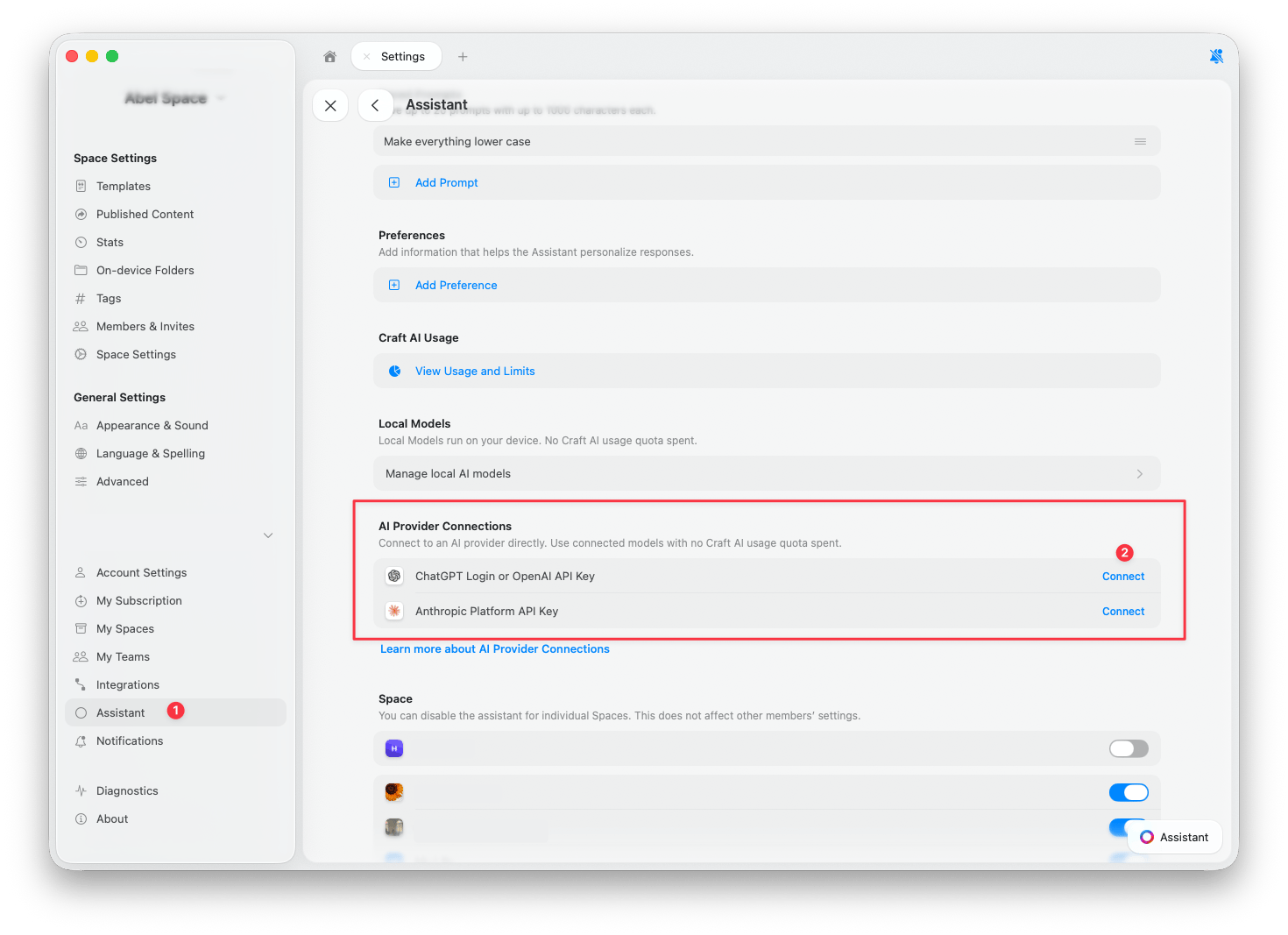
Go to Settings > Assistant.
2
Find AI Provider Connections
Scroll to the AI Provider Connections section.
3
Tap Connect
Tap Connect next to the provider you want to add.
4
Verify the active provider
Open the Assistant panel and check that your new provider is selected. New conversations use the connected provider automatically, but chats that were already open may still be using Craft. See Switch between providers to change it.
Click to enlarge
OpenAI
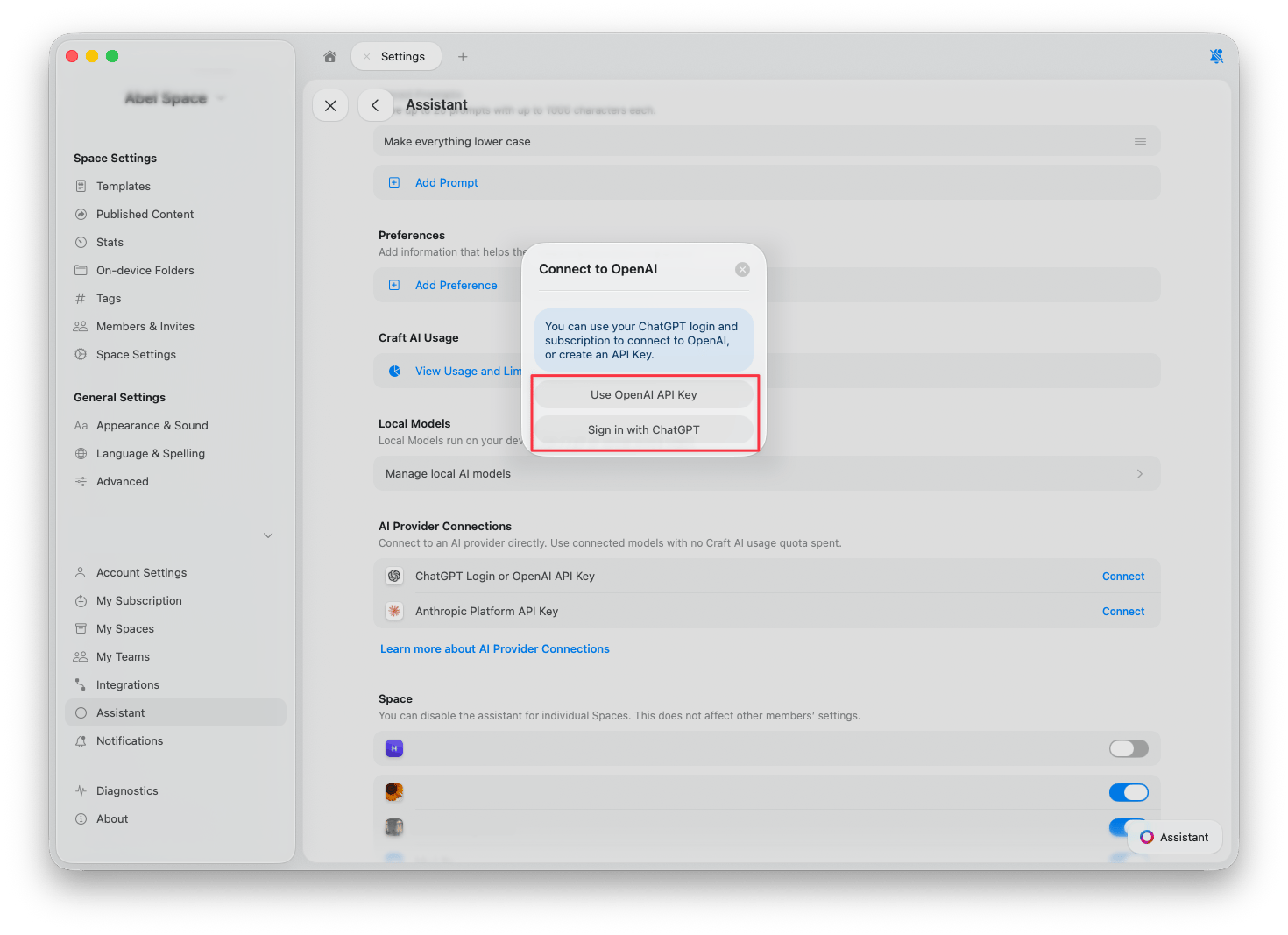
You have two ways to connect OpenAI:- Sign in with ChatGPT — Use your existing ChatGPT account and subscription. No API key needed.
- Use OpenAI API Key — Paste an API key from the OpenAI Platform. Usage is billed to your OpenAI account.
Anthropic
To connect Anthropic, paste an API key from the Anthropic Console. Usage is billed to your Anthropic account.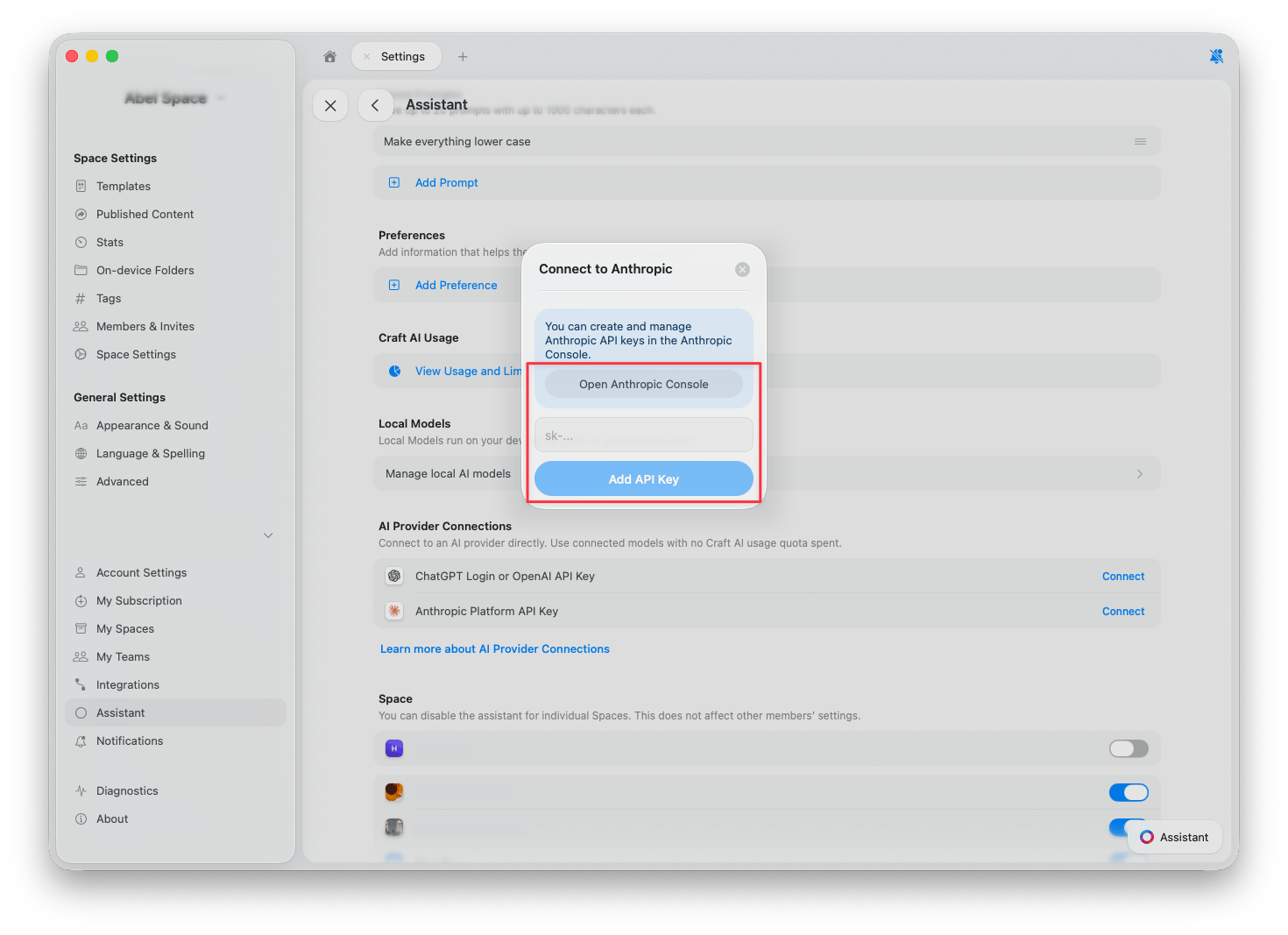
Setapp
If you use Craft through Setapp, no setup is needed. Setapp appears automatically as a provider in the Assistant, and conversations use your Setapp AI credits instead of Craft AI credits. To select it:1
Open the model list
In the Assistant panel, tap the Assistant button below the input field, then choose Model. Models available through Setapp appear in the list. Tap Configure at the bottom of the list.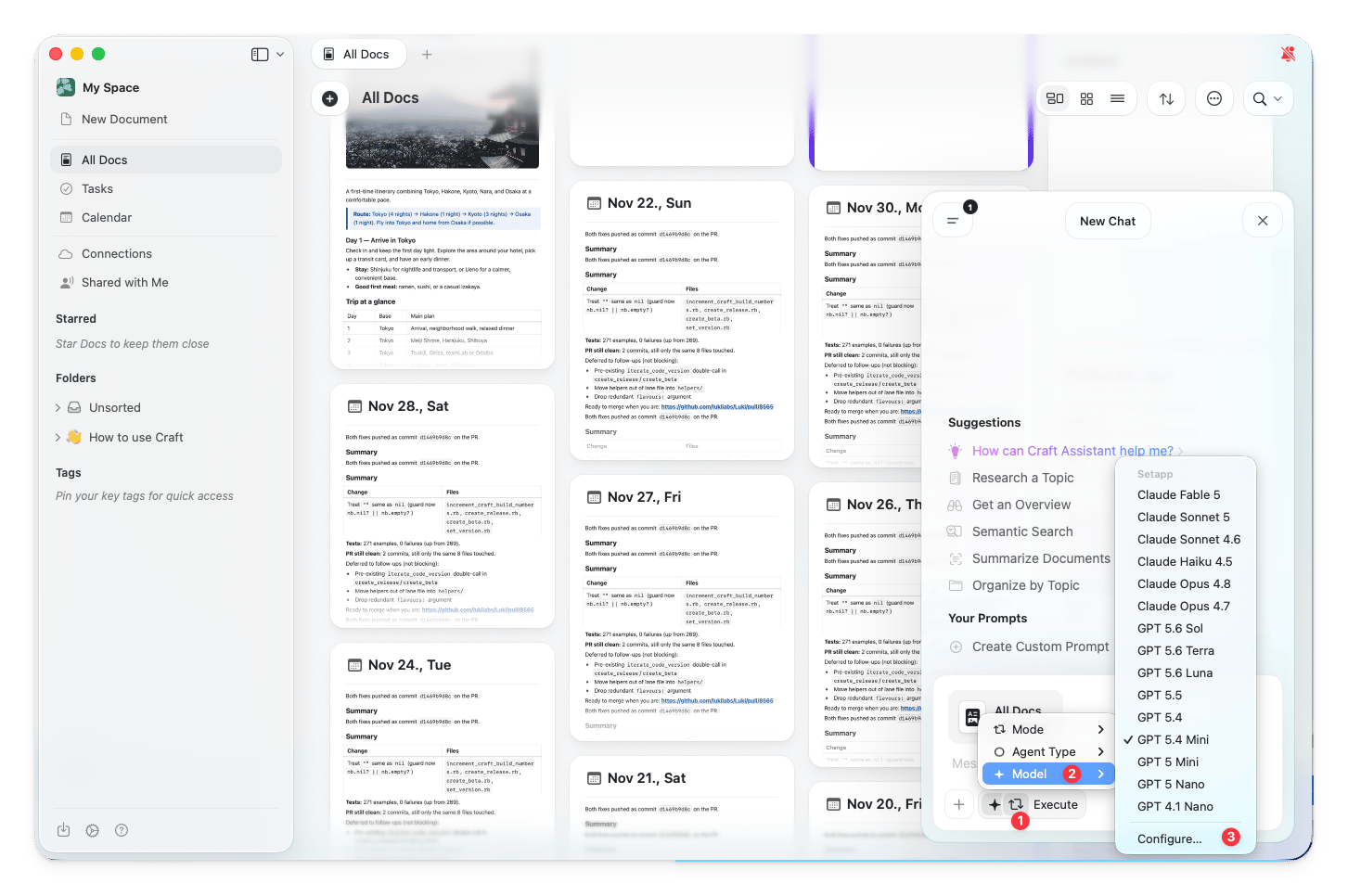
2
Choose Setapp as the provider
In the Configure dialog, open the Provider dropdown and select Setapp.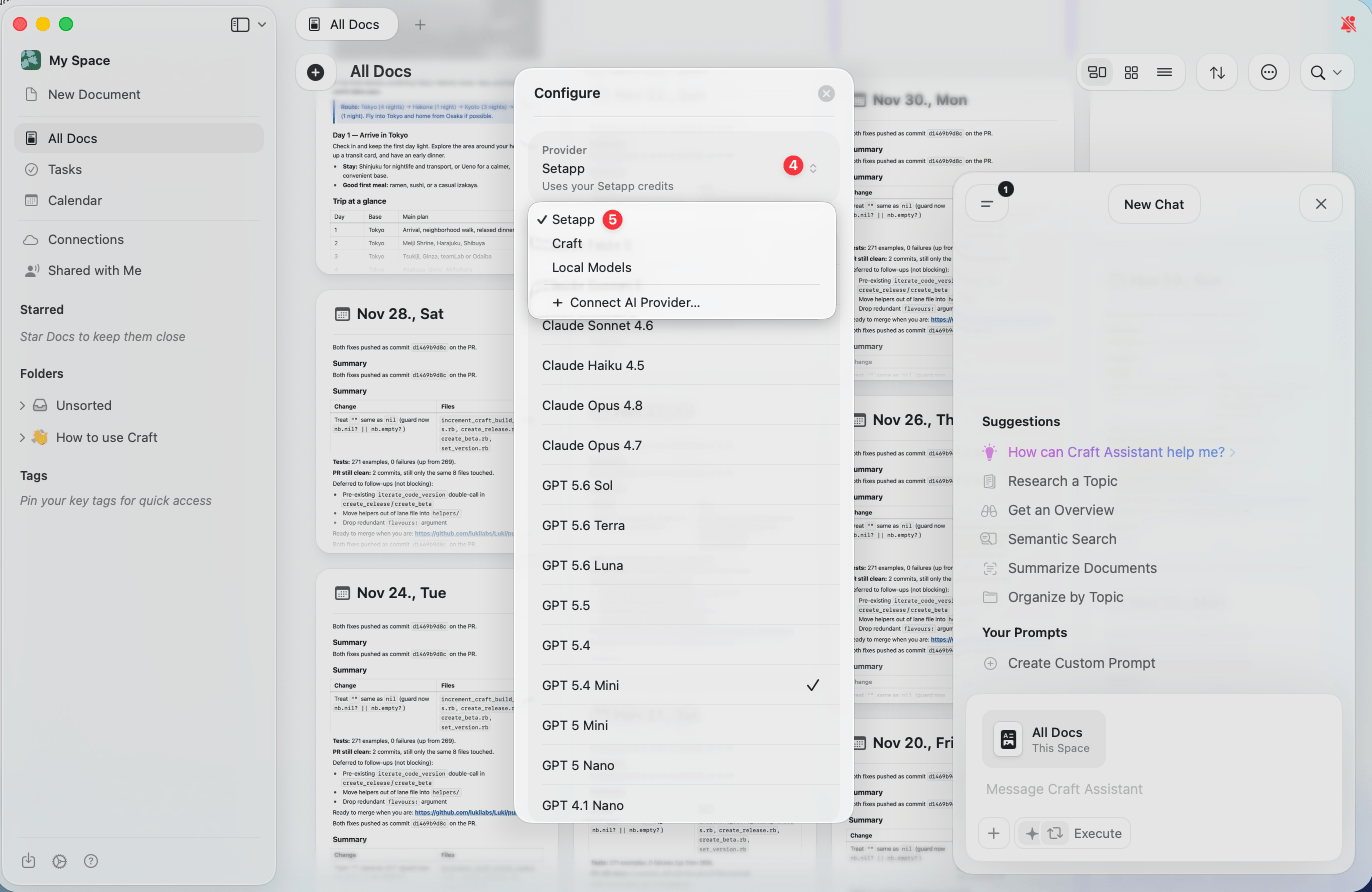
Switch between providers
Once you have connected a provider, you can switch between providers and models directly from the Assistant panel.1
Open the Assistant panel
Open the Assistant from any document or Space view.
2
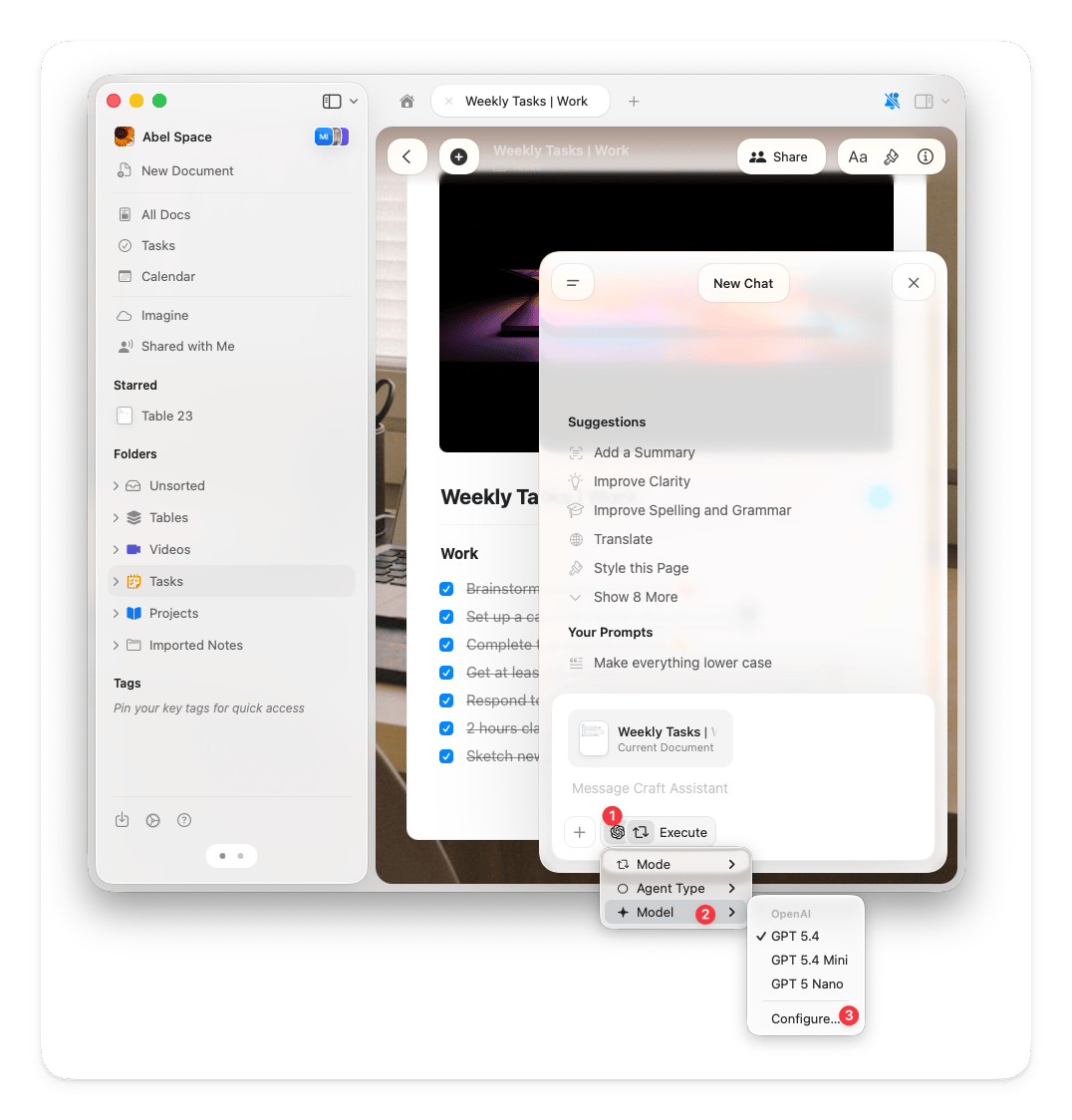
Tap the Assistant button
Below the input field, tap the Assistant button.
3
Select Model
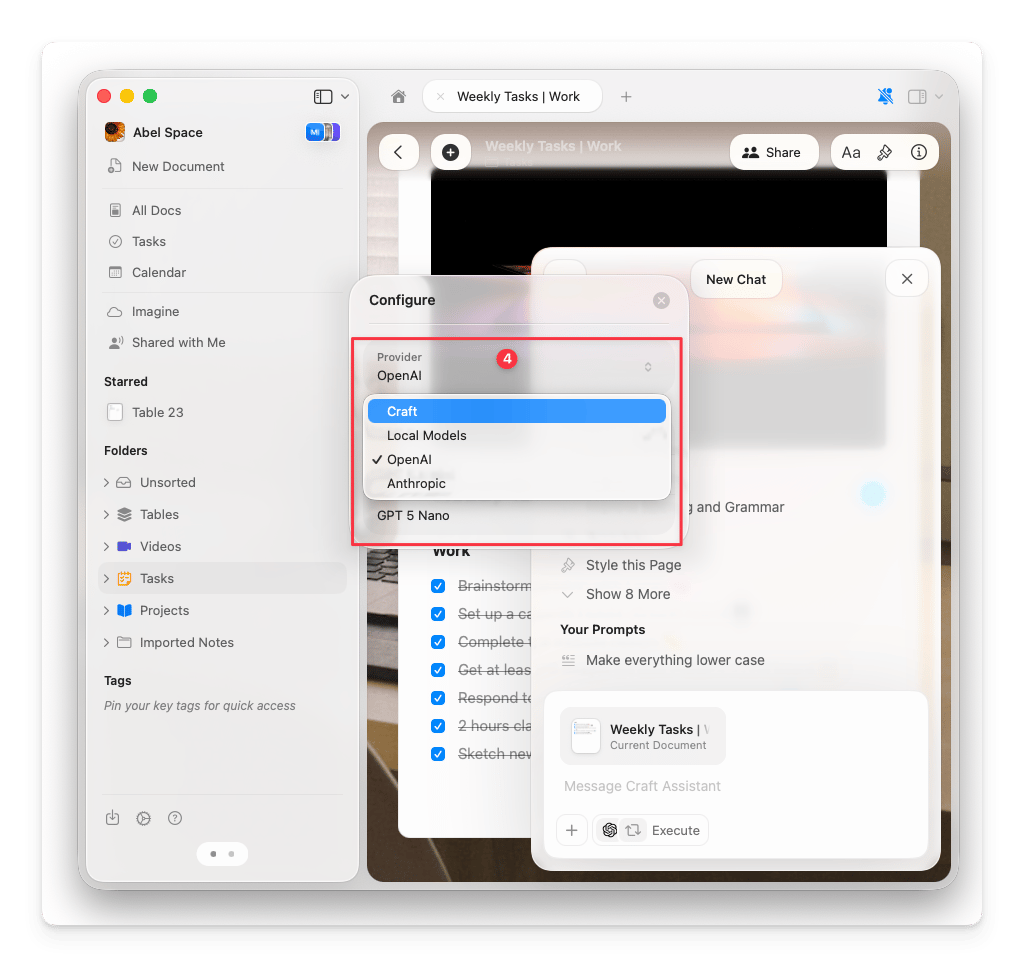
Choose Model from the popup. Models from your connected providers appear alongside Craft models.
Remove a connection
1
Open Settings
Go to Settings > Assistant.
2
Find the connection
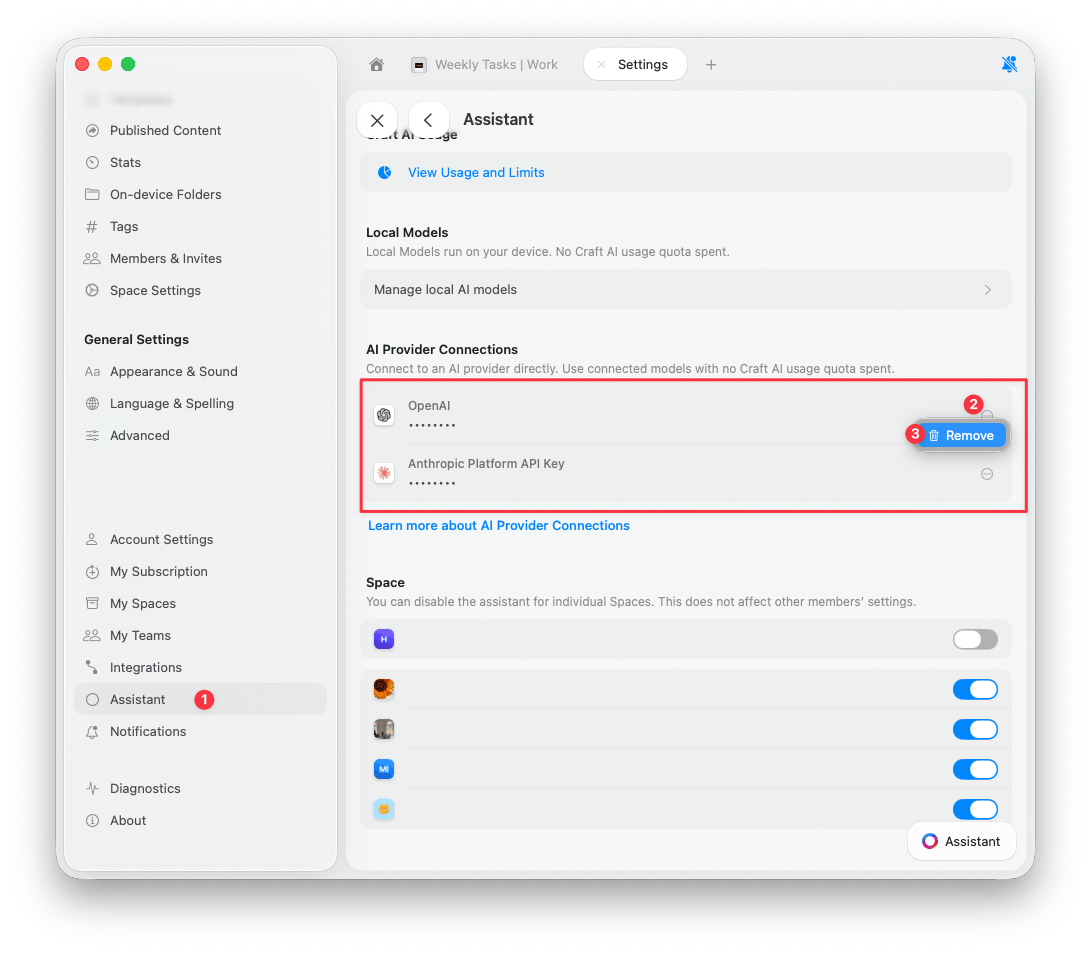
In the AI Provider Connections section, find the provider you want to remove.
3
Remove
Tap the 3-dots button next to the connection, then tap Remove.