

- Quick Open opens a document, folder, space, or view by name across all your spaces. Learn more
- Search finds content inside the documents of the current space. Learn more
- Find in Page finds text within the open document.
How to Access Find in Page
- macOS
- iOS
- Windows / Web
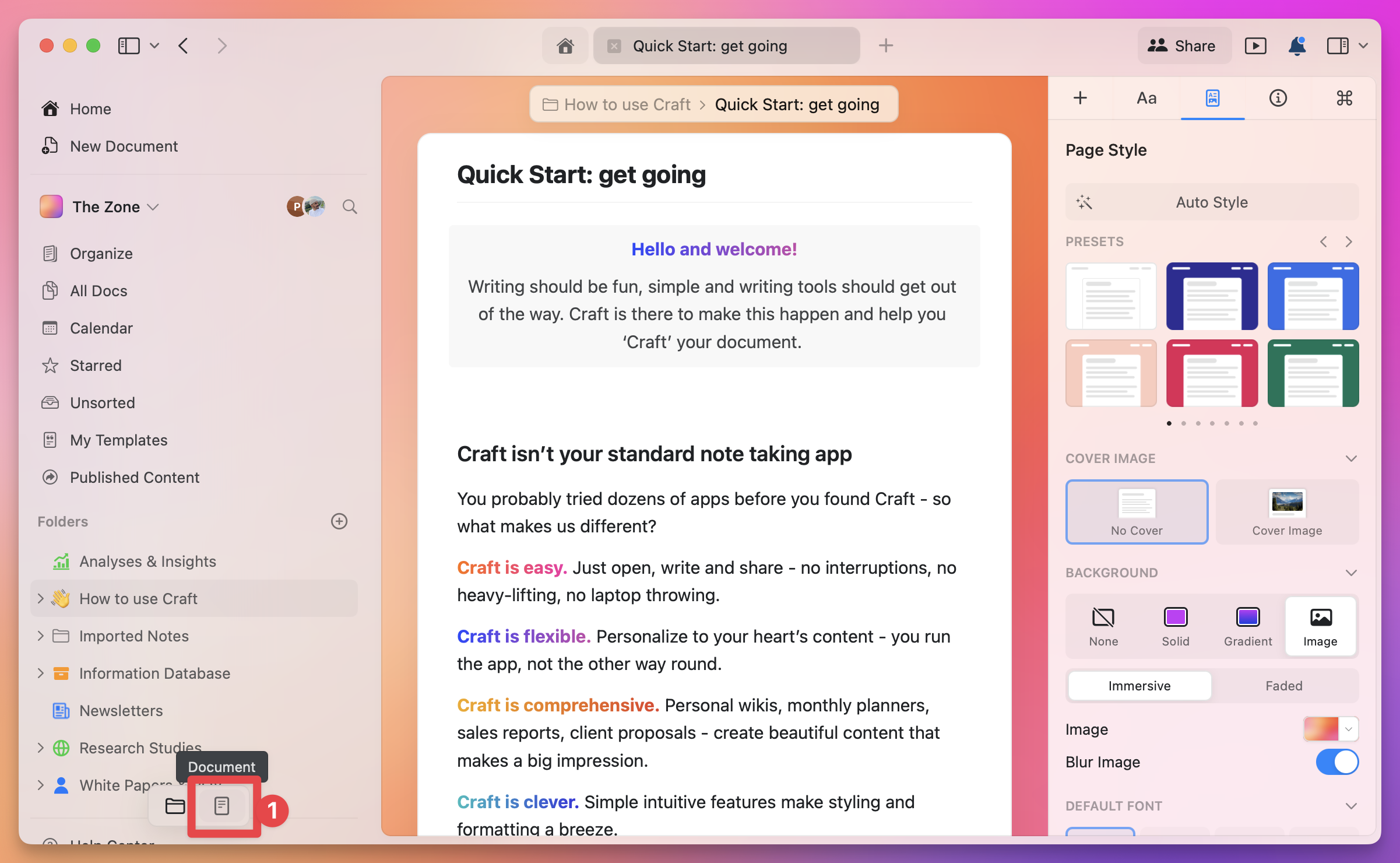
- Click the magnifying glass icon (the last tab) in the left sidebar
- Or use the keyboard shortcut Cmd + F while a document is open
Cmd + F and Ctrl + F only open Find in Page while a document is open. From a document list, Cmd + F opens Search on macOS and iPad, and Ctrl + F opens Quick Open on Windows and Web.
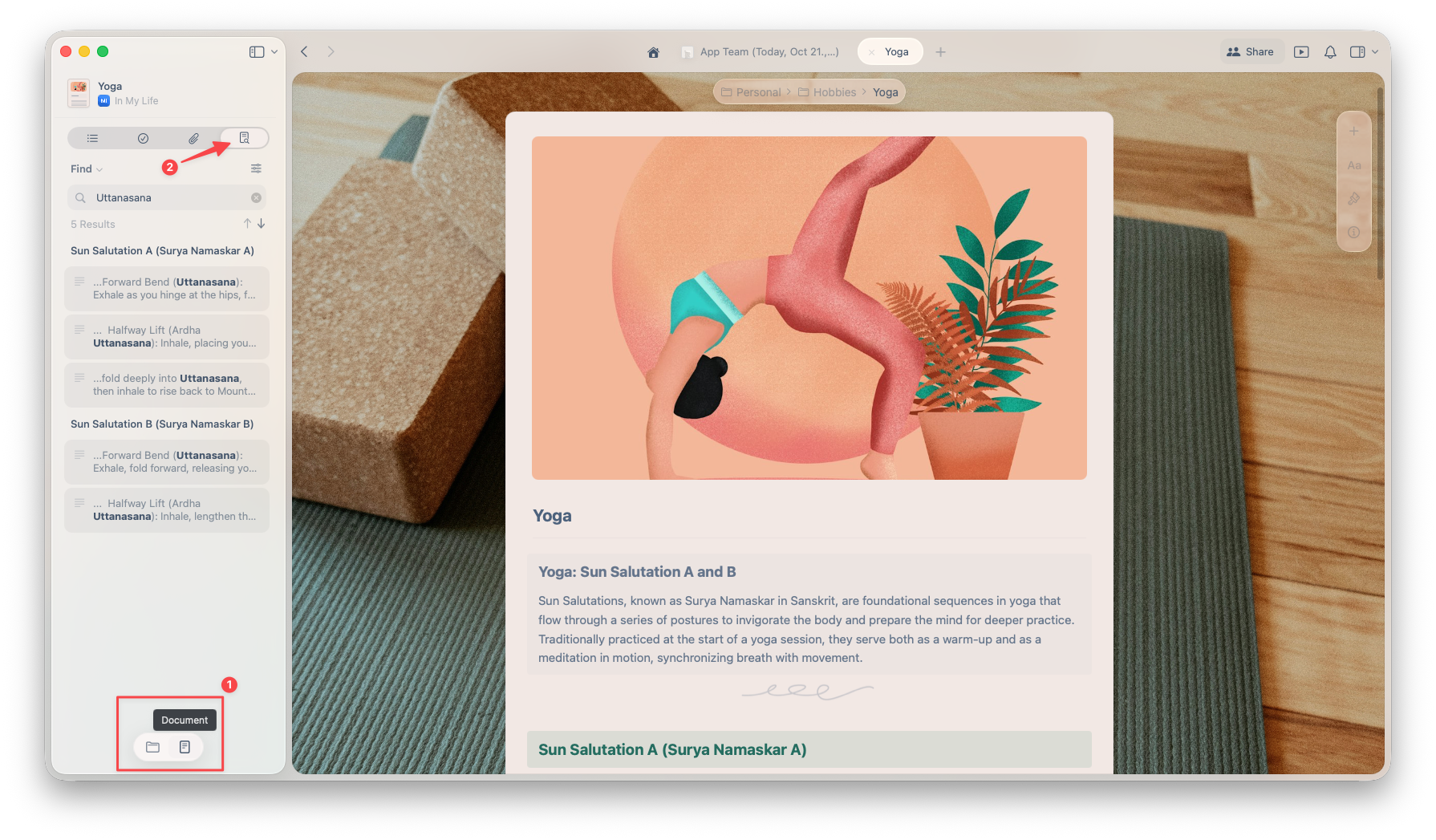
Search Options
Once the search panel opens, you’ll see several useful options.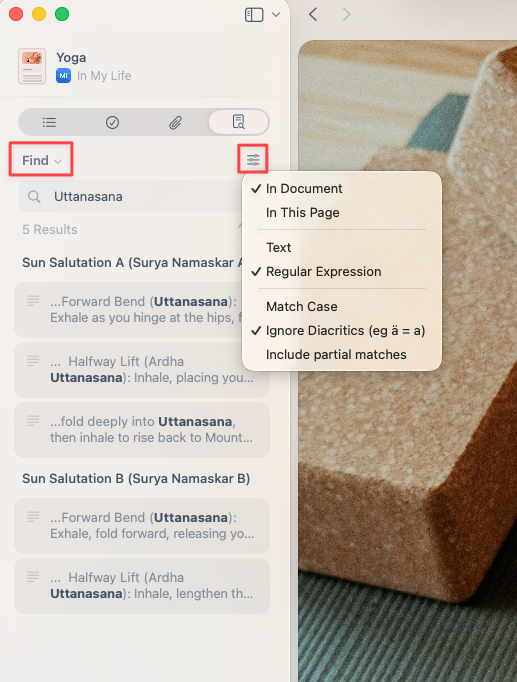
Regular Find or Find & Replace
You can search for text within the document or use Find and Replace to update multiple matches in bulk. On iPhone, you replace matches one at a time.Search Scope
Use the filter icon to choose the search scope. The labels differ by platform.- macOS / iOS
- Windows / Web
- In Document: Searches the whole document, including subpages.
- In This Page: Searches only the current page.
Search Mode
You can choose between:- Text – standard keyword search
- Regular Expression – for advanced, pattern-based searches
Additional Filters
You’ll also find these toggles to refine your search results:- Match Case – distinguish between uppercase and lowercase letters
- Ignore Diacritics – treat accented and non-accented characters as the same
- Include partial matches – find words that contain your search term (macOS and iOS; on Windows and Web, partial matches are always included)
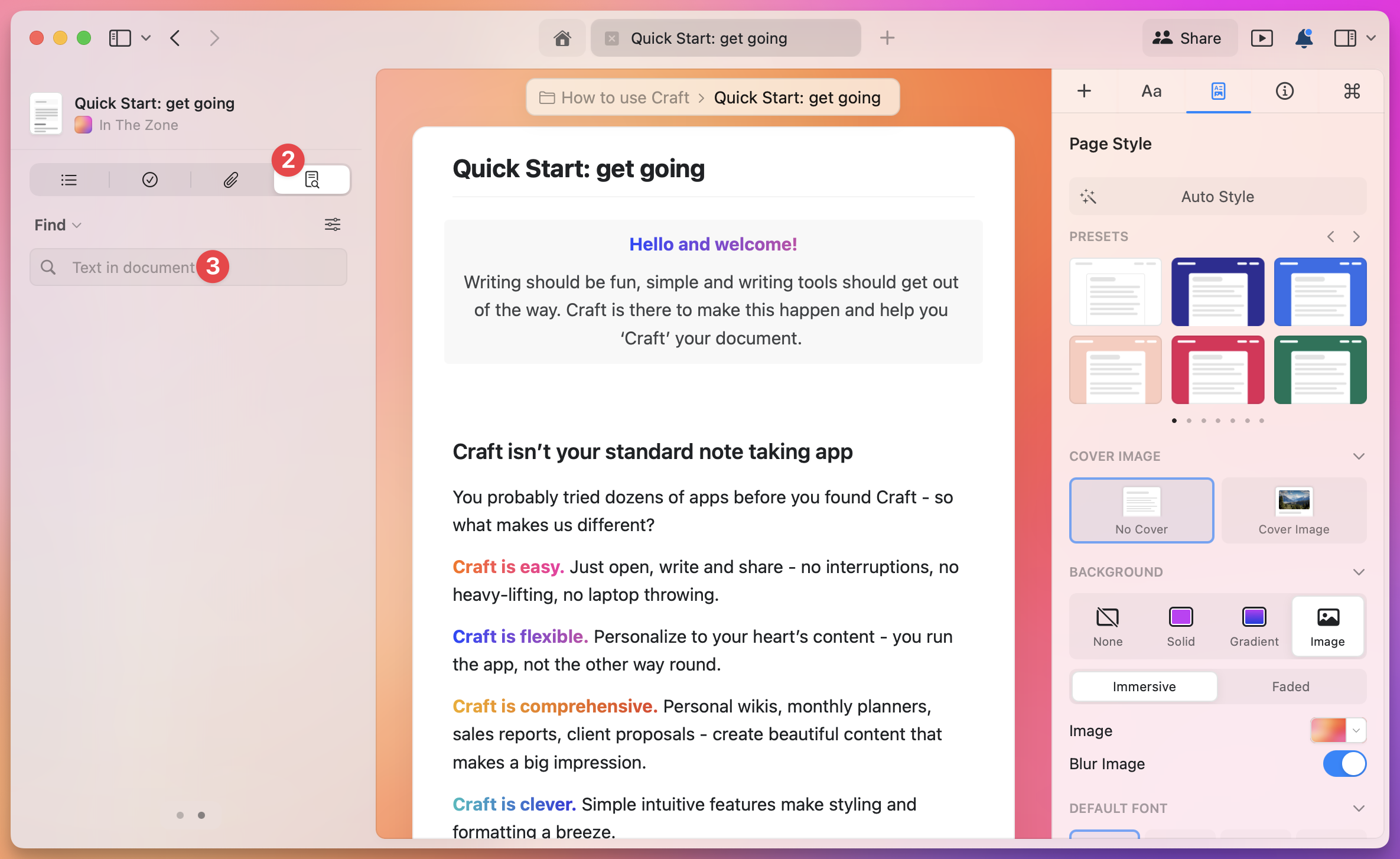
Example: Using the Document Search
Find and Replace with Regex
Regular expressions match patterns rather than exact text. To replace#todo, #inprogress, and #done with #task, select Regular Expression, search for #(todo|inprogress|done), and replace it with #task.