

What is a Block?
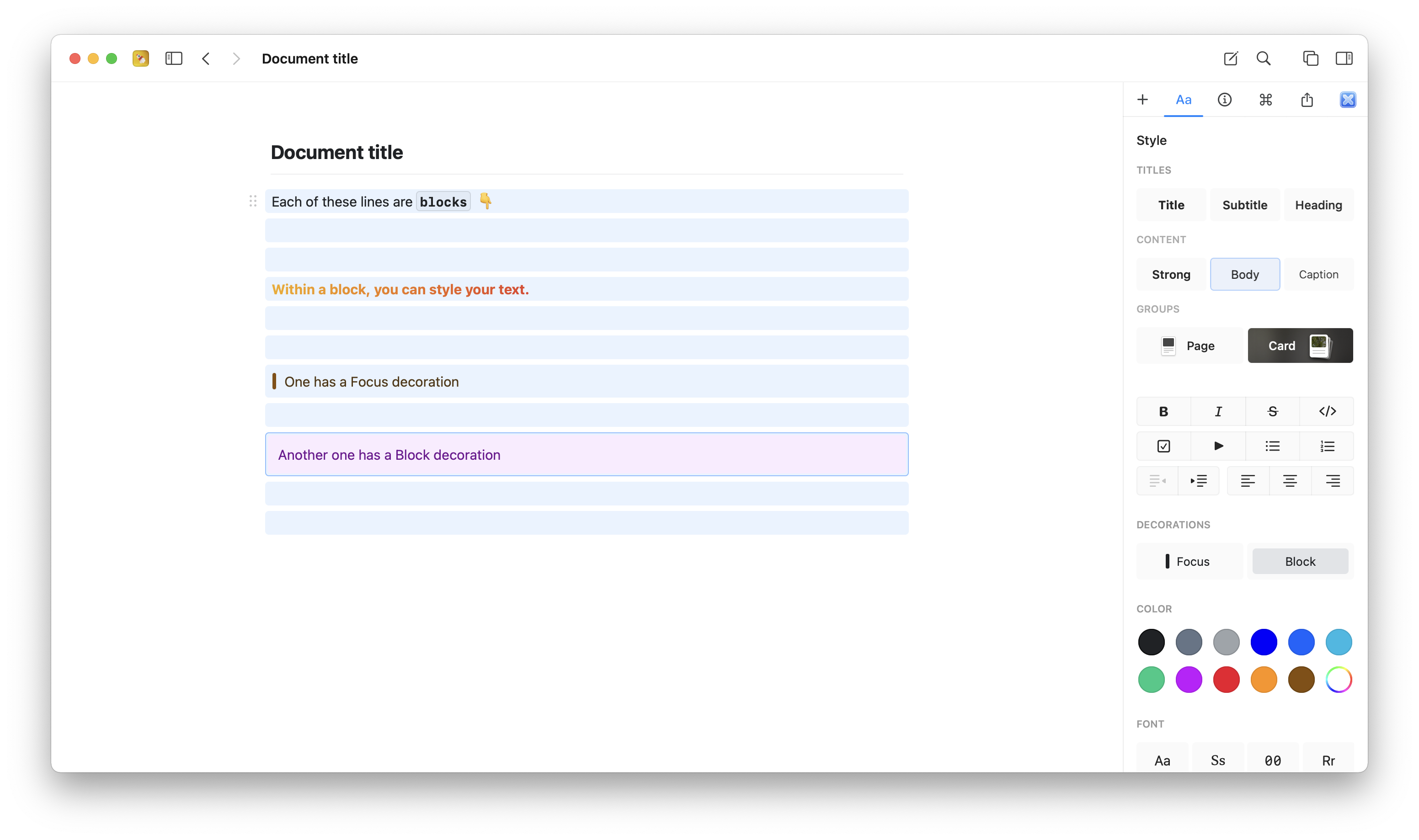
In Craft, everything you create is a block. Every paragraph, image, table, or heading is its own independent unit. This might seem simple, but it’s incredibly powerful. Each block can:- Contain its own content (text, media, tables, etc.)
- Be styled independently
- Be moved, copied, or deleted on its own
- Transform into a page with deeper content
From Blocks to Pages
Here’s where Craft gets interesting: any block can become a page. When a block contains nested content beneath it, it’s called a page. You can click on a page block to navigate inside it and see all its nested content. This creates a natural hierarchy:- A block is a single unit of content
- A page is a block that contains other blocks inside it
- A document is the top-level container you see in your sidebar
You don’t need to plan your structure upfront. Start writing, and when a section gets long or needs more detail, turn it into a page. Craft adapts to your thinking process.
Creating Structure with Page Styles
While any block with nested content is technically a page, Craft offers special visual styles to make pages stand out: Page Style: This text style is designed specifically for page blocks. It gives the block a distinct appearance that signals “there’s more inside.” Card Style: Cards provide an even more visual way to represent pages. They can include:- Cover images
- Custom colors
- Rich previews
Grouping Blocks into Pages
When you have several related blocks, you can group them into a page. This is perfect for organizing your thoughts as you write.- macOS
- iOS
To group blocks on Mac:The first block in your selection becomes the page title, and all other blocks move inside it.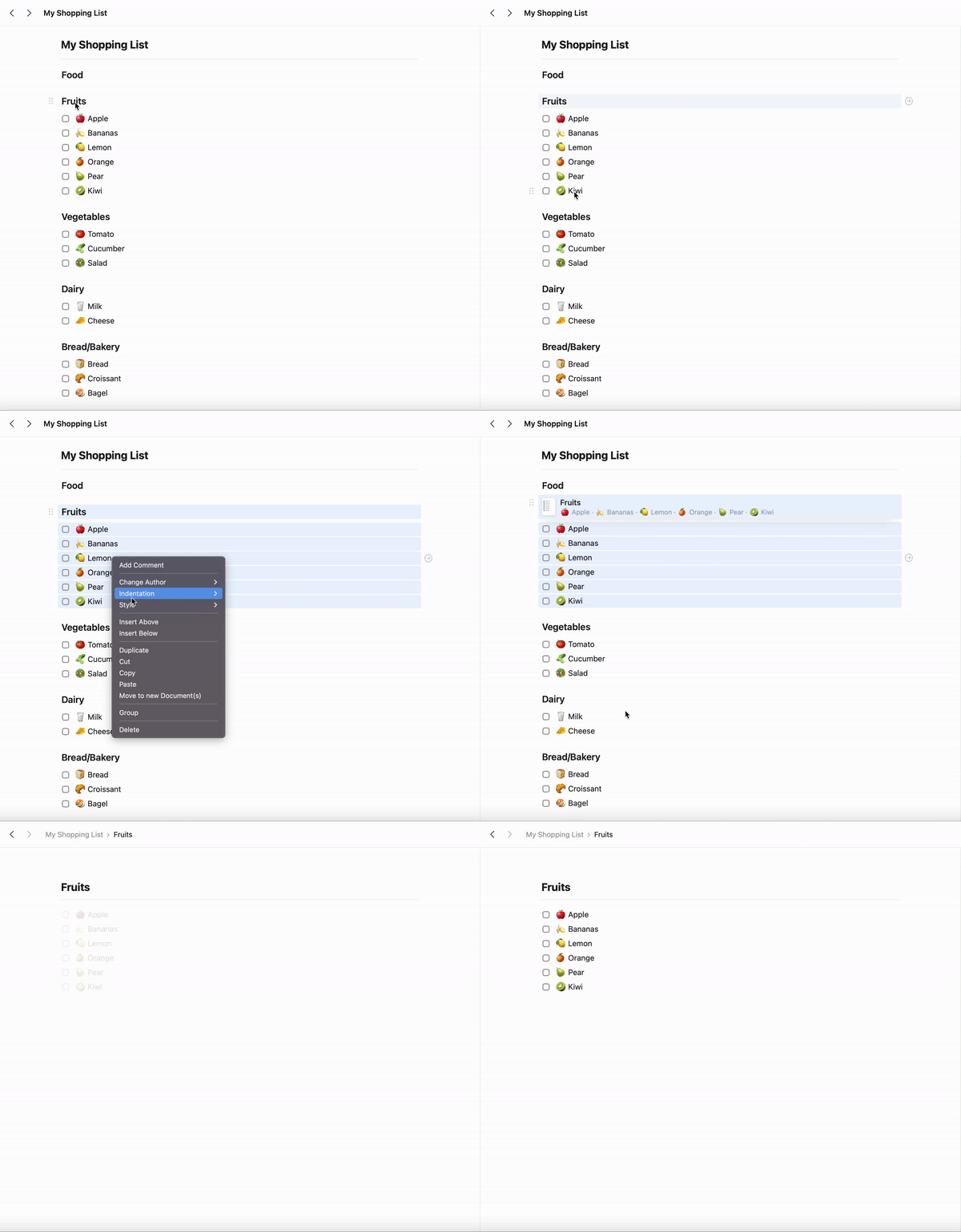
1
Select the blocks you want to group (click and drag, or Cmd+click multiple blocks)
2
Right-click on the selection
3
Choose “Group” from the menu, or press
Cmd+G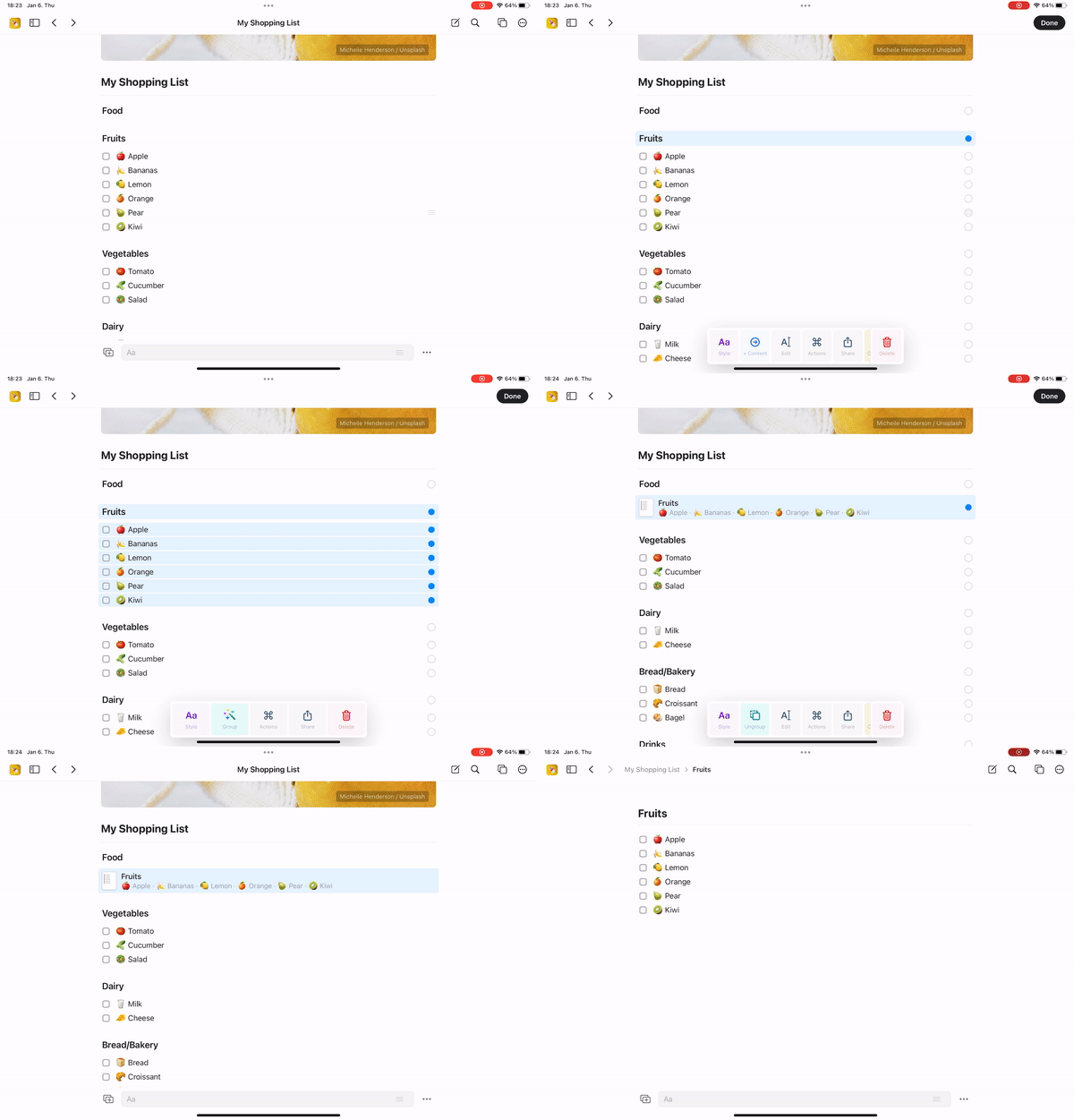
Cmd+Shift+G (Mac) or use the “Ungroup” action. All nested blocks move back to the same level as the page.
Moving Blocks Between Documents
Because blocks are independent units, you can easily move them around – even between different documents.- macOS
- iOS
- Web
Method 1: Cut and Paste
- Select the blocks you want to move
- Press
Cmd+Xto cut - Navigate to the destination document
- Press
Cmd+Vto paste
-
Open two Craft windows side by side (
Cmd+Shift+Nfor a new window) - Click and drag blocks from one window to the other
-
Release to drop them in the new location
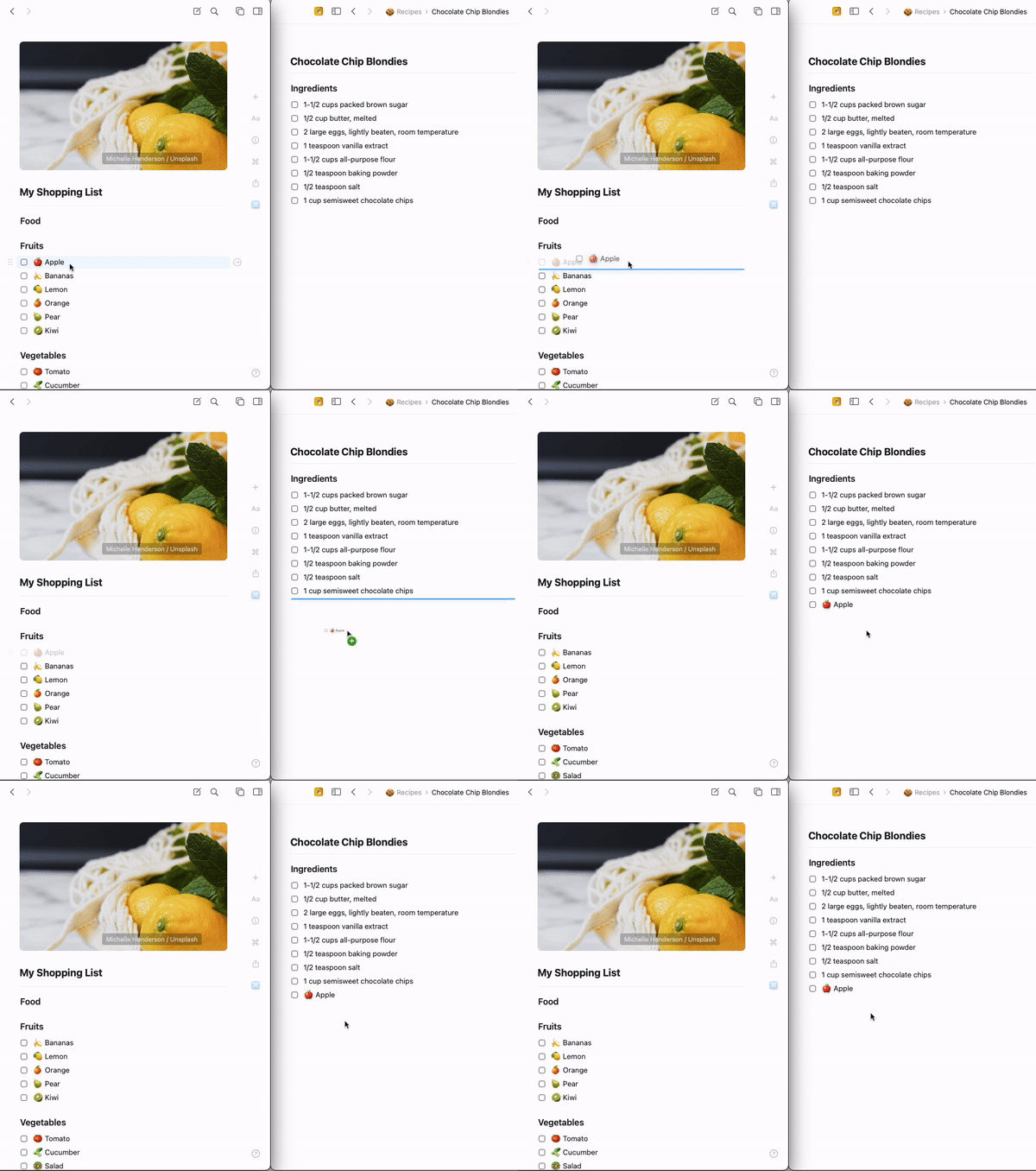
You can also drag blocks directly onto document names in the sidebar to move them quickly.
Important Note About Pages vs Documents
Understanding the difference between pages and documents is crucial for organizing your work: Documents are top-level items that appear in your sidebar. They can be:- Starred for quick access
- Organized into folders
- Moved to trash and recovered
- Shared or published independently
- Only exist inside a parent document
- Don’t appear separately in your sidebar
- Are treated as content within the document
- Can’t be starred or organized independently
Building Your Knowledge, One Block at a Time
The beauty of Craft’s block system is that it matches how you think. You don’t need to decide upfront whether something should be a separate document or a page within a document. Start writing. If a section needs more detail, turn it into a page. If a page grows too complex, you can always move those blocks into a new document. This flexibility means your structure can evolve naturally as your ideas develop. Just focus on capturing your thoughts – Craft makes it easy to organize them later.Common Workflows
Building a Project Plan- Create a document called “Q1 Projects”
- Write each project name as a block
- Click into each project block to add details inside
- Add tasks, notes, and files within each project page
- Start with agenda items as regular blocks
- As discussion happens, add details beneath each item
- The agenda items automatically become pages
- Navigate in and out to see overview or details
- Start with broad topics as blocks
- Click into each topic to add subtopics
- Each subtopic can become its own page
- Build a hierarchy as deep as you need
Toggles
Collapse and expand content sections
Styling Your Content
Learn how to format and style blocks
Using Collections
When you need database-like features
Document Organization
Folders, tags, and spaces
Links and Backlinks
Create connections between blocks and pages
AI Assistant
Use AI to understand and work with your content structure