

Selecting and editing multiple tasks
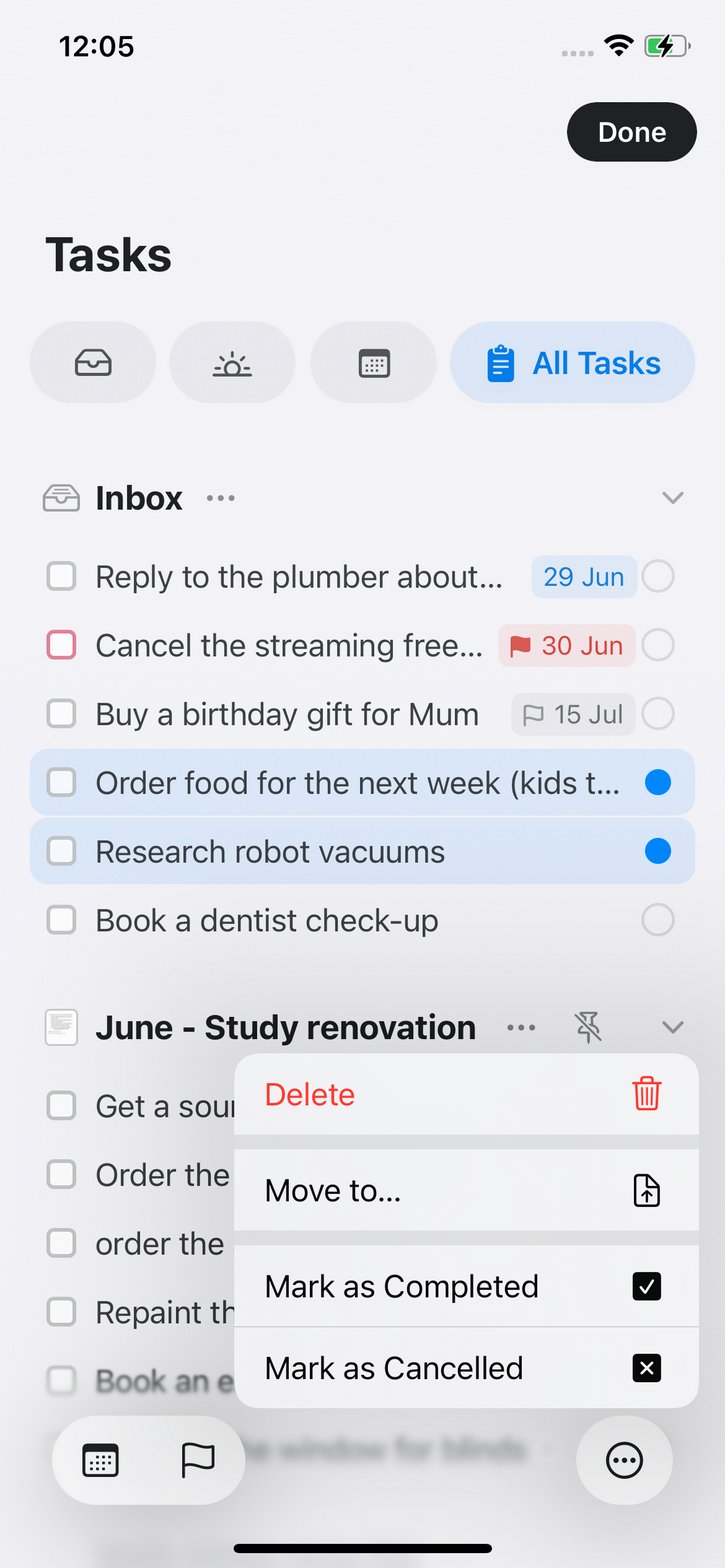
When you are triaging a long list, you can select many tasks at once and act on all of them together. How you start a selection depends on your platform.- macOS
- iOS
- Windows & Web
Cmd + click tasks to add them to your selection, or Shift + click to select a range. Use Select All to grab everything in the current view, or start selection mode from the Select menu item. With several tasks selected, use the Edit menu (or right-click) to apply an action to all of them.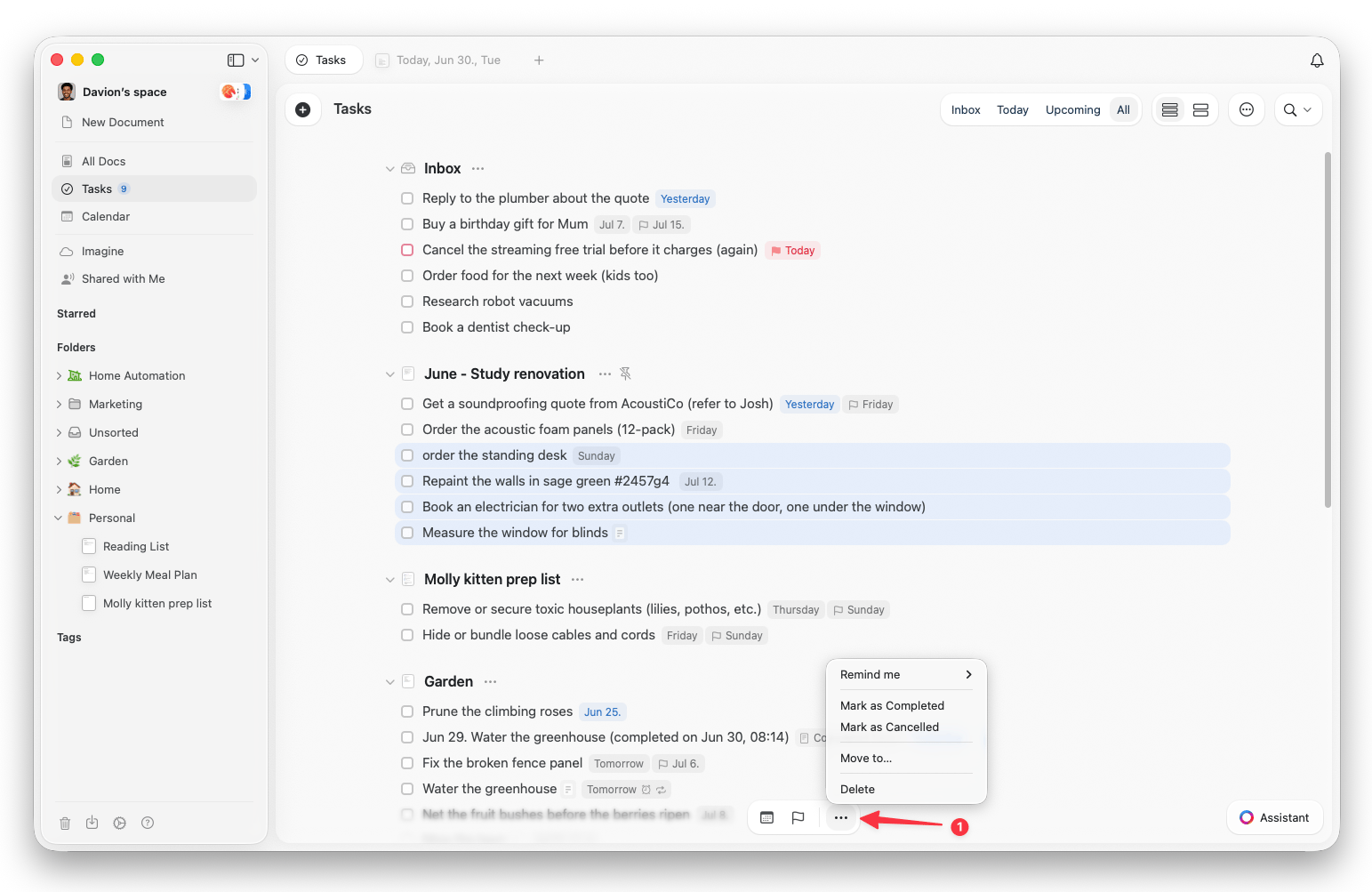
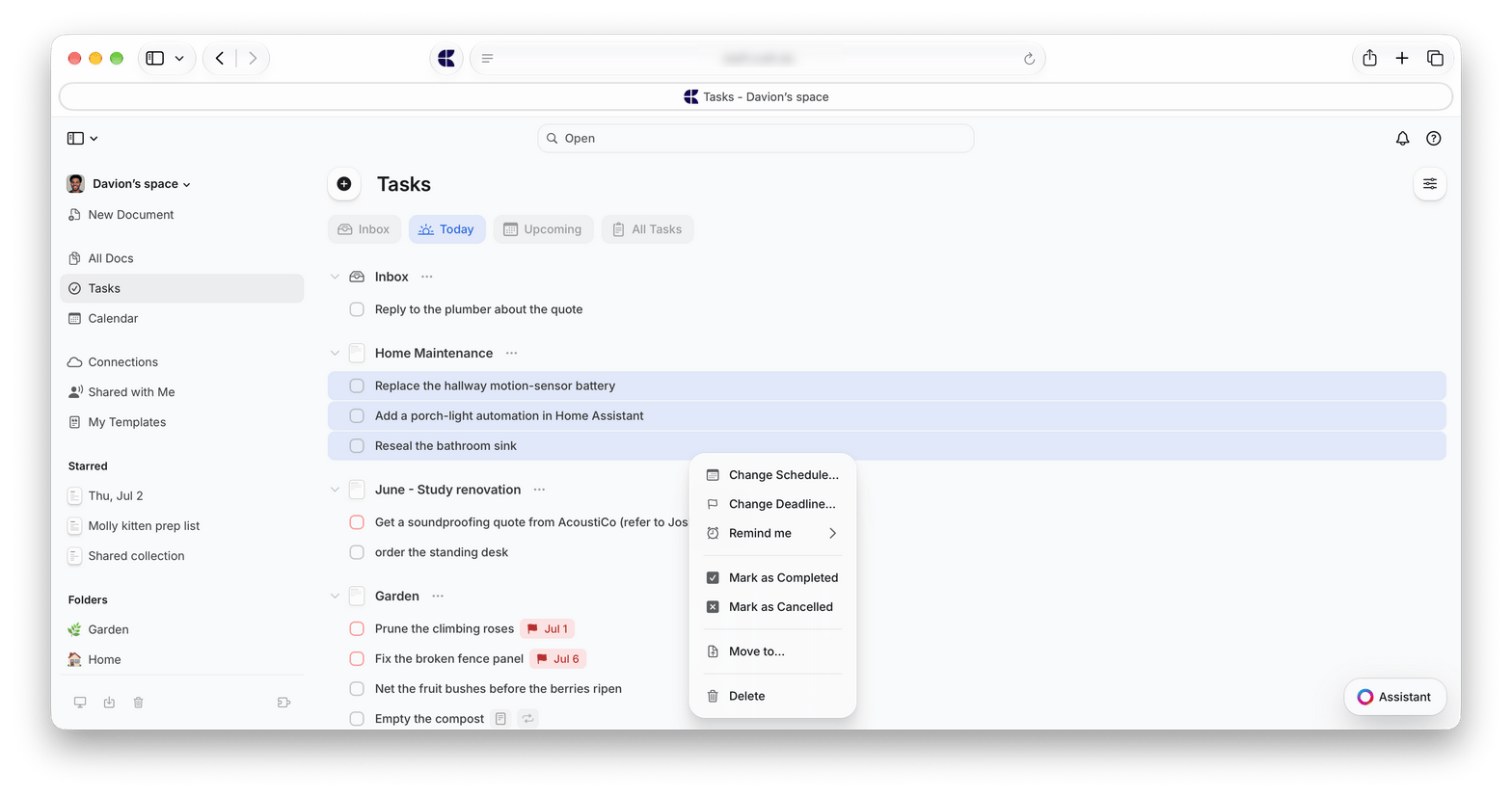
- Change Schedule or Change Deadline for all of them at once
- Remind me to set a reminder on every selected task
- Mark as Completed, Mark as Cancelled, or Mark as Uncomplete
- Move to another document, the Inbox, or a new document created from the selected tasks
- Delete the selected tasks
Bulk complete inside a document
You can also check off many tasks straight from a document. Select multiple task blocks (click and drag, orShift + click), open the slash menu (/), and type check selected. Use uncheck selected to reverse it.
Completing and cancelling tasks
A task’s checkbox moves through three states as you click it: it starts open, one click marks it done, another marks it cancelled, and a third click returns it to open. Cancelling keeps a record that dropping the task was a deliberate choice, rather than deleting it outright. On Mac, Windows, and the web you can do the same from the keyboard:Cmd + Option + T (Mac) or Ctrl + Alt + T (Windows) toggles a task complete, and Cmd + Option + Shift + T or Ctrl + Alt + Shift + T marks it as cancelled.
The Logbook
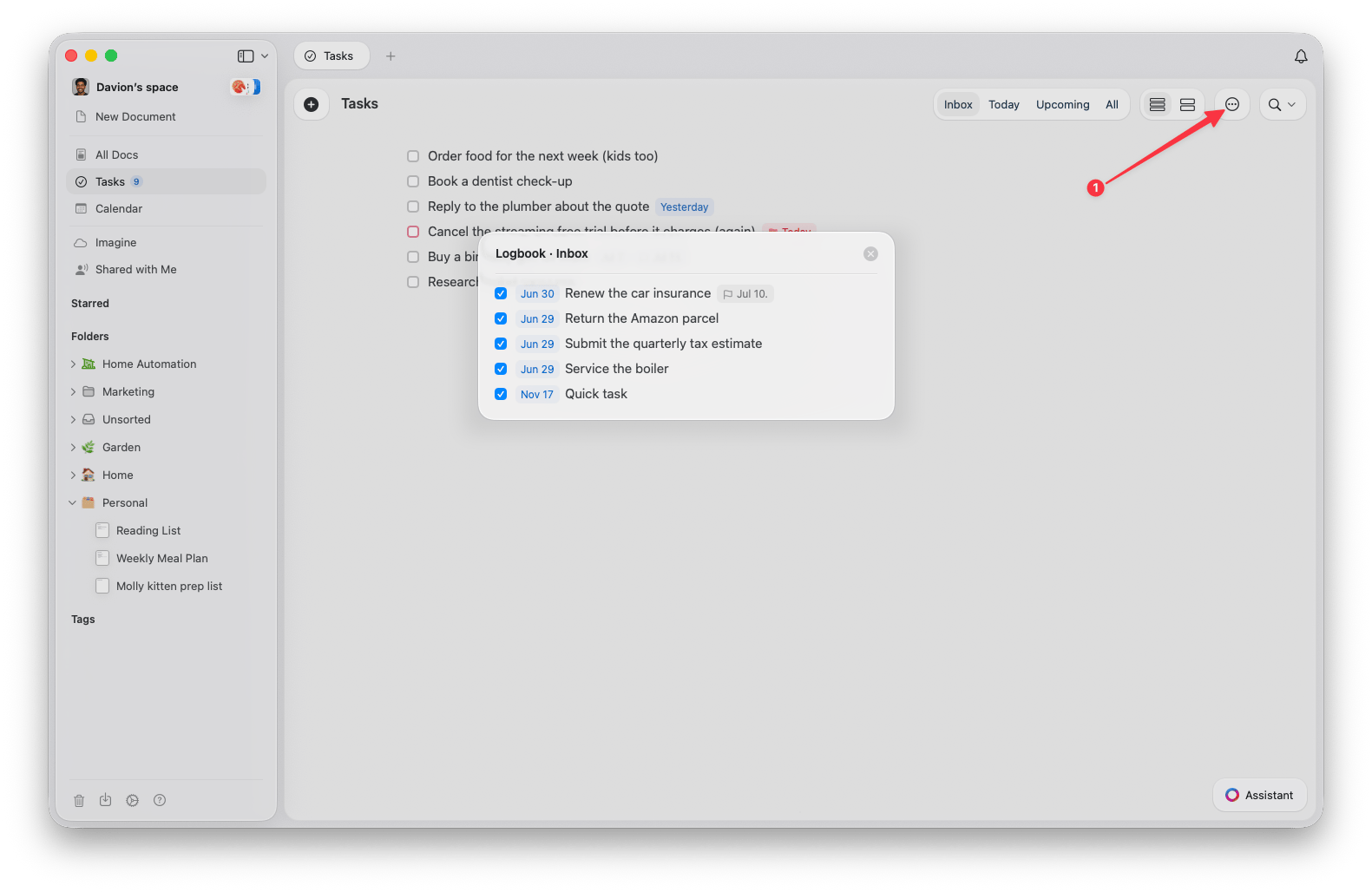
The Logbook in the Inbox keeps the tasks you have completed there, so you can look back at what you checked off from the Inbox. Elsewhere, documents, pages, and folders each show a count of completed tasks.A completed task continues to show on its scheduled date rather than the date you finished it.
Tasks are available in the Mac, iPhone/iPad, Windows, and web apps with the same core feature set. Some capabilities, such as Apple Reminders import, are specific to Mac and iPhone/iPad.