

Craft’s task system is inspired by the GTD (Getting Things Done) framework, helping you capture, organize, and complete tasks efficiently.
One task, every view
Because a task is more than a checkbox in a single spot, the same task surfaces wherever it is relevant. Give it a schedule and it appears on your Calendar next to your events, and inside the daily note for that day. Check it off in one place and it updates everywhere, so you never have to hunt down a duplicate.The four tabs at a glance
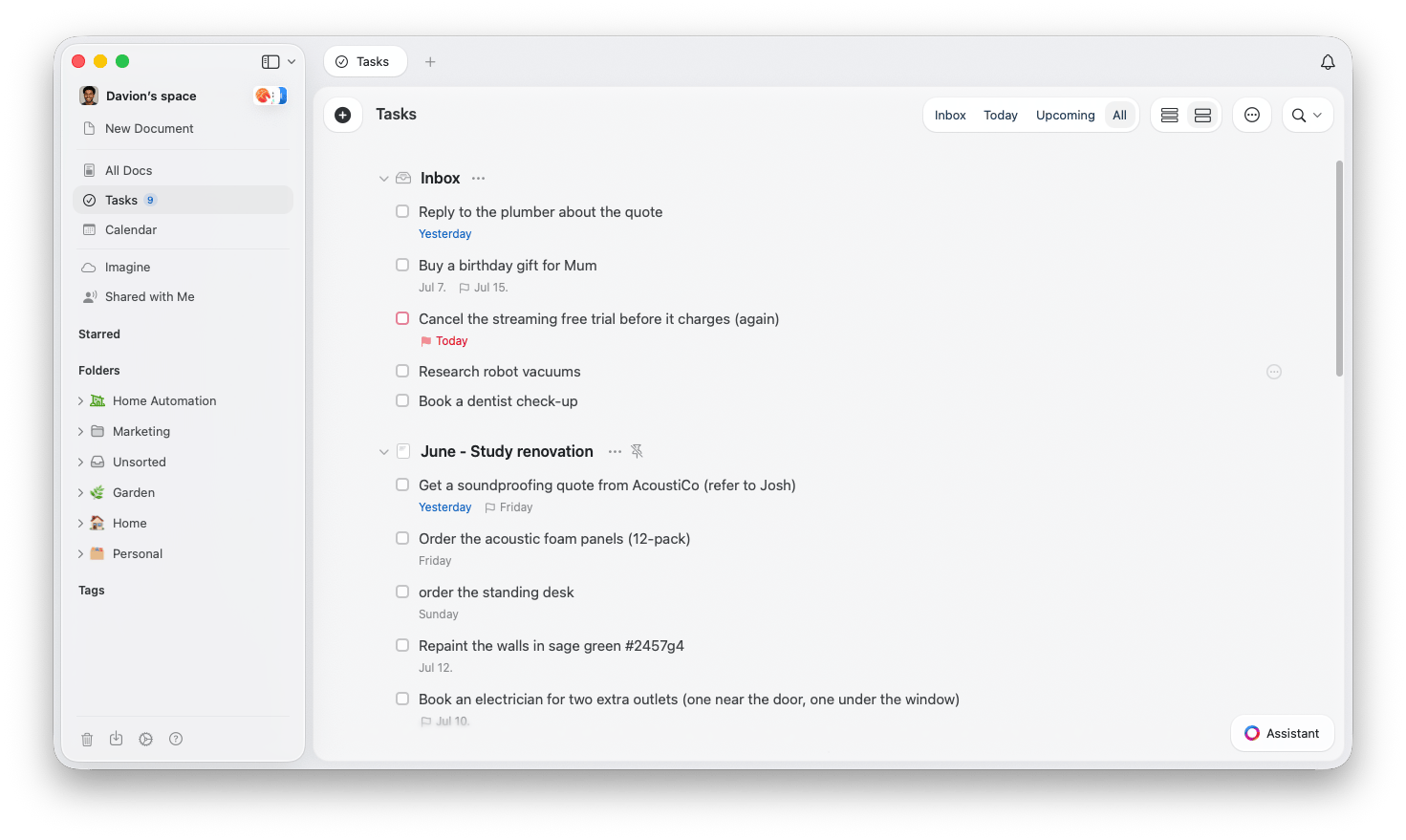
Open Tasks from the sidebar to see everything in one place. The view is organized into four tabs:- Inbox - Capture tasks quickly without tying them to a document. Learn how to create tasks.
- Today - Everything scheduled for today, including tasks that rolled over from earlier. See the Tasks views.
- Upcoming - Tasks scheduled for the days, weeks, and months ahead. See the Tasks views.
- All - Every task across every document, grouped by the document it lives in. See the Tasks views.
Good to know
Calendar is a separate section
Calendar is a separate section
Your Calendar is its own section in the sidebar, not a tab inside Tasks. It shows scheduled tasks alongside events and daily notes. See the Calendar article for details.
Tasks reopens where you left off
Tasks reopens where you left off
Tasks reopens on the tab you last used, so you land back where you left off each time you open it.
Show a count of today's tasks
Show a count of today's tasks
You can show a running count of today’s tasks right next to the Tasks item in the sidebar. It is off by default. Open the … menu on the Tasks sidebar item and choose Show Today’s Tasks Count to turn it on.
Where these features live
Where these features live
Tasks are available in the Mac, iPhone/iPad, Windows, and web apps with the same core feature set. Some capabilities, such as Apple Reminders import, are specific to Mac and iPhone/iPad.
Related articles
Creating tasks
The Inbox and every way to create a task
Dates, deadlines & reminders
Schedules, deadlines, reminders, and recurring tasks
The Tasks views
The Inbox, Today, Upcoming, and All tabs
Completing & editing tasks
Multi-select, bulk edit, completing tasks, and the Logbook
Calendar
View your tasks, events, and daily notes in one place
Reminders
Get notified about important tasks and deadlines
Daily Notes
Organize your daily tasks with automatic daily pages