

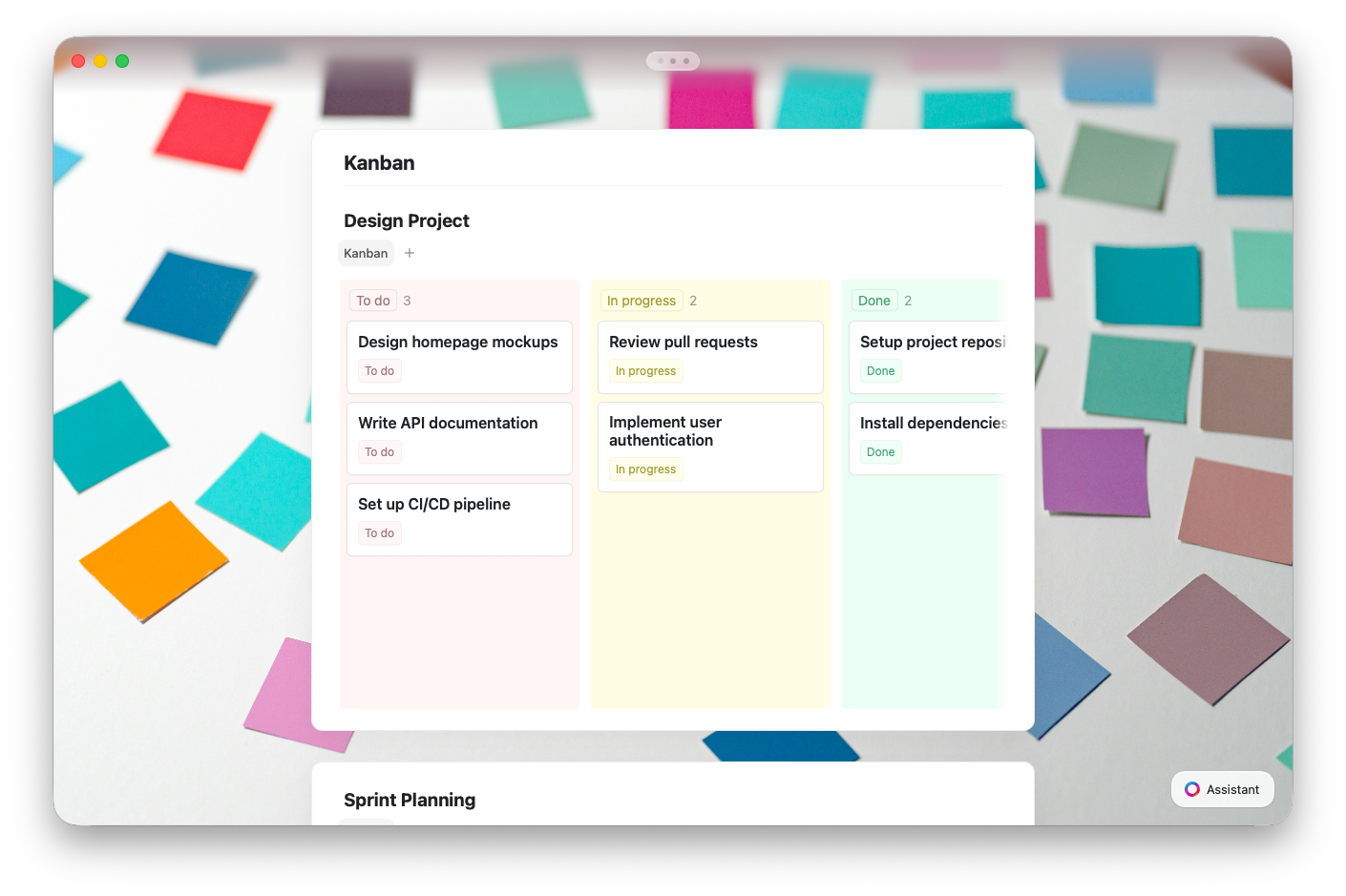
Kanban View vs. Other Views
All views share the same data — switching between them never deletes or modifies your entries.Creating a Kanban View
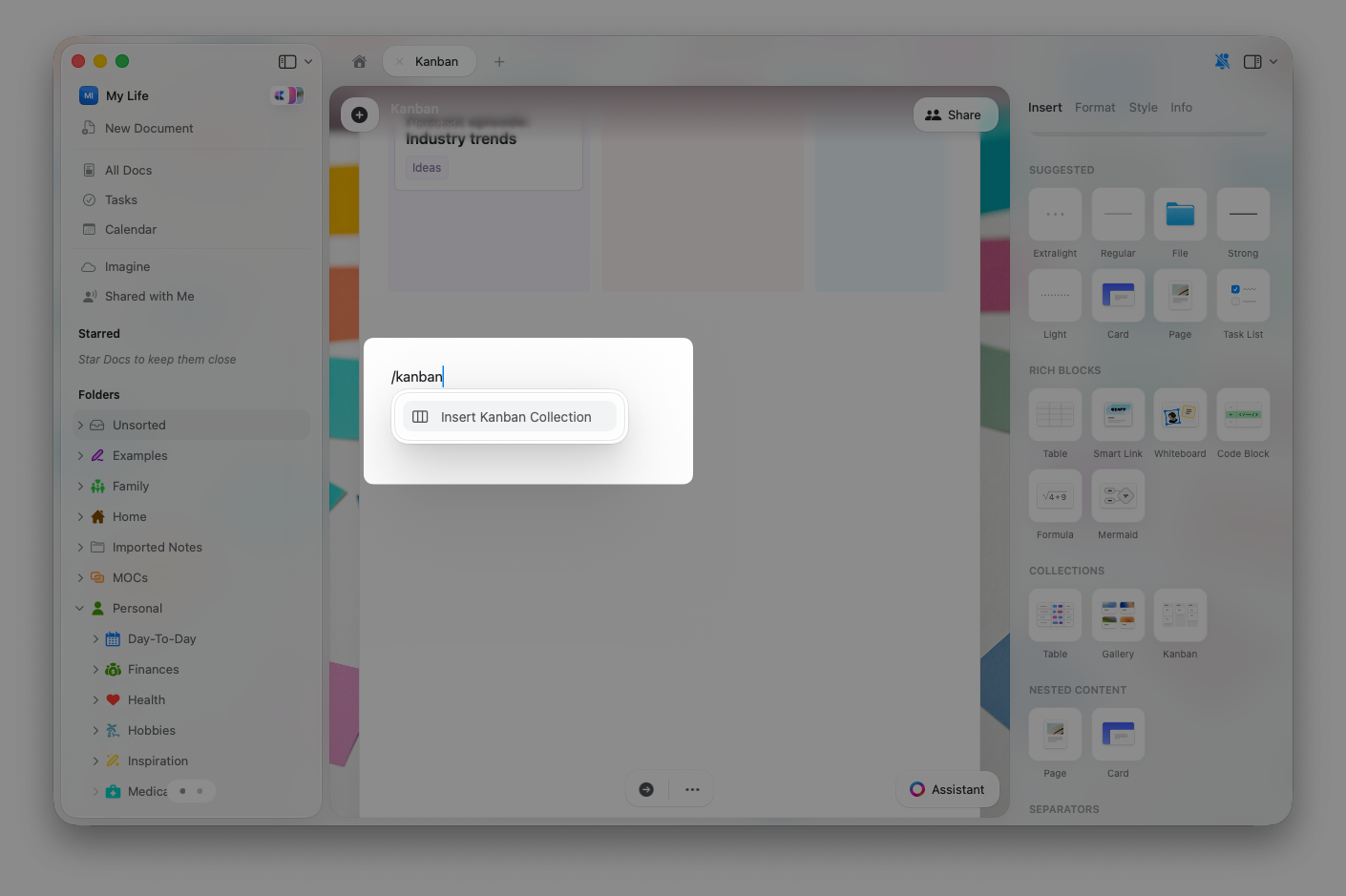
From the slash command
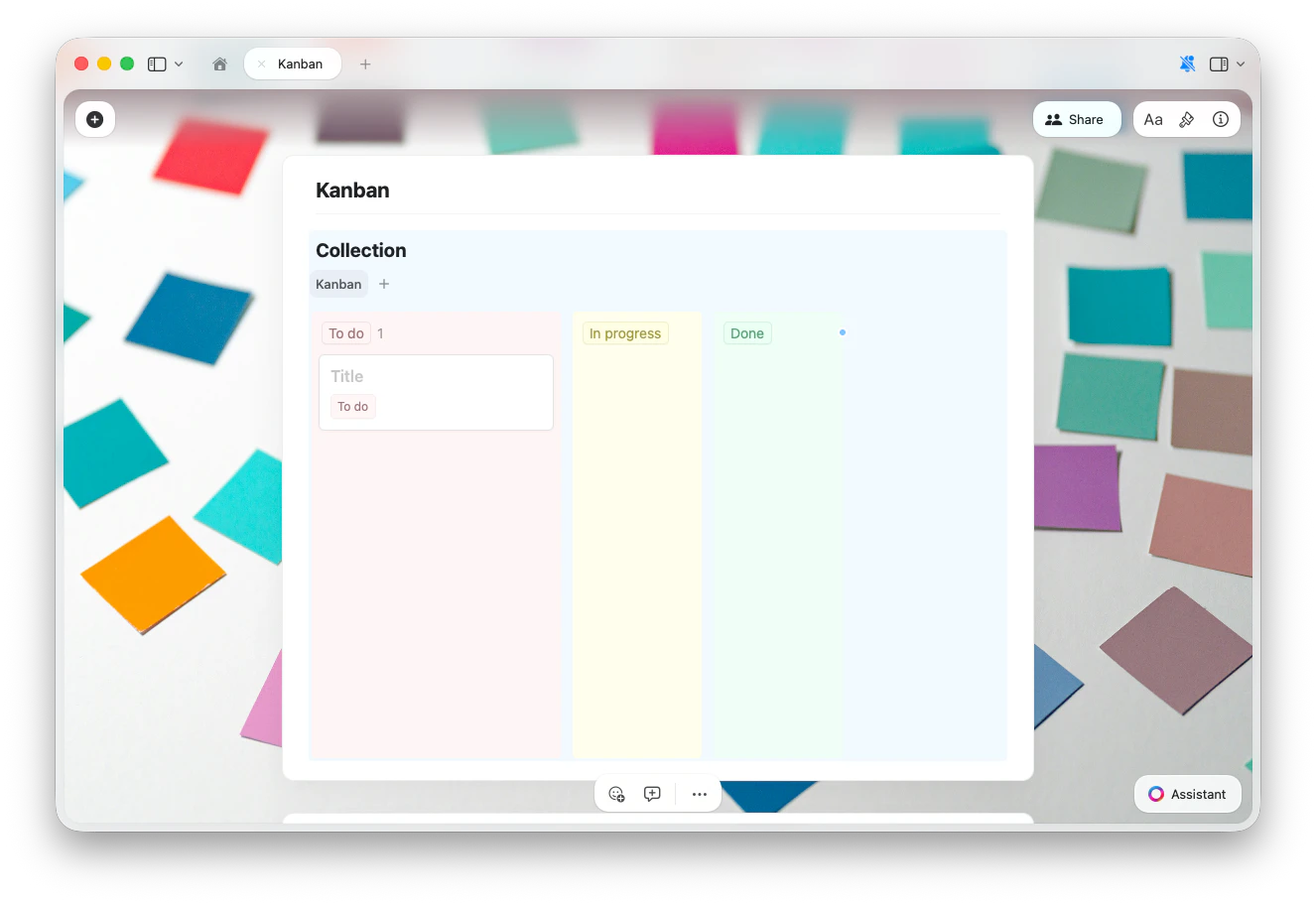
Type/kanban anywhere in a document and select Insert Kanban Collection from the command menu. This creates a new Collection with a Kanban View ready to use.
From the insert panel
You can also add a Kanban Collection from the insert panel (sidebar). Open the insert panel and select the Kanban Collection option to place it in your document.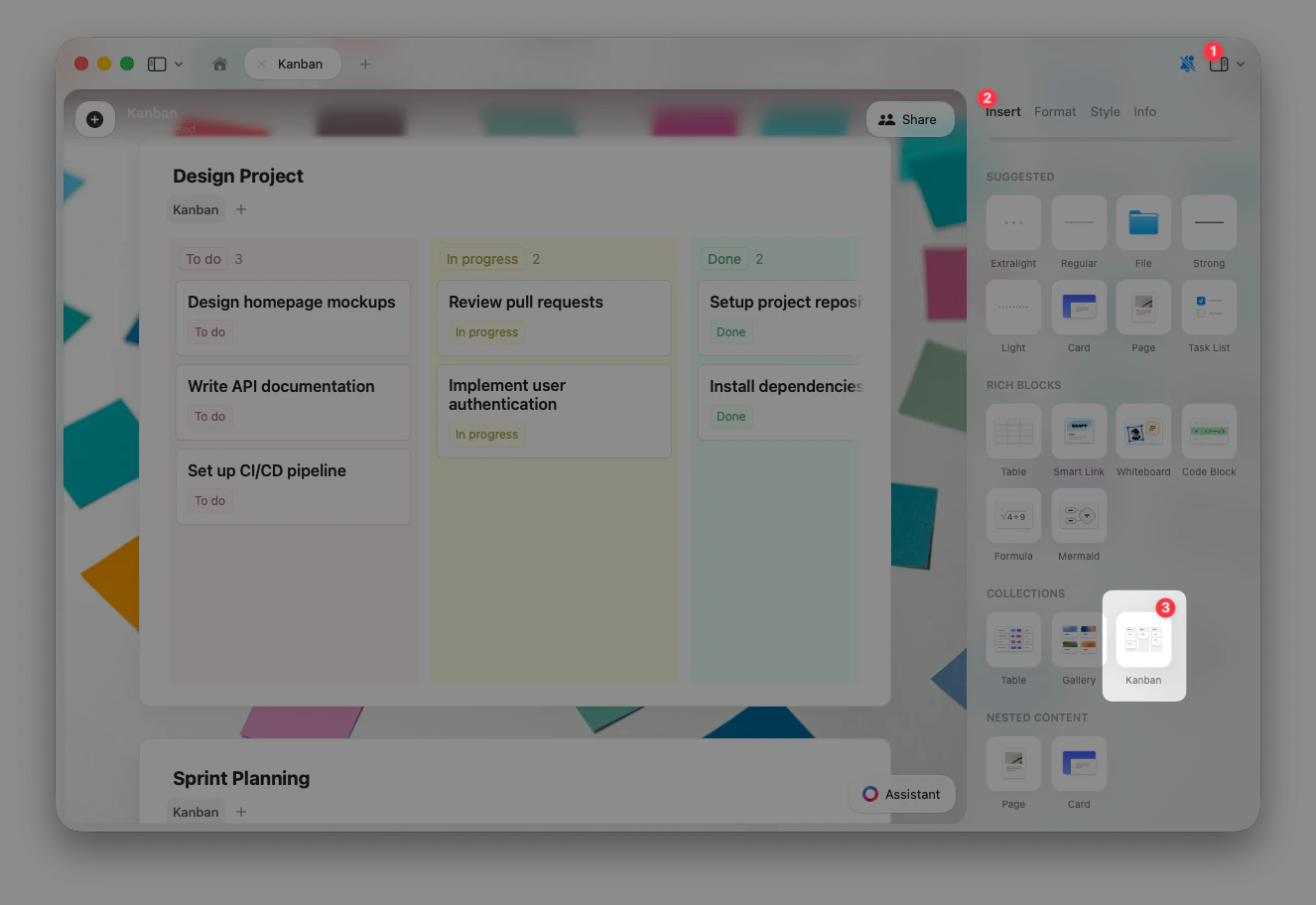
From an existing Collection
If you already have a Collection, you can add a Kanban View to it:1
Click the + button next to the view tabs at the top of your Collection
2
Select Add Kanban View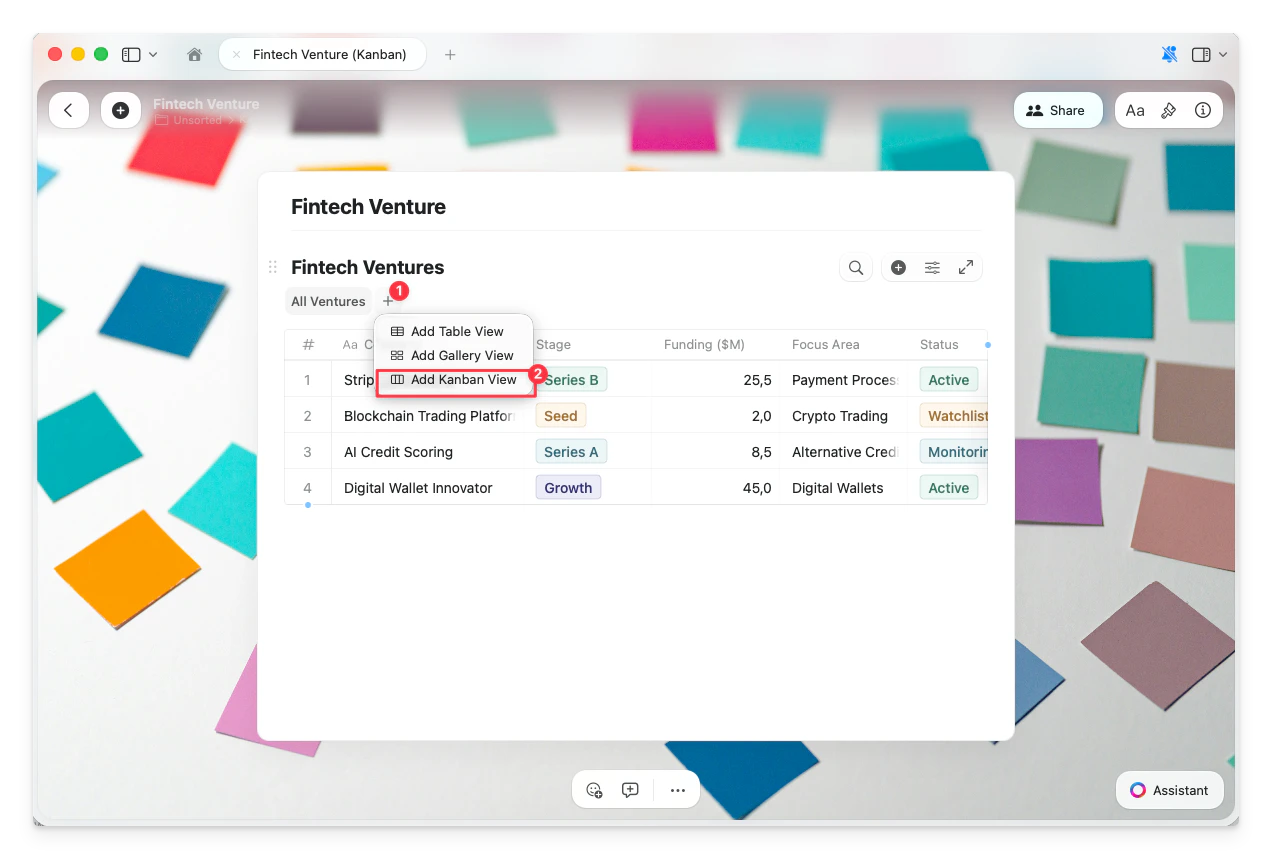
3
Your new Kanban View appears as a tab at the top of the Collection
Converting an existing view
You can convert any Table or Gallery view to Kanban: click the view name at the top of your Collection, select Turn View Into, then choose Kanban.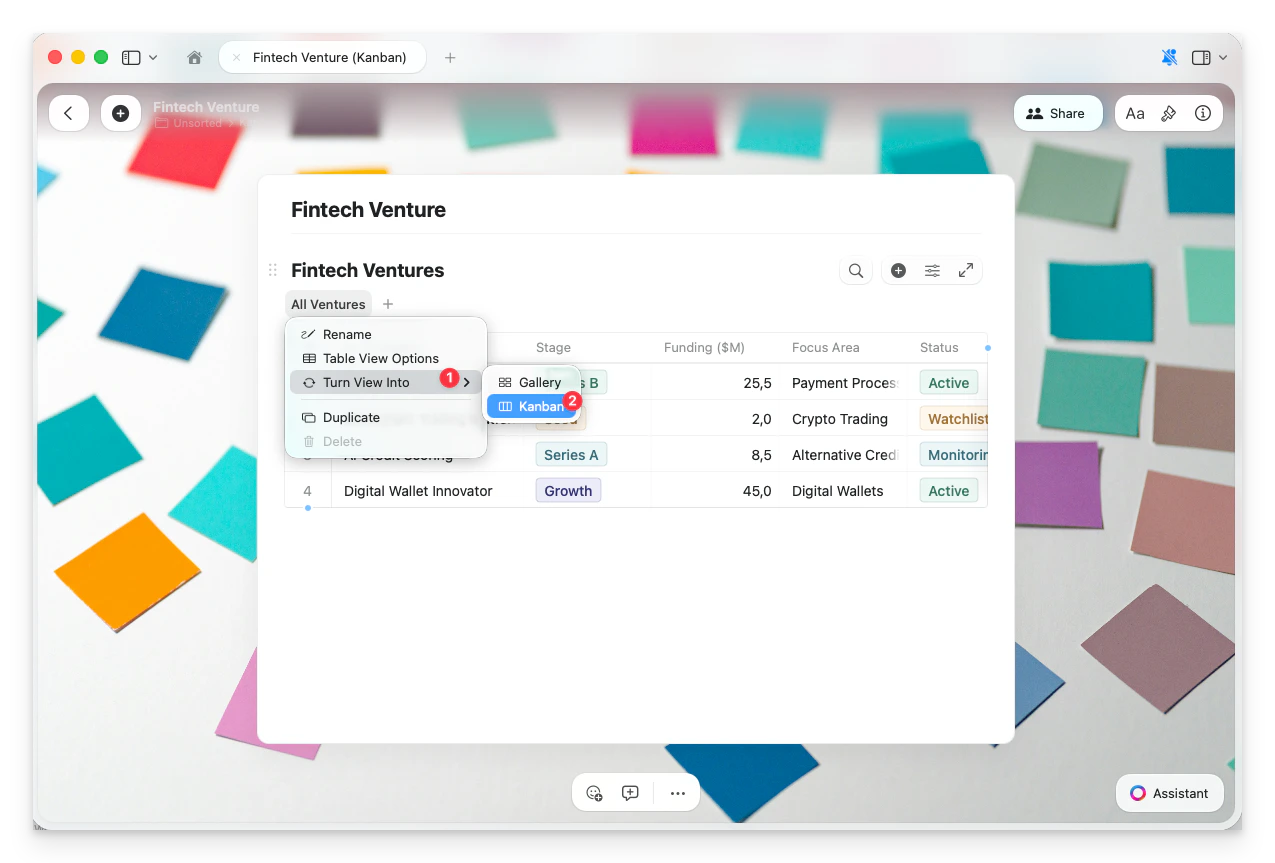
Working with Columns
Kanban columns are based on the values of the field you group by. Each unique value becomes its own column.Adding a New Column
Click the blue + button that appears to the right of the last column to add a new group. Type a name for the new column and confirm.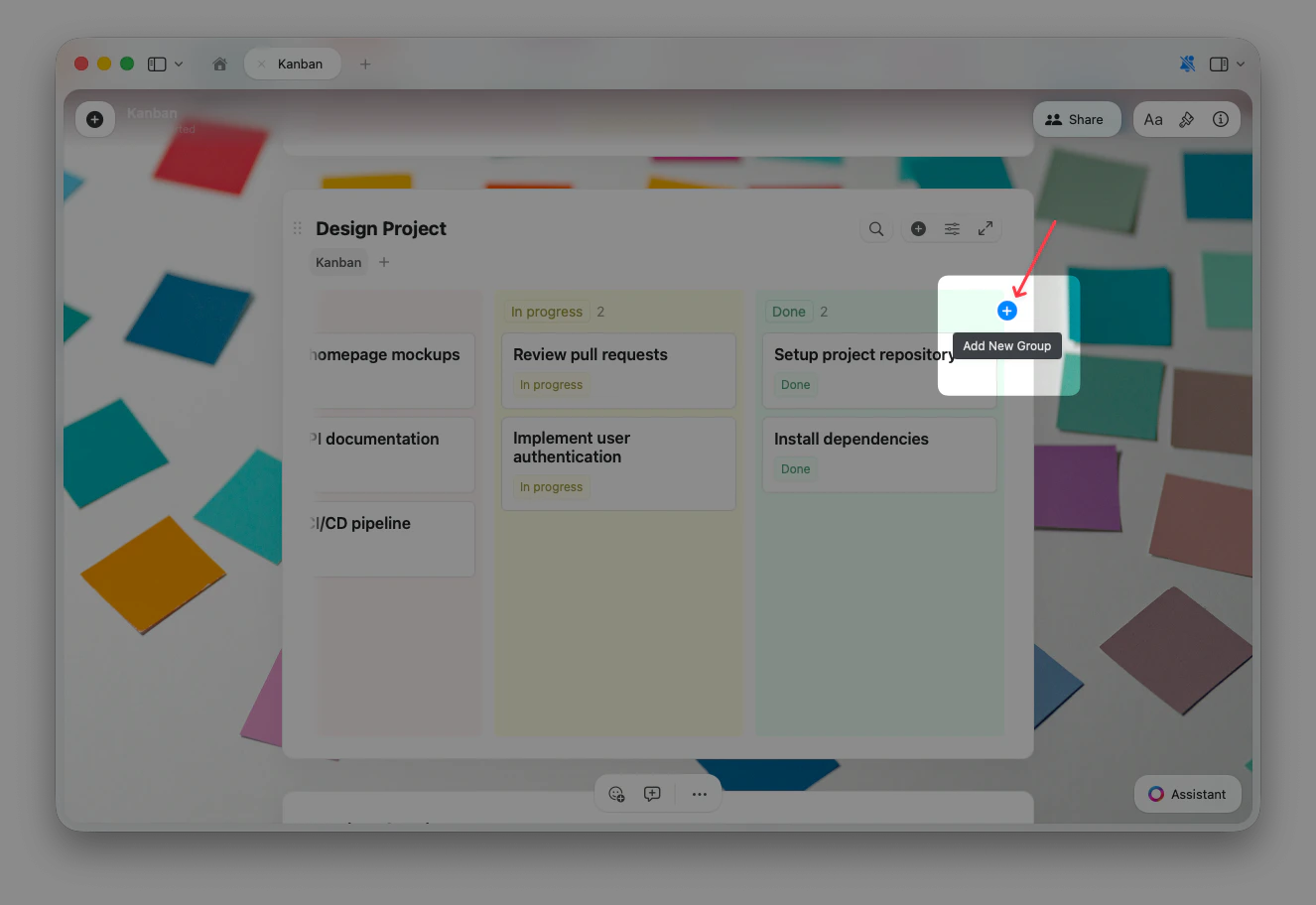
The blue + button is only visible when the Kanban board is selected — click anywhere on the board first if you don’t see it. It is available when grouping by Single Select or Multi Select fields.
The “None” Column
Items that don’t have a value for the grouped field appear in a None column. When you drag new items into your Kanban board, they are automatically placed in the None column until you move them to a specific column. The None column can be useful as a placeholder when you haven’t decided where to place your cards yet. Once all cards are moved out of the None column, it is automatically removed from the board. You can also hide it from your view if you don’t need it.Managing Columns
Right-click or use the … menu on a column header to access options like editing the column name, editing the grouping, hiding the group, or deleting items.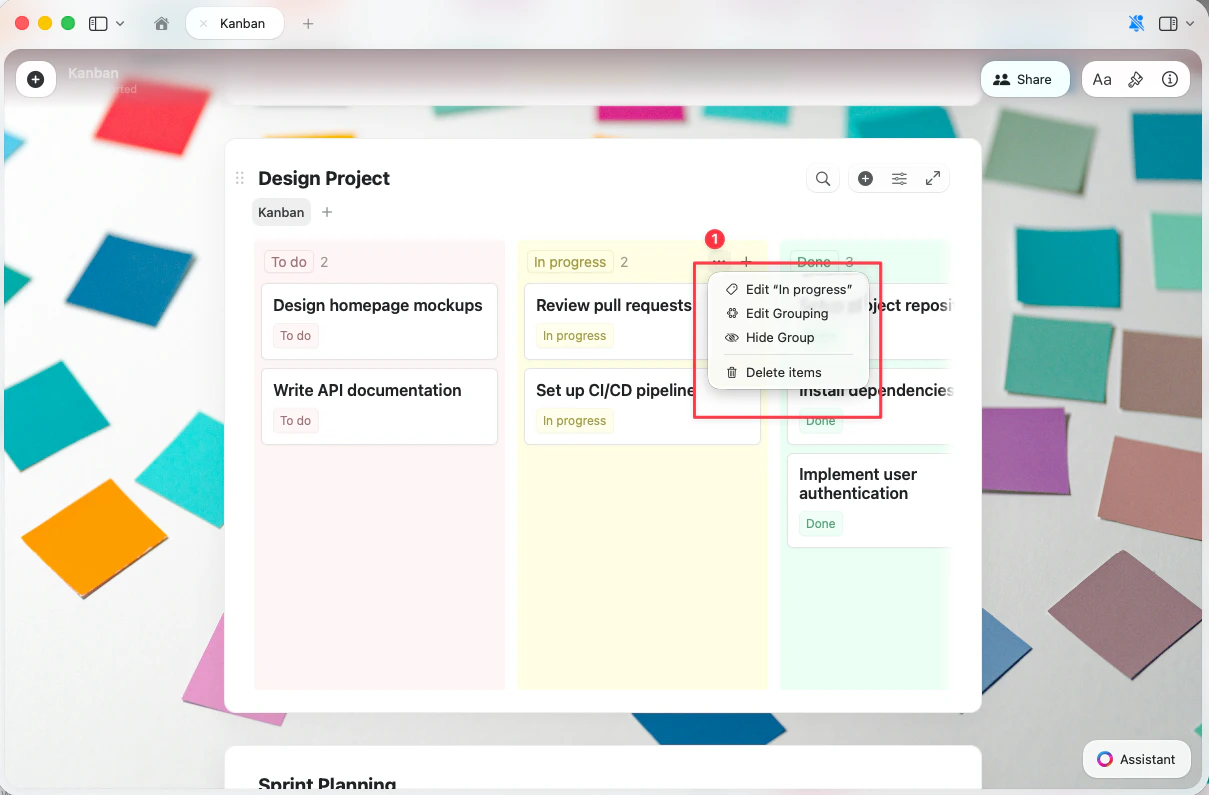
Moving Cards Between Columns
Drag and drop any card from one column to another. When you drop a card into a new column, its field value updates automatically — for example, dragging a card from “To do” to “In progress” changes its Status to “In progress.” If a sort is active, dropping a card into a column places it according to the current sort order. Without a sort, you can drop the card at a specific position within the column.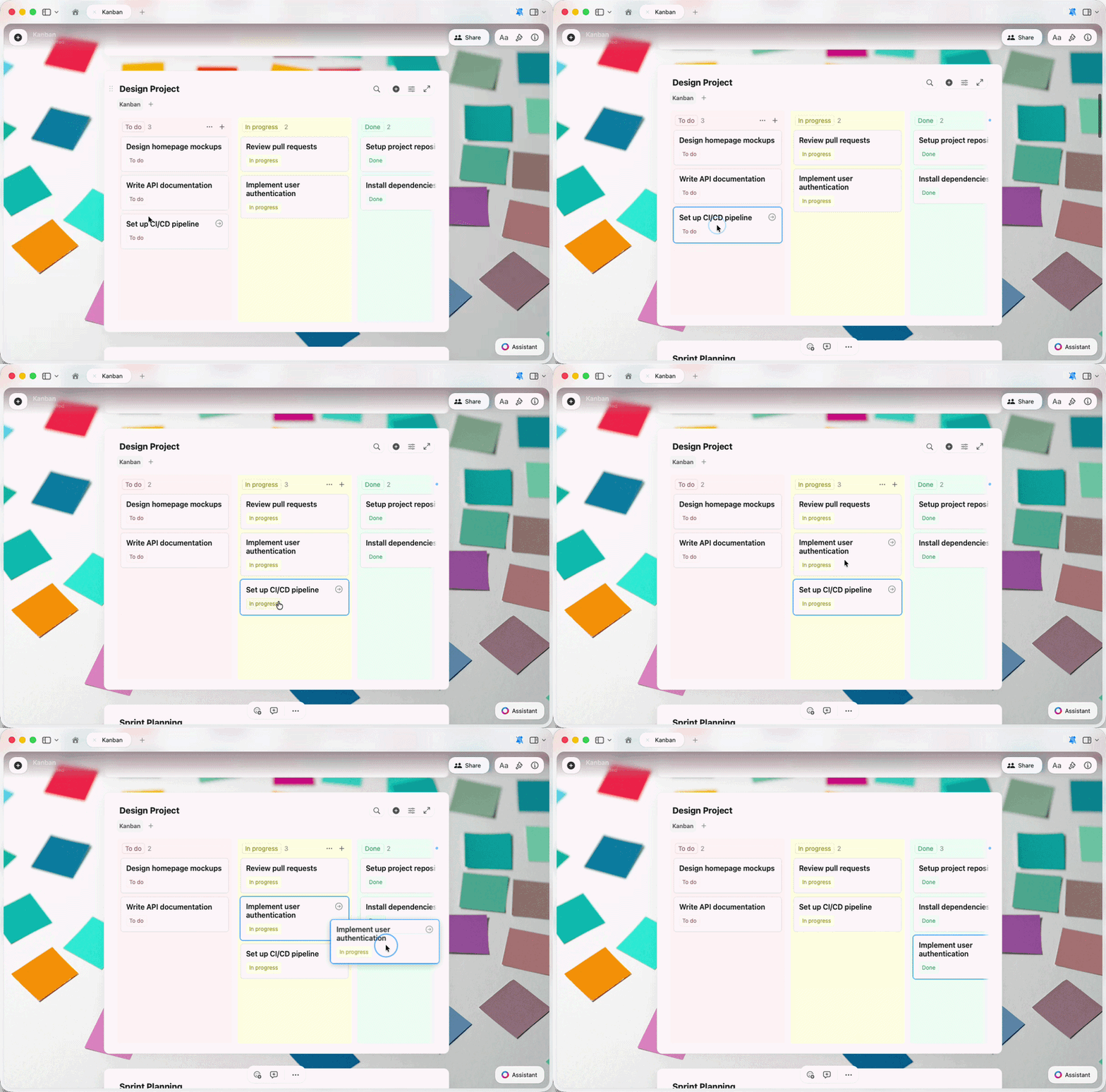
Kanban View Options
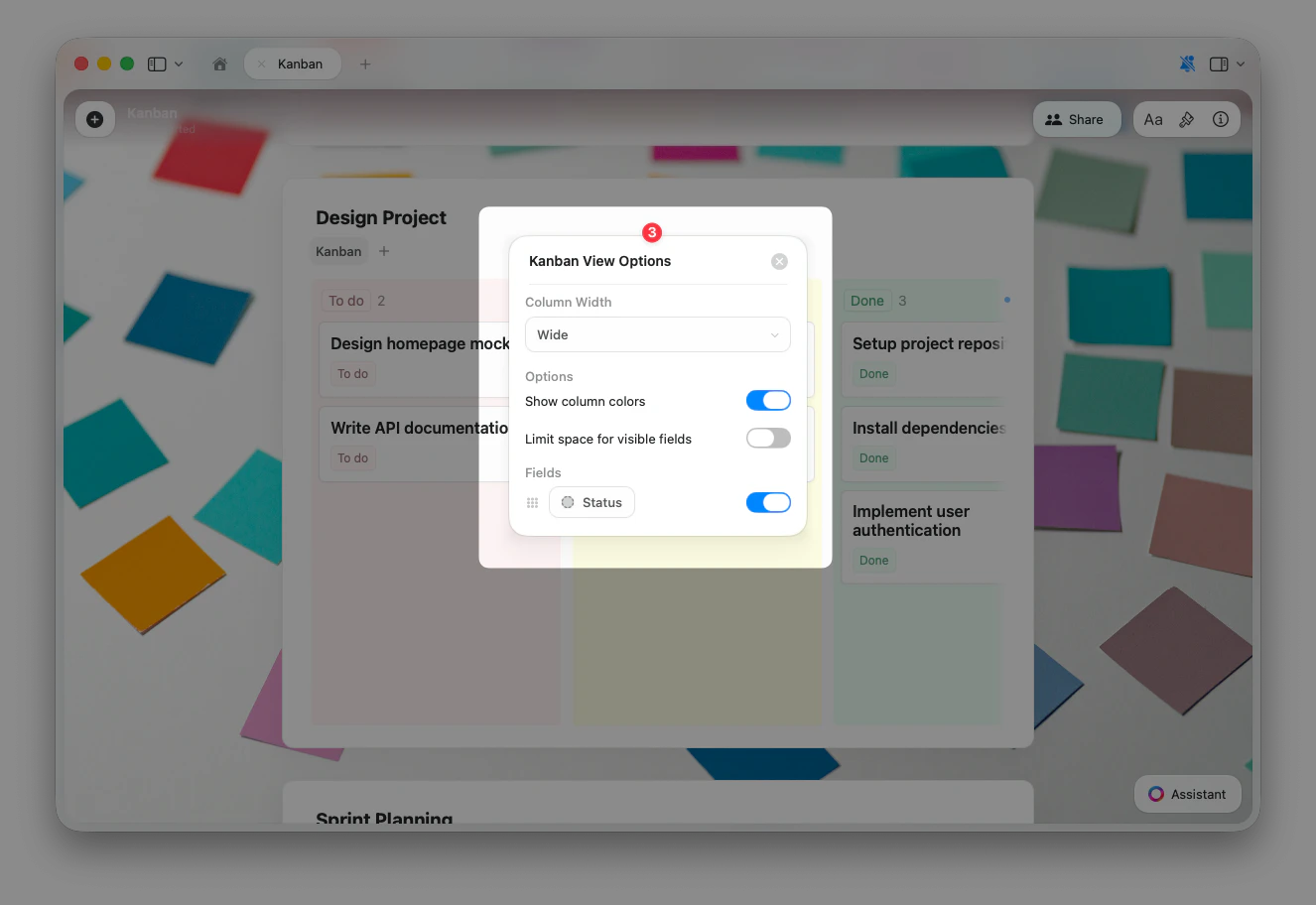
Access Kanban-specific settings by clicking the view name at the top of your Collection and selecting Kanban View Options.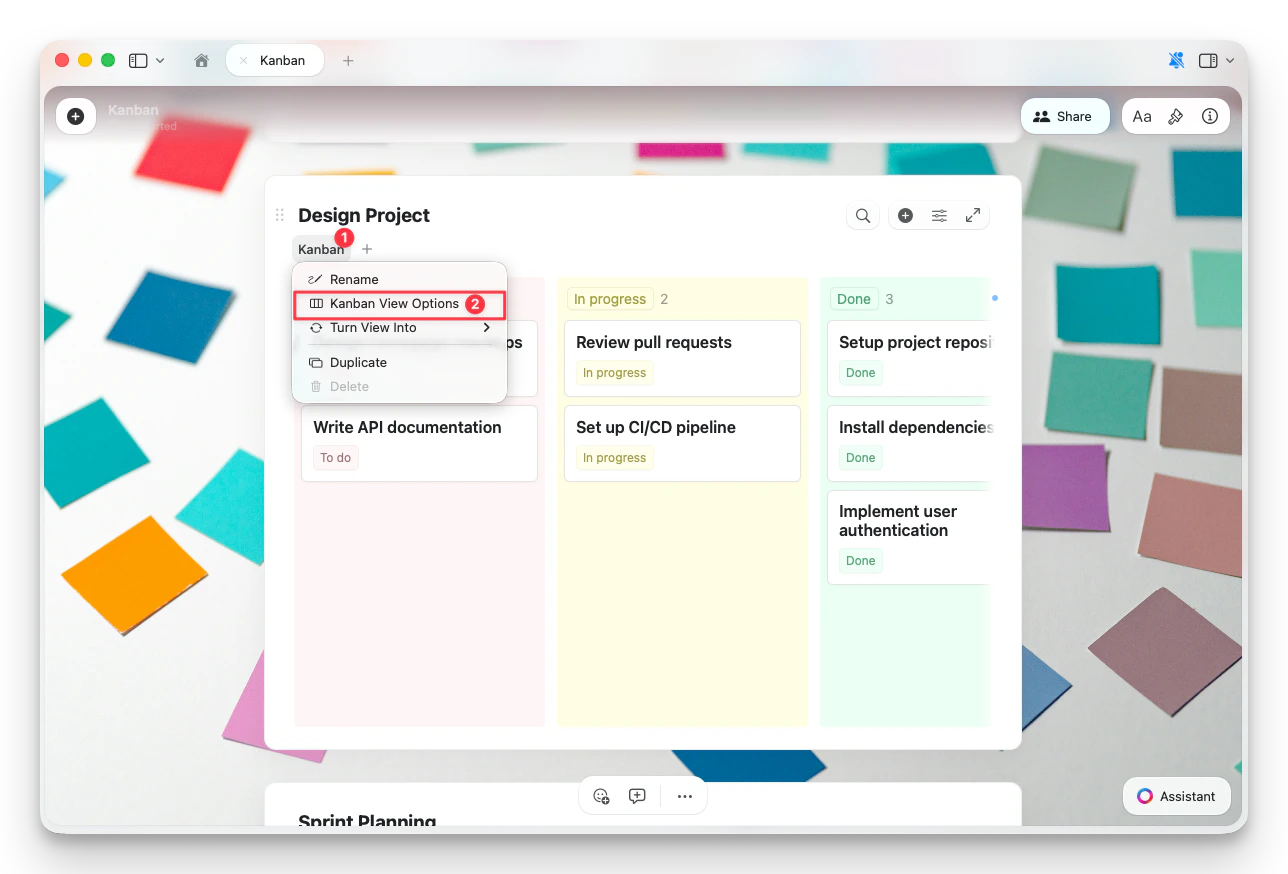
Sorting, Filtering, and Grouping
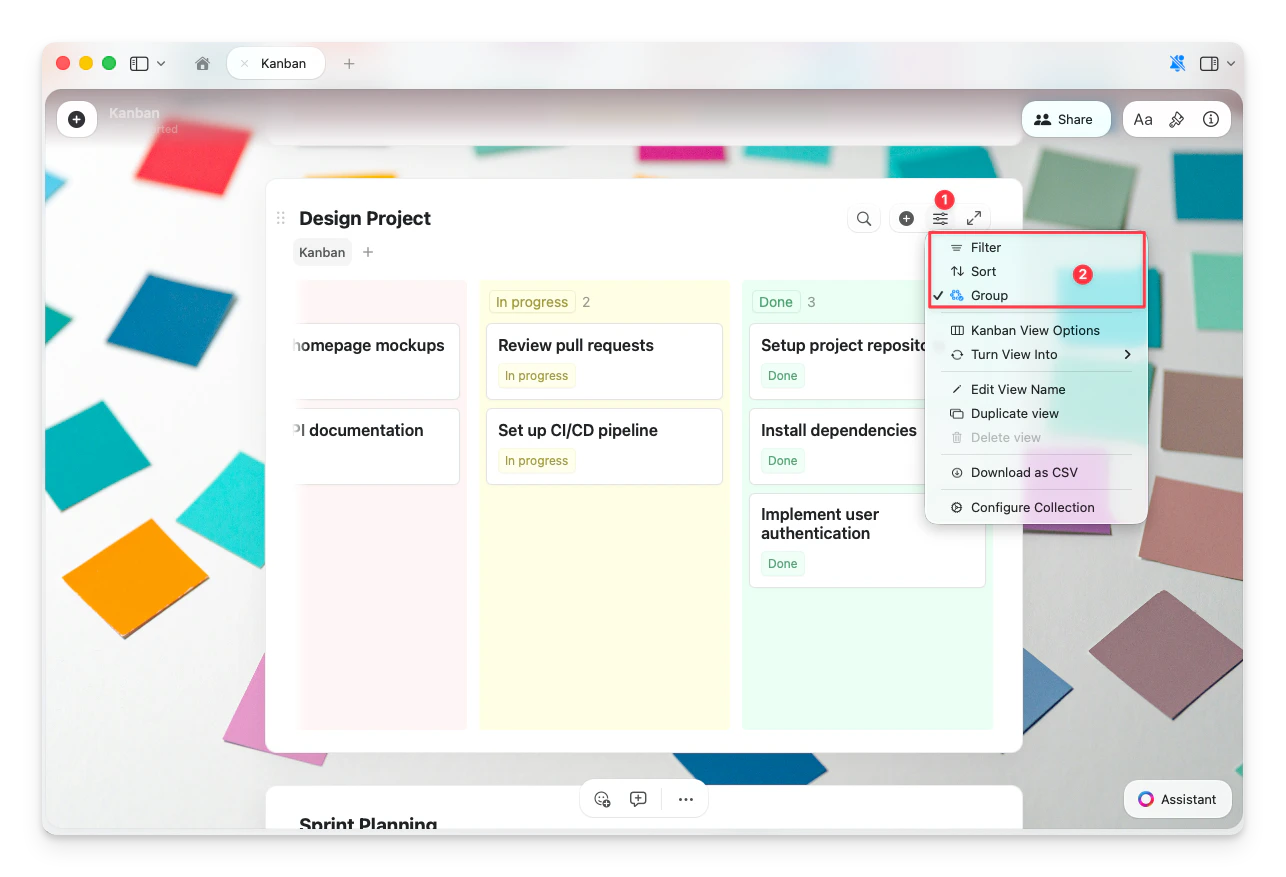
Kanban View supports the same sorting and filtering options available in Table and Gallery views. Grouping is enabled by default — it defines which field controls the columns. Click the configure button (☰) at the top of your Collection to access:- Filter — show only cards matching specific criteria
- Sort — order cards within each column
- Group — change which field the columns are based on
Additional Options
The configure button (☰) menu also includes:- Kanban View Options — column width, colors, and field visibility
- Turn View Into — convert to a Table or Gallery view
- Edit View Name — rename your Kanban view
- Duplicate View — create a copy with the same settings
- Download as CSV — export your Collection data
- Configure Collection — manage fields and collection settings
Troubleshooting
New cards appear in the wrong column
New cards appear in the wrong column
New items are added to the first visible column by default. To add a card directly to a specific column, use the + button within that column.
I see a 'None' column I don't want
I see a 'None' column I don't want
The None column appears when some items don’t have a value for the grouped field. You can either assign a value to those items so they move to a named column, or hide the None group to remove it from your view.
I can't delete a column
I can't delete a column
Column names are based on field values. Use the … menu on the column header to edit, delete, or hide the group. The None column cannot be deleted, but you can hide it from your view.
I cannot configure my collection (iOS)
I cannot configure my collection (iOS)
Tap the fullscreen button at the top of the collection to enter Full Screen view. In this view you’ll access filtering, sorting, grouping, view options, and other configuration options. The inline collection block has limited configuration compared to its Full Screen counterpart.
Related Articles
Collections
Learn about Craft Collections and field types
Collection Views
Create views with sorting, filtering, and grouping
Gallery View
Display your Collection as visual cards with image previews
Using Collections on iOS
Touch-optimized Collections on iPhone and iPad