

Custom domains are available on Plus or higher subscription plans.
craft.me Link vs. Custom Domains
Craft offers two types of domain customization:craft.me Link (Free)
Every Craft user gets a personalized craft.me link available on all plans including Starter. Default format -brave-lion-456.craft.me (randomly generated)
Customized format - yourname.craft.me (personalize for free)
To customize your craft.me link:
1
Go to Settings
2
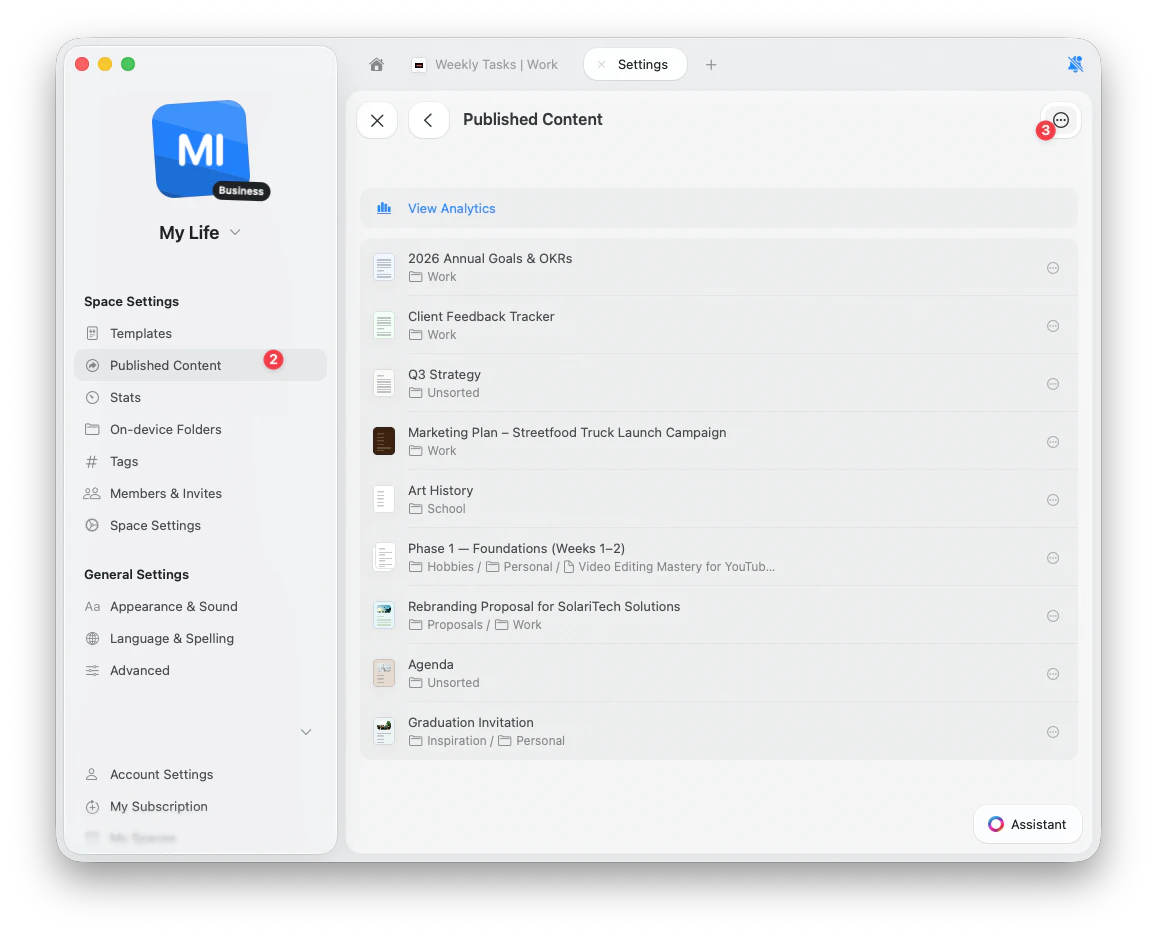
Navigate to Published Content
3
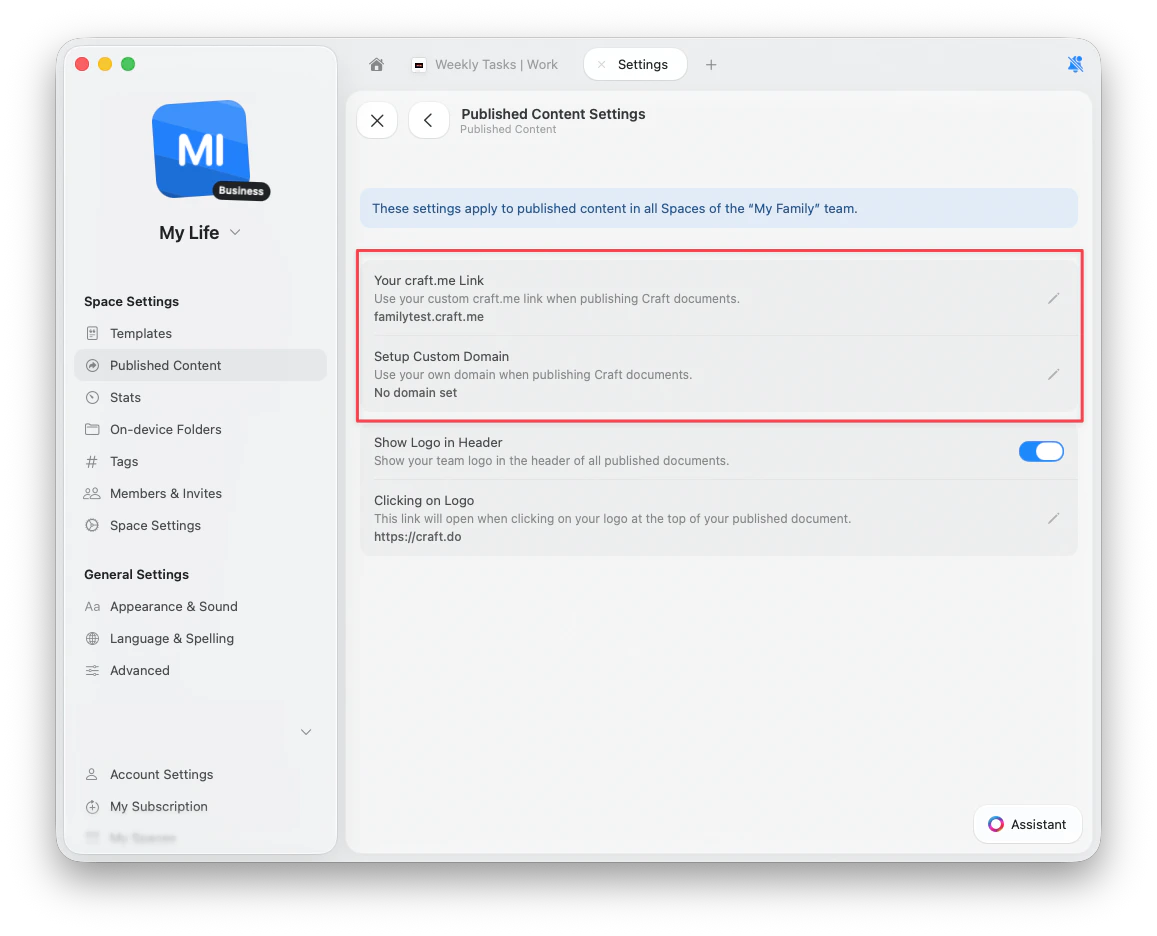
Click the … (three dots) button, then select Settings
4
Click Your craft.me Link
5
Enter your desired subdomain (e.g.,
yourname for yourname.craft.me)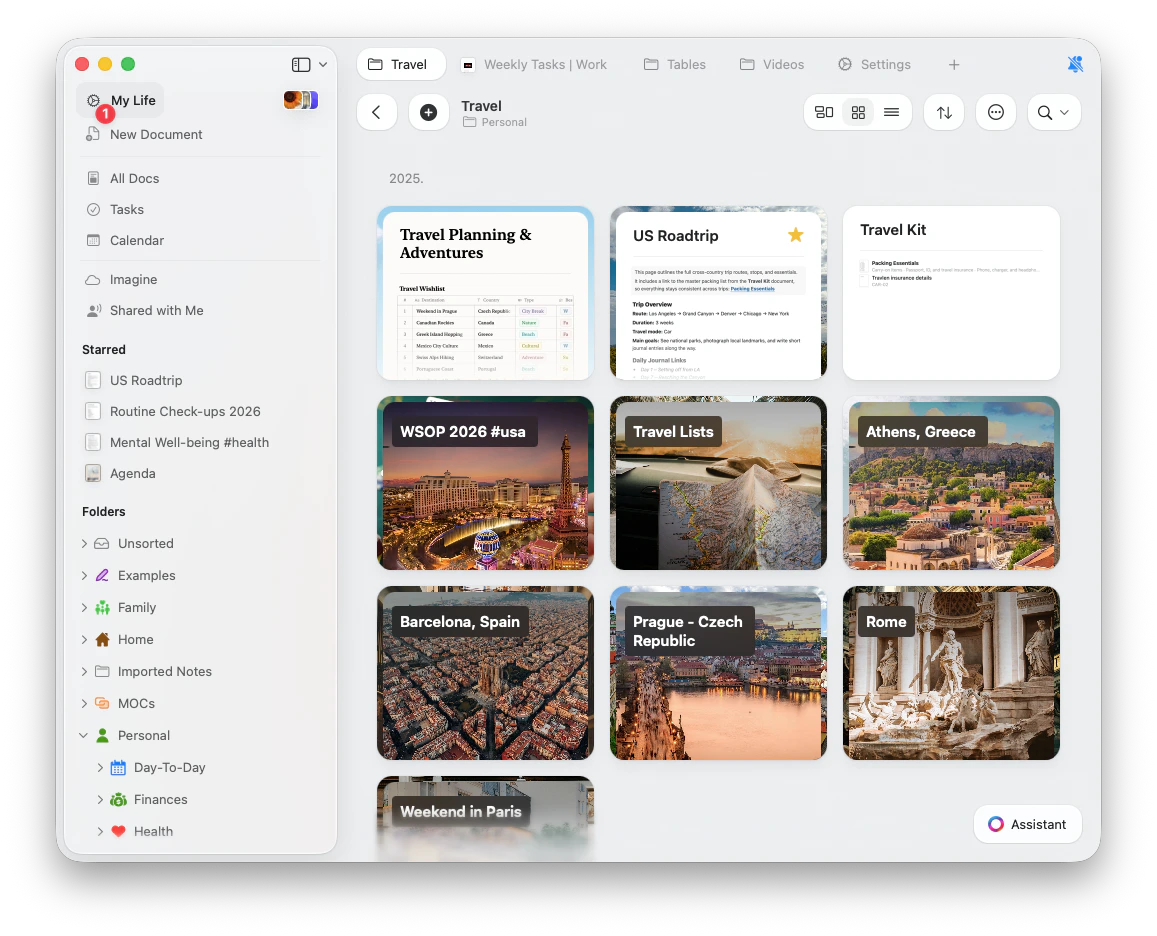
Custom Domains (Plus+)
Connect your own domain for complete brand control. Example -blog.yourcompany.com or docs.yourcompany.com
This allows published documents to appear as part of your primary website, creating a seamless experience for readers.
Setting Up Custom Domains
To use your own custom domain, you’ll need to modify DNS records through your domain provider.Step 1: Access Domain Settings
1
Go to Settings
2
Navigate to Published Content
3
Click the … (three dots) button, then select Settings
4
Click Setup Custom Domain
5
Enter your subdomain (e.g.,
blog.yourcompany.com)Step 2: Configure DNS Records
Add the CNAME records provided by Craft to your domain’s DNS settings. Instructions vary by provider:Cloudflare
Cloudflare
-
Set CNAME Record
To connect a subdomain (e.g.,
blog.yourcompany.com):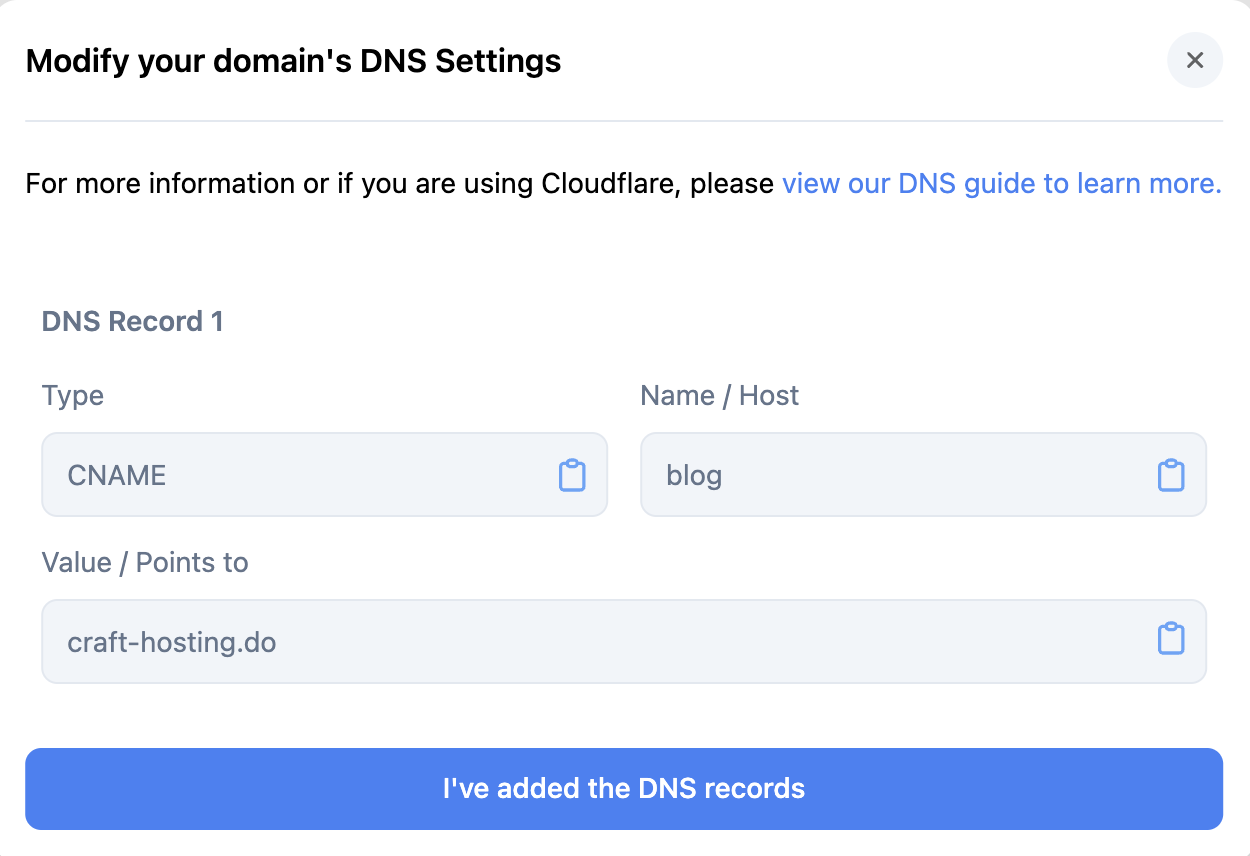
-
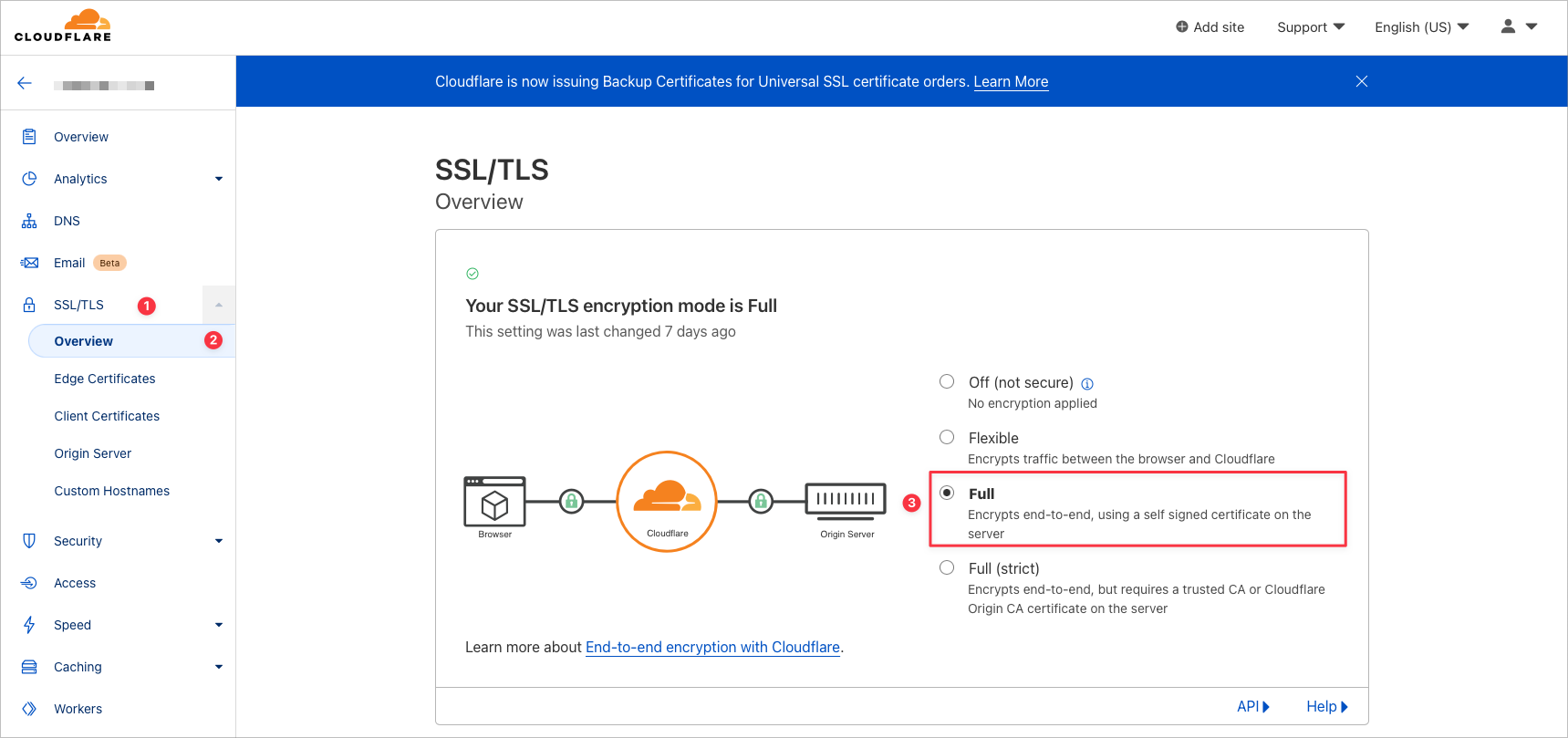
Configure SSL/TLS
Set encryption mode to Full or Full (strict) to prevent redirect errors:
GoDaddy
GoDaddy
1
Log in to GoDaddy and navigate to Domain Management
2
Under My Products, click Manage DNS next to Domains
3
Select the domain you want to manage
4
Click Add to create a new record
5
Paste in the CNAME records provided by Craft
6
Save your records
7
Return to Craft and click I’ve added my DNS record
Namecheap
Namecheap
1
Select Domain List from the left sidebar
2
Click Manage next to your domain
3
Click Advanced DNS
4
Click Add New Record
5
Paste in the CNAME records from Craft
6
Save your records
7
Return to Craft and click I’ve added my DNS record
Bluehost
Bluehost
1
Click the Domains tab from the side navigation
2
Click the dropdown next to Manage, then choose DNS
3
Scroll down and click Add Record under the CNAME section
4
Paste in the CNAME records from Craft
5
Save your records
6
Return to Craft and click I’ve added my DNS record
Step 3: Verify Connection
After adding DNS records:- Click I’ve added my DNS record in Craft
- DNS propagation begins (usually a few minutes, up to 24 hours)
- The status indicator changes from amber to green when verified
- Your custom domain is ready to use
Managing Custom Domains
Disconnecting a Domain
If you need to change or remove your custom domain:1
Go to your Team Settings
2
Scroll to the Danger Zone section
3
Select Disconnect Custom Domain
Using URL Paths
Craft supports customizing both the domain and the URL path: Full URL structure -subdomain.domain.com/custom-path
For example: blog.company.com/product-launch
Where:
blog= subdomaincompany.com= main domainproduct-launch= custom path
Single-character path segments are not supported (e.g.,
blog.company.com/b/post won’t work).Frequently Asked Questions
Can I use a root domain?
Currently, Craft only supports subdomains, not root domains. Supported -blog.company.com/post
Not supported - company.com/post
Some users work around this by using www as the subdomain with / as the path, but this is provider-specific and not officially supported.
How many domains can I add?
Craft currently supports one custom domain per team. You can change your domain as often as needed, but only one domain can be active at a time across all documents and spaces.Do I need to purchase a domain through Craft?
No, Craft doesn’t sell domains. You must already own a domain through a registrar like GoDaddy, Namecheap, Google Domains, or others.What happens to old links after changing domains?
If you disconnect or change your custom domain:- All published links revert to
craft.me/s/pathformat - Old links with your previous custom domain will stop working
- The original Craft links continue to work
- You should update any shared links to reflect the change
What if I cancel my Plus subscription?
If you downgrade to Starter:- You cannot add new custom domains
- Existing custom domain links continue to work
- You cannot modify or update the custom domain configuration
- All Starter plan limitations apply
Can I revert to Craft links for one document?
No, custom domains apply to your entire team and cannot be removed for individual documents. To usecraft.me links again, you must disconnect the custom domain entirely (affecting all published content).
Troubleshooting
Custom domain not working after 24 hours
Custom domain not working after 24 hours
If your custom domain isn’t working after 24 hours:
- Verify DNS records are correctly added
- Ensure old DNS records are removed
- Check SSL/TLS settings (should be “Full” or “Full (strict)” for Cloudflare)
- Use whatsmydns.net to verify DNS propagation
- Contact support at feedback@craft.do if issues persist
Document link not recognized after setting up custom domain
Document link not recognized after setting up custom domain
Once your custom domain is successfully verified and activated, you may see a message when opening the page indicating no document is found.Solution - You need to assign a “Home Page” for your custom domain.This sets the document as the root page of your custom domain. For example, if your domain is
1
Share any document in your Space that you want to be the home page
2
In the sharing settings, remove the URL path completely
3
Click Save
blog.company.com, removing the path makes the document accessible at blog.company.com instead of blog.company.com/some-path.For general troubleshooting, sync, or platform-specific issues, see the Troubleshooting Guide.
Publishing Documents
Learn how to publish documents to the web
Branding
Add custom logos to published pages
Analytics
Track engagement on published content