

Inserting Dates
You can add dates in multiple ways:Using the Slash Menu
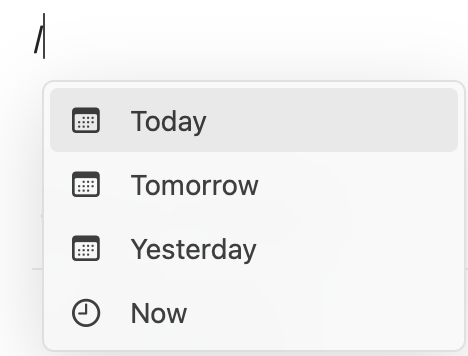
Type/ and then either:
- Type Date & Time to access the date picker
- Type natural language like Today, Tomorrow, or Yesterday
- Type a month name followed by the day (e.g., December 15)
Using the @ Symbol
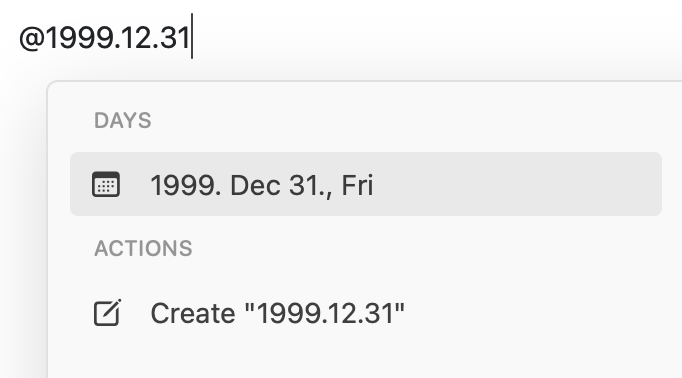
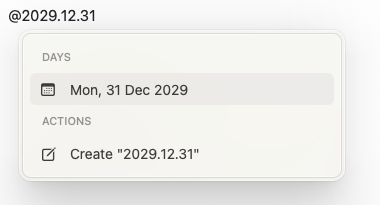
For specific dates, type@ followed by the date in YYYY.MM.DD format:
Date Badges and Daily Notes
Each date badge is also a clickable link to the corresponding daily note. Click any date badge to:- View existing content for that date
- Add new notes or tasks
- Navigate through your daily notes
Date badges automatically connect to daily notes, making it easy to reference and navigate time-based content across your workspace.