

Ways to create a task
You do not have to be in the Tasks view to make a task. Pick whichever fits the moment.Capture into the Inbox
No document in mind yet? Create the task on the Inbox tab of the Tasks view and it lives there, unattached, until you move it into a document. Perfect for jotting things down in a meeting or on the go, then sorting them later. Learn more about the Inbox in The Tasks views.The + button in the Tasks view
Open Tasks and use the + button to add a new task. This is the most direct way when you are already planning your day. On Mac, iPhone, and iPad, the task opens in the Quick Entry panel. On iPhone, you can also touch and hold the Tasks tab.The + on the Tasks sidebar item
Hover over Tasks in the left sidebar and a + appears next to it. Click it to create a task from whatever view you are in, without opening the Tasks view first.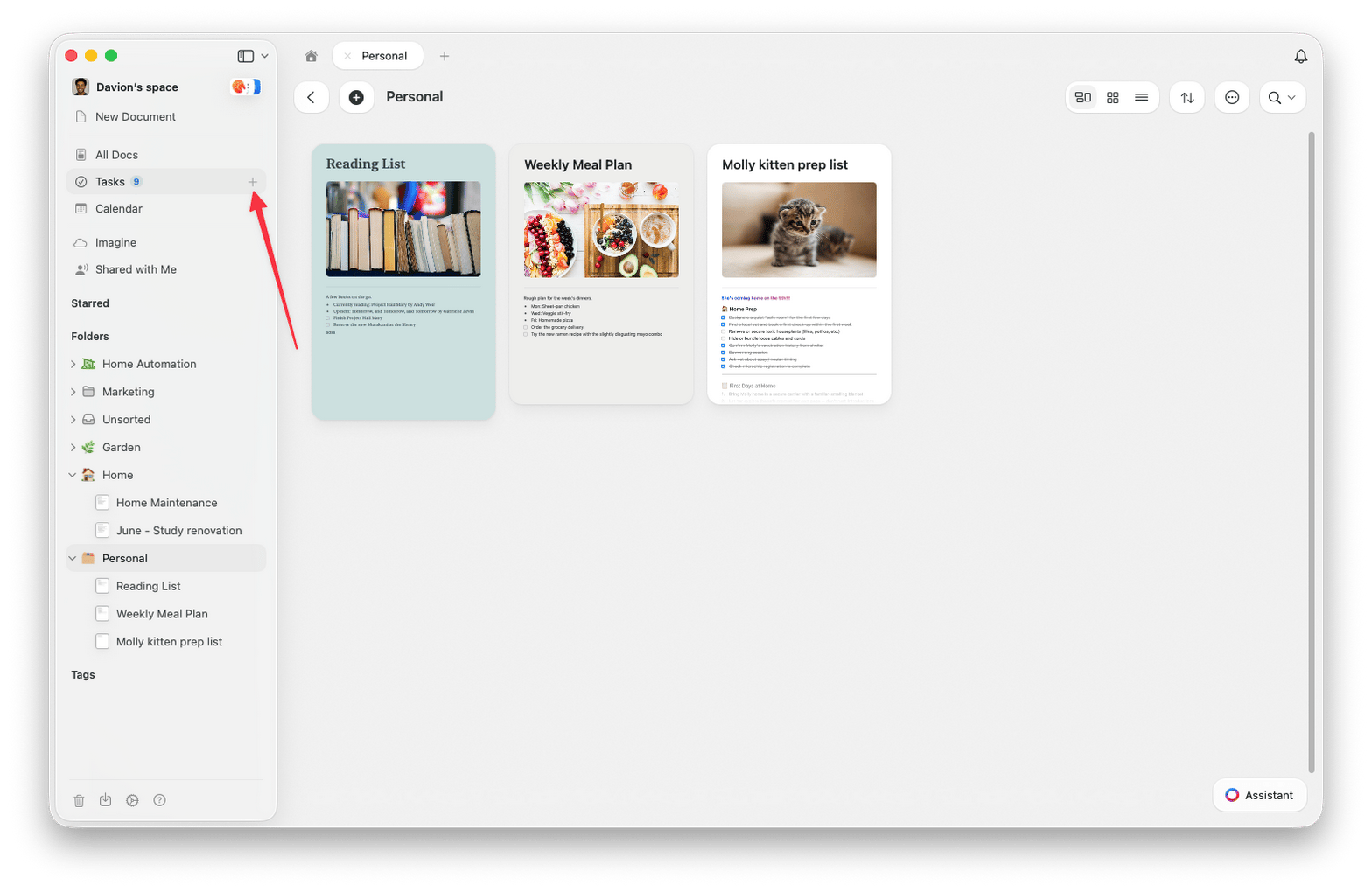
The global Add Task shortcut
PressCmd + J on Mac or iPad, or Ctrl + J on Windows and the web, to create a task from anywhere. On Mac and iPad this opens Quick Entry in New Task mode; on Windows and the web it opens the New Task popover. You can capture a task without leaving the document or view you are in, then get straight back to what you were doing.
Convert a text block into a task
Already wrote something as plain text? On a text block, press one of the task shortcuts to turn it into a task and open the matching picker at the same time:Cmd+Shift+Sfor Schedule Task…Cmd+Shift+Dfor Set Deadline…Cmd+Shift+Rfor Set Reminder…
Ctrl + Shift + S converts the block and opens the schedule picker in the same way. The deadline and reminder shortcuts are available on Mac only.
Type a task inline in any document
Start a checkbox anywhere in a document and it becomes a task. The fastest way is to typex followed by a space at the start of a line, which turns it into a task on the spot. It stays in context with the content around it, and it also appears in your Tasks view grouped under that document, so you can act on it from either place.
Sync from Apple Reminders
On Mac and iOS, Craft can bring in your Apple Reminders so they live alongside your Craft tasks. From the Inbox you can view and import them and choose which lists to display. Overdue reminders surface in your Today view. See Reminders Integration for setup details.Tasks are available in the Mac, iPhone/iPad, Windows, and web apps with the same core feature set. Some capabilities, such as Apple Reminders import, are specific to Mac and iPhone/iPad.
Related articles
Dates, deadlines & reminders
Give tasks dates, reminders, and repeat rules
The Tasks views
The Inbox, Today, Upcoming, and All tabs
Reminders Integration
Import tasks from Apple Reminders into Craft
Tasks overview
Back to the Tasks overview