

What Is App Style?
App Style applies your document’s text and background colors to parts of the Craft interface. This creates visual consistency between your content and the editing environment.Example Comparison
App Style disabled: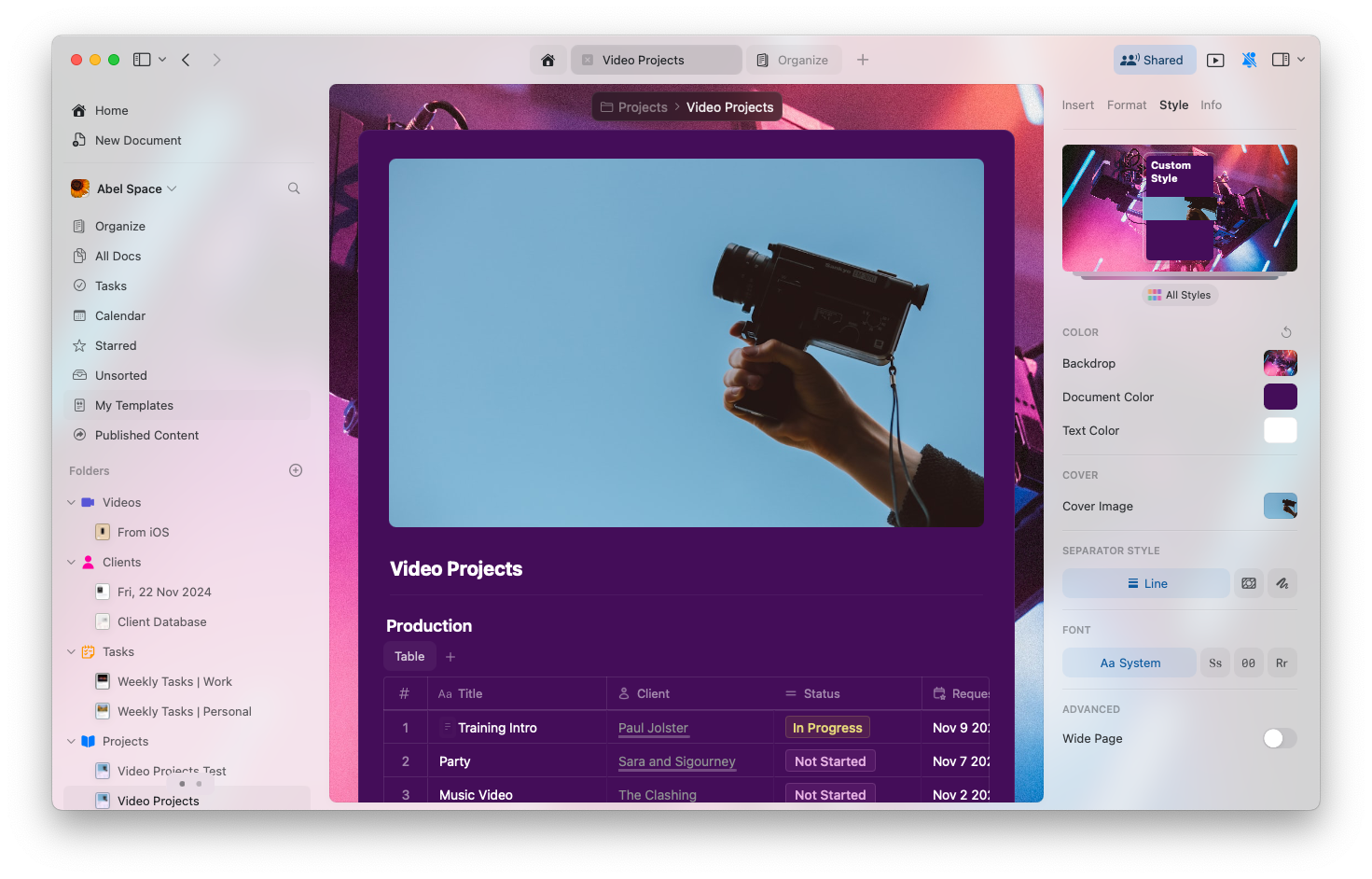
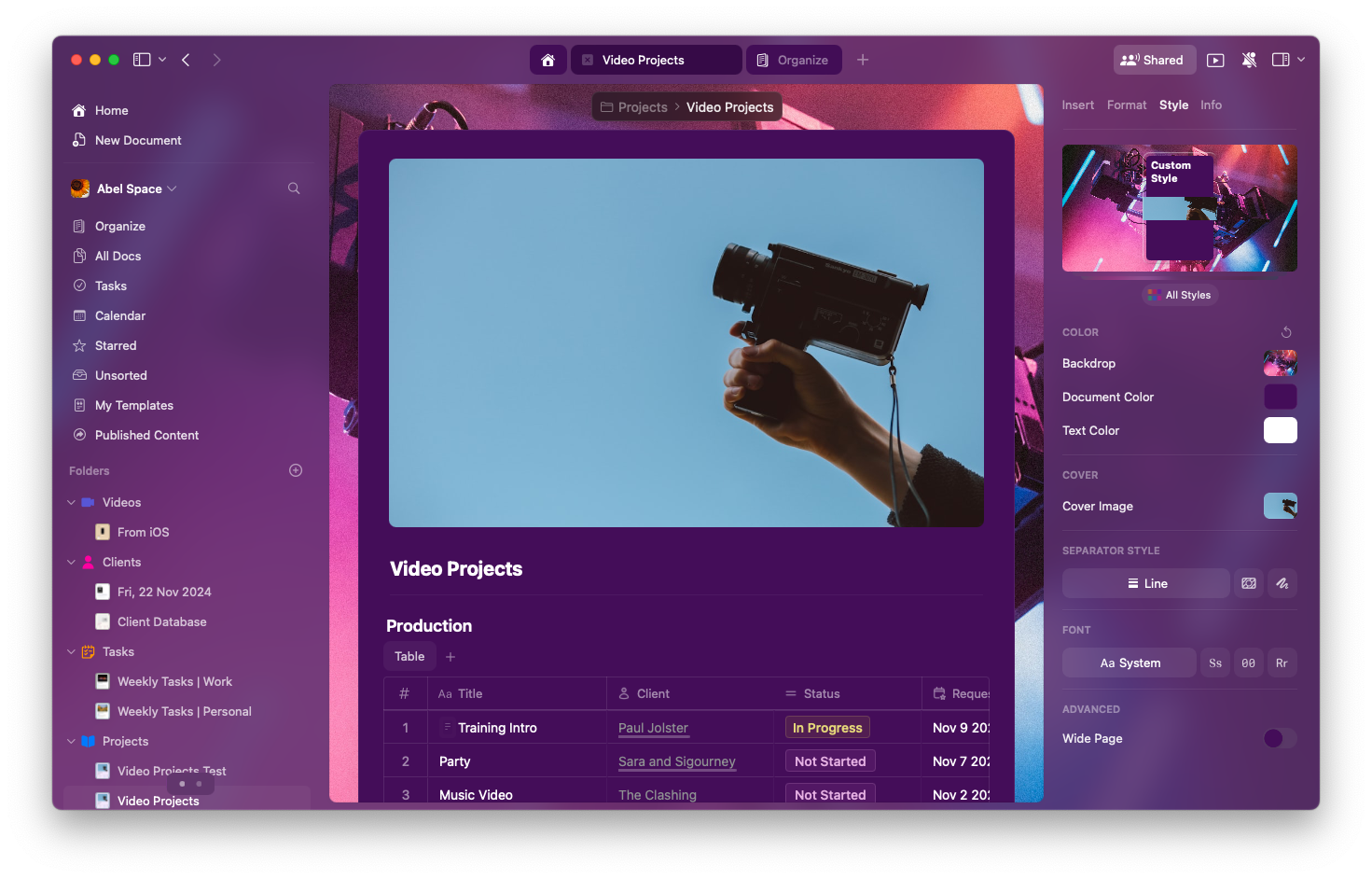
Platform Availability
- macOS
- iPad
- iPhone
App Styles are fully supported on Mac:
- Available in: Editor view only (Home and Browse use system default)
- Applies to: Sidebar, toolbar, and UI chrome
- Uses: Document text and background colors
- Fonts: System fonts are maintained for readability and performance
Enabling or Disabling App Styles
1
Open Settings
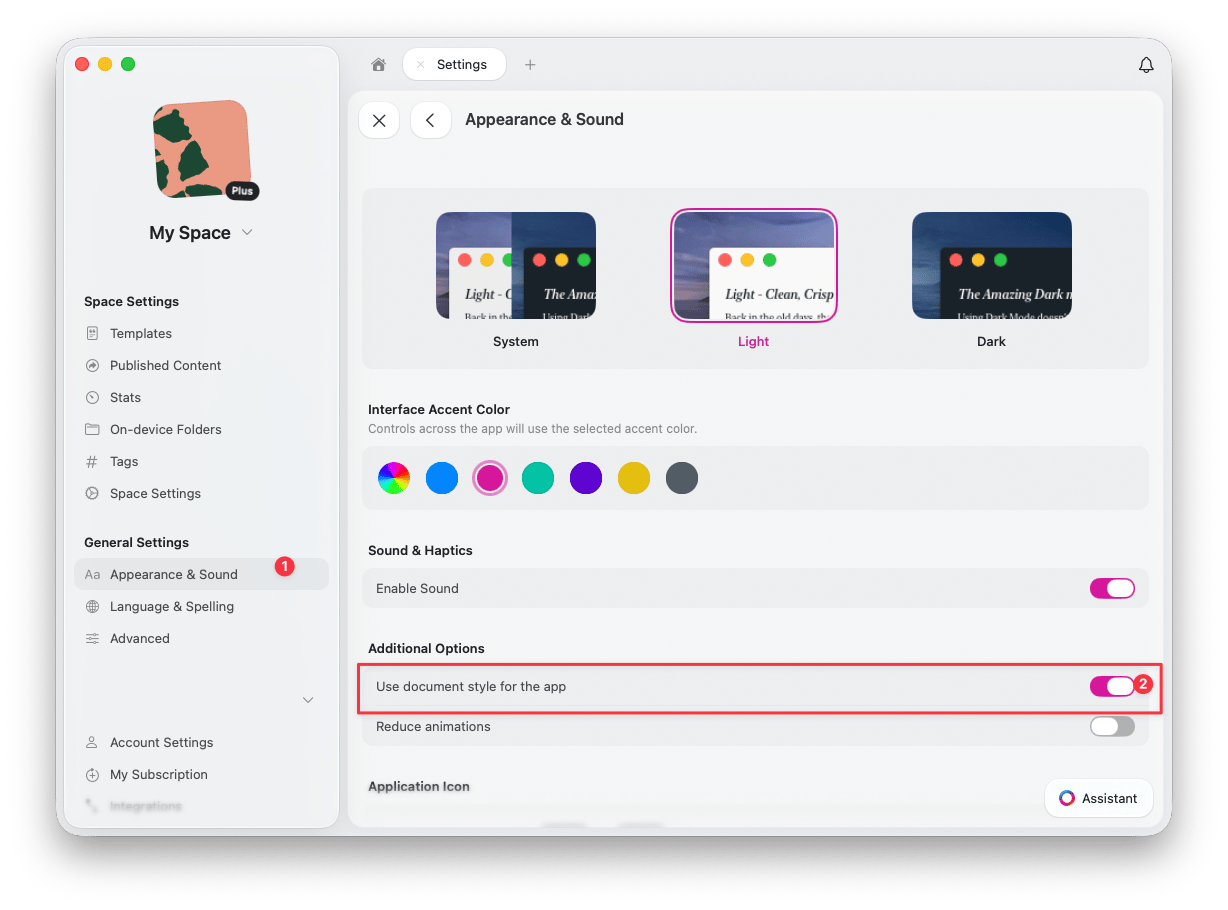
Open Settings > Appearance & Sound
2
Toggle Use document style for the app
Under Additional Options, toggle “Use document style for the app” on or off
Why Use App Styles?
App Styles offers several benefits:- Immersive experience – Create a cohesive visual environment
- Mood matching – Align the interface with your content’s tone
- Reduced distraction – Minimize visual breaks between content and interface
- Personalization – Make Craft feel more like your own workspace
Limitations
- Fonts – The UI continues to use system fonts for readability
- Other views – Home, Browse, and other sections use the default UI
- Platform – Currently not available on iPhone
Related Articles
Styles Quick Guide
Comprehensive guide to all styling features
Default Styles
Set your preferred style as the default
Cover Images
Customize cover images for your documents