

A card and a page work the same way under the hood. Cards are simply pages with extra visual styling: background, color, preview, or format. Everything you can do on a page, you can also do inside a card.
Creating a card
1
Open the slash menu
Type
/card in your document.2
Pick a style
Select the card style from the menu.
3
Insert
The card is inserted as a new page block.
Backgrounds
Cards can be customized with three background types:-
Solid colors: pick from the color palette or set a custom color.

-
Unsplash images: search and select professional photos directly inside Craft.
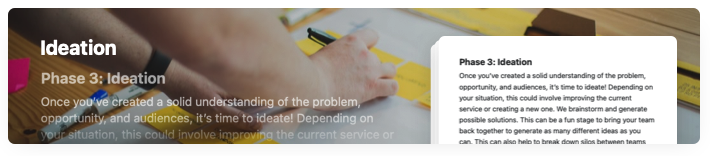
- Your own images: upload an image from your device.
Preview styles
A card’s preview controls how its content appears on the parent page. Choose from five options:- Standard: the default preview, showing the title and a snippet of the card’s content.
- Emoji: pick up to four emojis to display on the card instead of the text preview.
- Book: styled like a page from a book.
- Sticky note: styled like a yellow notebook page.
- Gallery: a collage showing up to three images from inside the card instead of the text preview.
Card formats
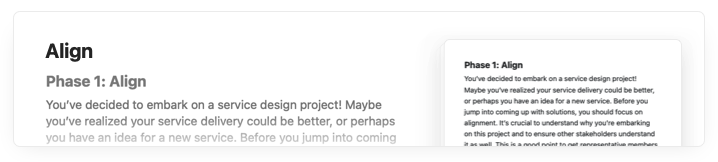
Cards come in five formats that change how prominently they appear in the document. Mix and match them to create hierarchy and visual interest.The two largest card formats are available with Craft Plus. The other three formats are available on all plans.
Video tutorial
Use cases
Cards are particularly useful for:- Project planning: create visual sections for different project phases.
- Knowledge bases: organize topics with visual hierarchy.
- Meeting notes: separate agenda items or discussion topics.
- Content planning: organize ideas with visual differentiation.
Related articles
Styles Quick Guide
Comprehensive guide to all styling features
Cover Images
Customize cover images for your documents
Blocks and Pages
Understanding the building blocks of Craft